Introduction
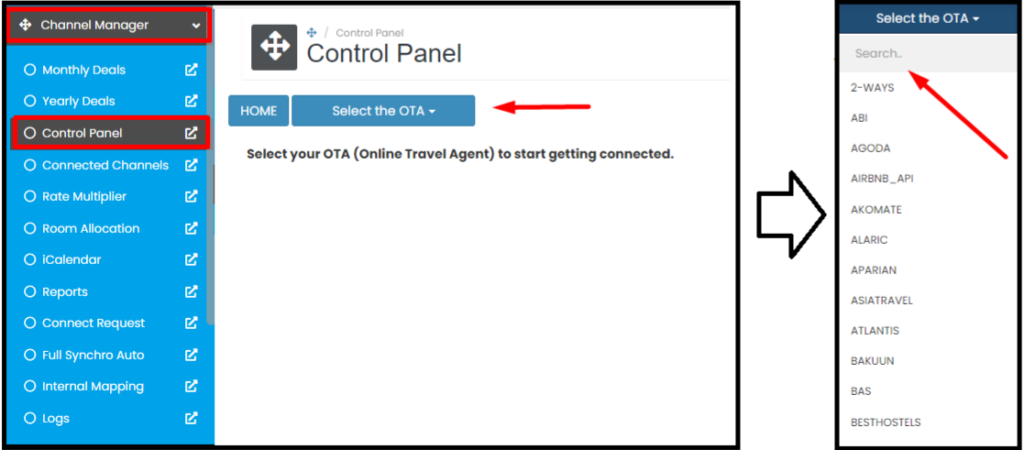
How to Add Mapping
Step 1 : Search and Choose Hostelworld on the control panel. 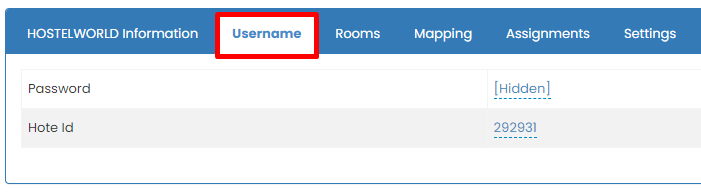
Step 2 : Go to Username tab and input Password & Hotel ID..
Notes : Password -> you password for login to Hostelworld extranet. 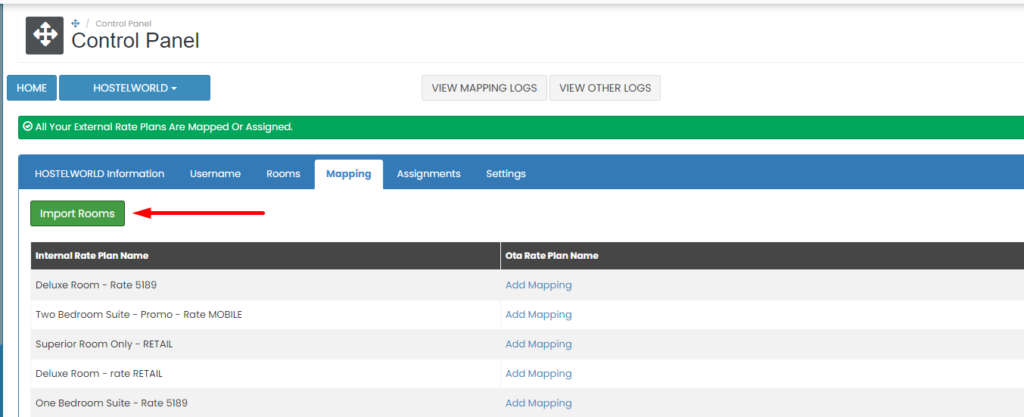
Step 3 : Go to Mapping tab and click Import Room.
Notes : - Clicking import room functions to pull up the rate plan in the ota extranet so that it can be mapped to the channel manager. - Pleasure make sure there is an active rate plan on the OTA extranet. 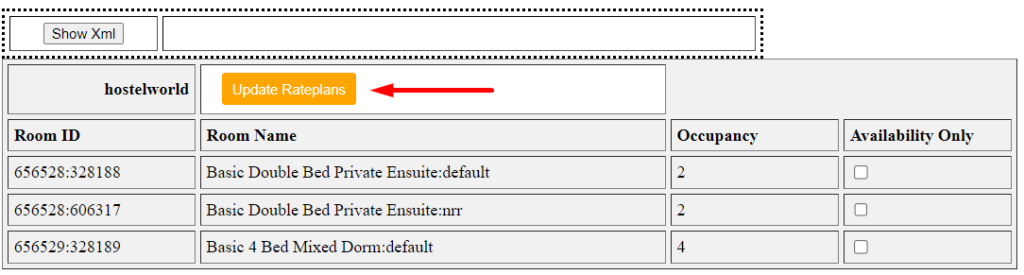
Step 4 : Then a pop up will appear containing the active rate plan on the ota extranet, please click Update Rateplans so that the rate plan is entered into the channel manager.
Notes : - At this step you can also choose how the channel manager will push updates to the relevant OTA. In the Availability Only section, if it is Checked, the channel manager will only push inventory. If the Availability Only section is Not Checked, the channel manager will push inventory, prices and restrictions. 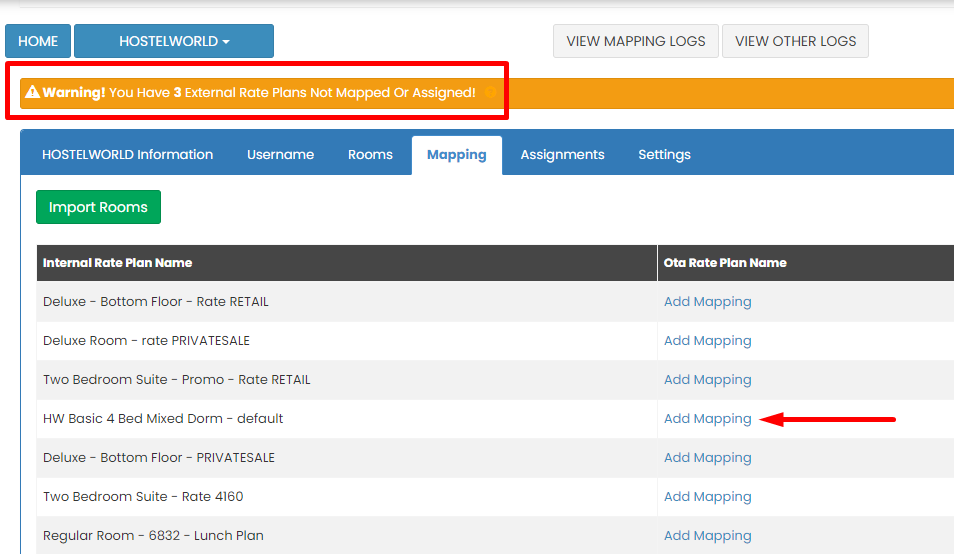
Step 5 : You will find Warning notification, this indicate that import rooms are succesfull, click Add mapping to start mapping. 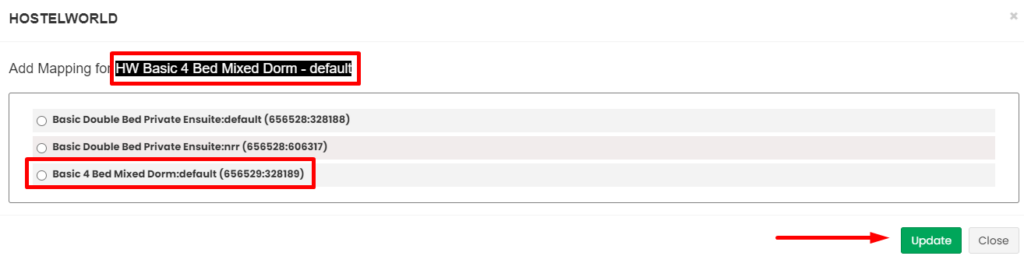
Step 6 : Choose ota rateplan that suitable with internal rateplan and then click Update.
Notes : Please make sure all ota rateplan are mapped or assign, any rateplan miss map or assign can causing error on coming reservation. 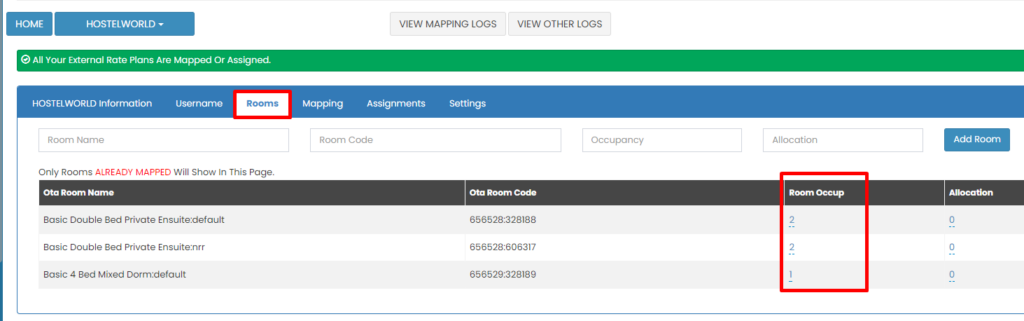
Step 7 : After all rateplan are mapped, please check again Room Occupancy on Rooms tab. Please make sure for Dorm occupancy are 1 and for Private occupancy is according to the number of pax.
Notes : You can see your type of rooms (Dorm or Private) from hostelworld extranet calendar. 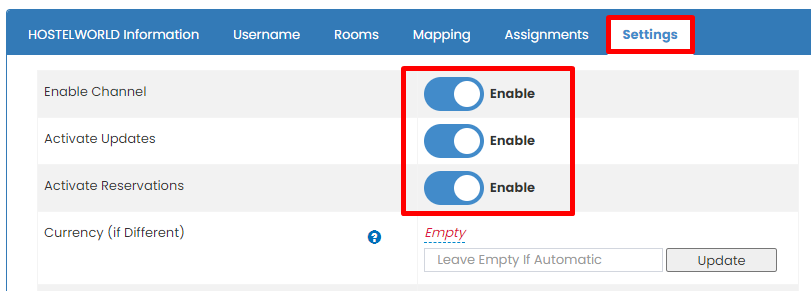
Step 8 : Make sure on Settings this button is Enabled. Step 9 : do OTA Update through Monthly Deals or Yearly Deals. Step 10 : Please double check on log update and on ota extranet.