Introduction
This feature allows you to manage all invoices and property list. You can check, track and proceed the payment here. This section helps you monitor your billing history and ensure all transactions are up to date. To access this page, navigate to Account > Billing.
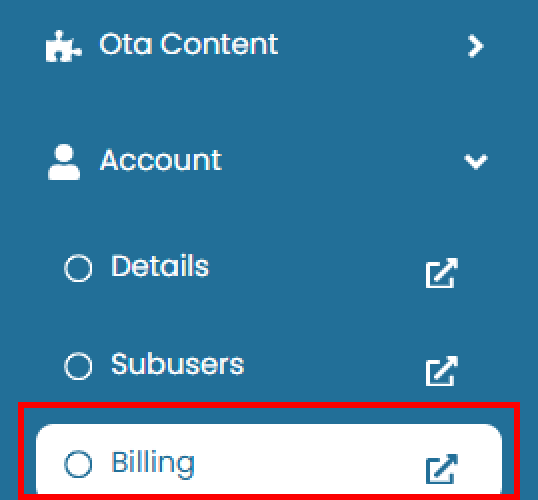
Billing
Billing is section that allows you to track invoice and manage them. You can manage the payment process here too.
View and Navigate
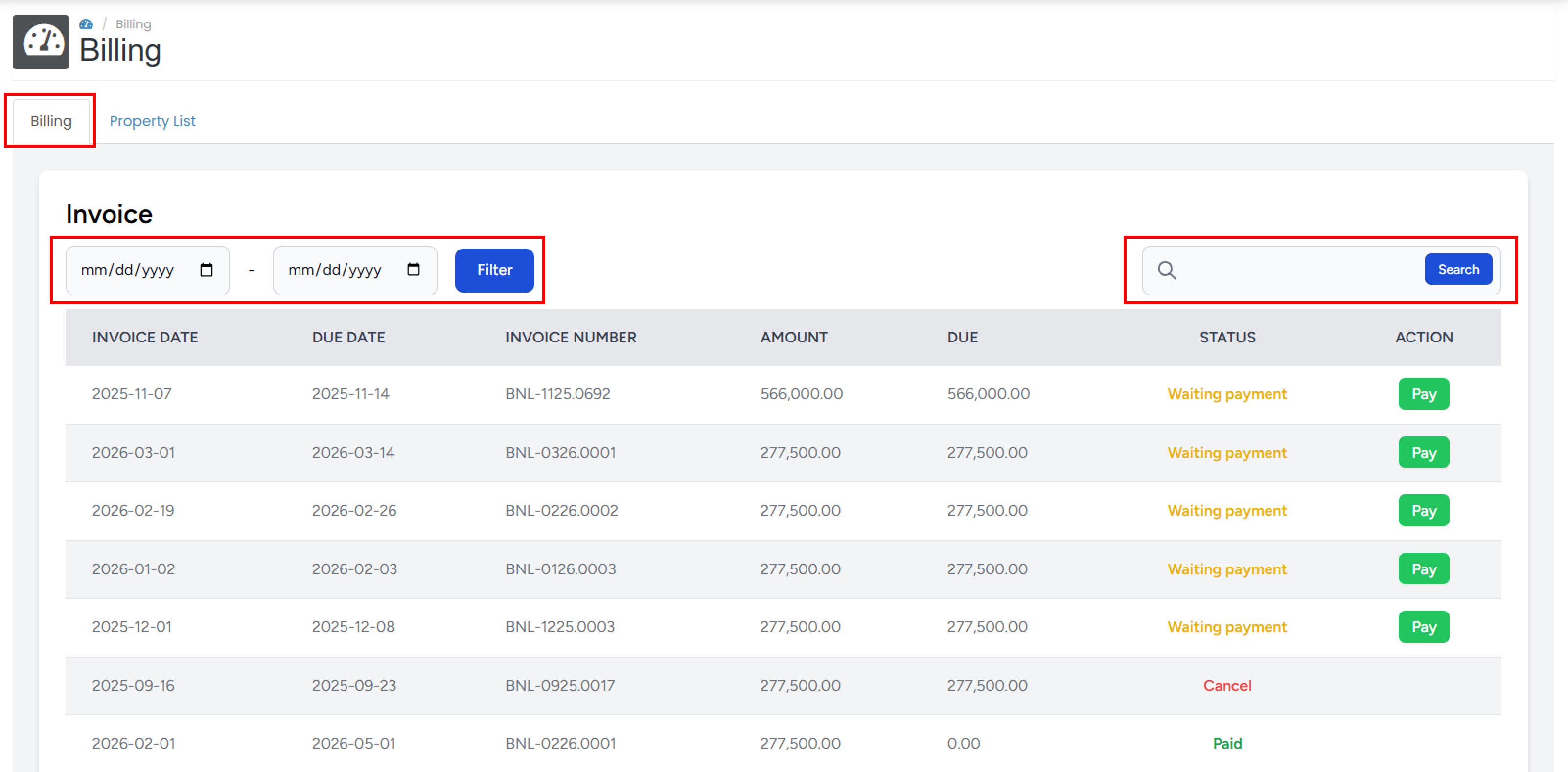
- Billing section, to switch to billing section, click Billing on the tab bar.
- Date Filter, to filter the data in date range. See Date Filtering for more details.
- Use the Search bar to quickly find specific invoice by keywords such as Invoice Date, Due Date, Invoice Number, Amount, Due and Status. See Search Data for more details.
Date Filtering
to filter the data between the start and end date input.
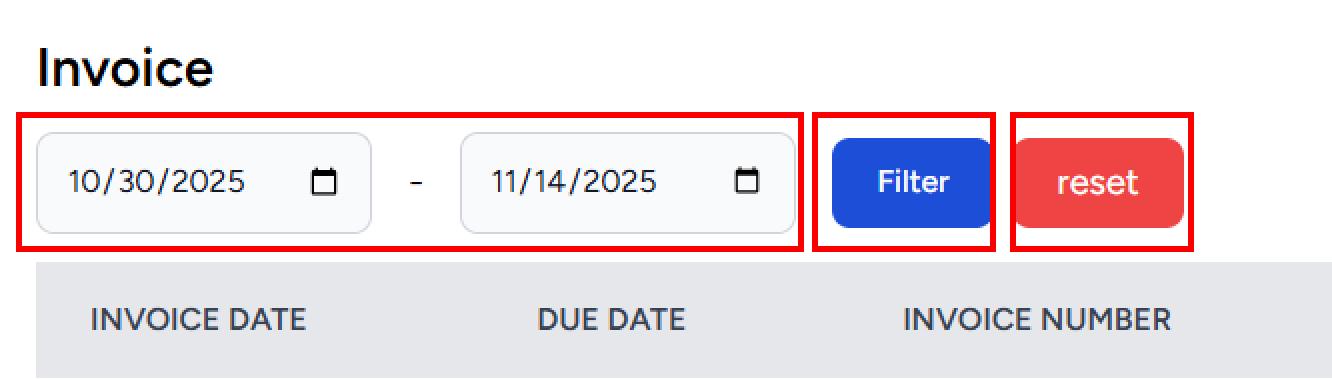
- Pick the start and end date.
- Click the Filter button. The table will shown the result that match the filter.
- Click the reset button to reset the date filter.
Search Data
The Search feature allows you to quickly locate sub-users by typing keywords such as:
- Invoice Date
- Due Date
- Invoice Number
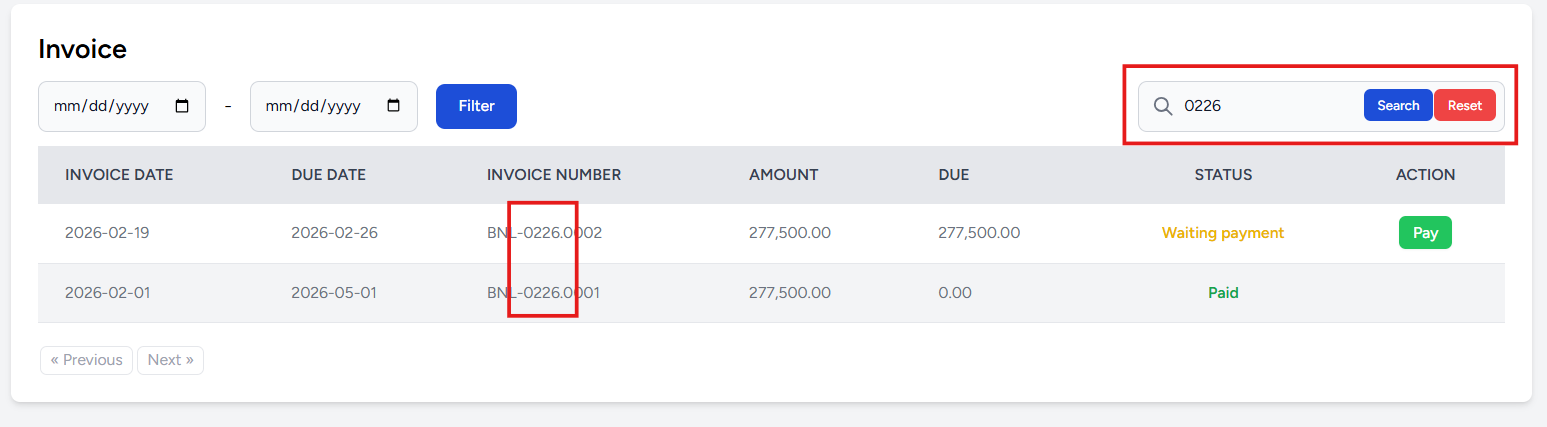
- Type the keyword on the search bar
- Click the Search button, The table will automatically display results that match your keyword.
- To reset the filtered search result, click the Reset button.
How to Pay
Invoices that require payment are marked with the Waiting Payment status. These items will also display a Pay button in the Action column.
- Click the pay button.
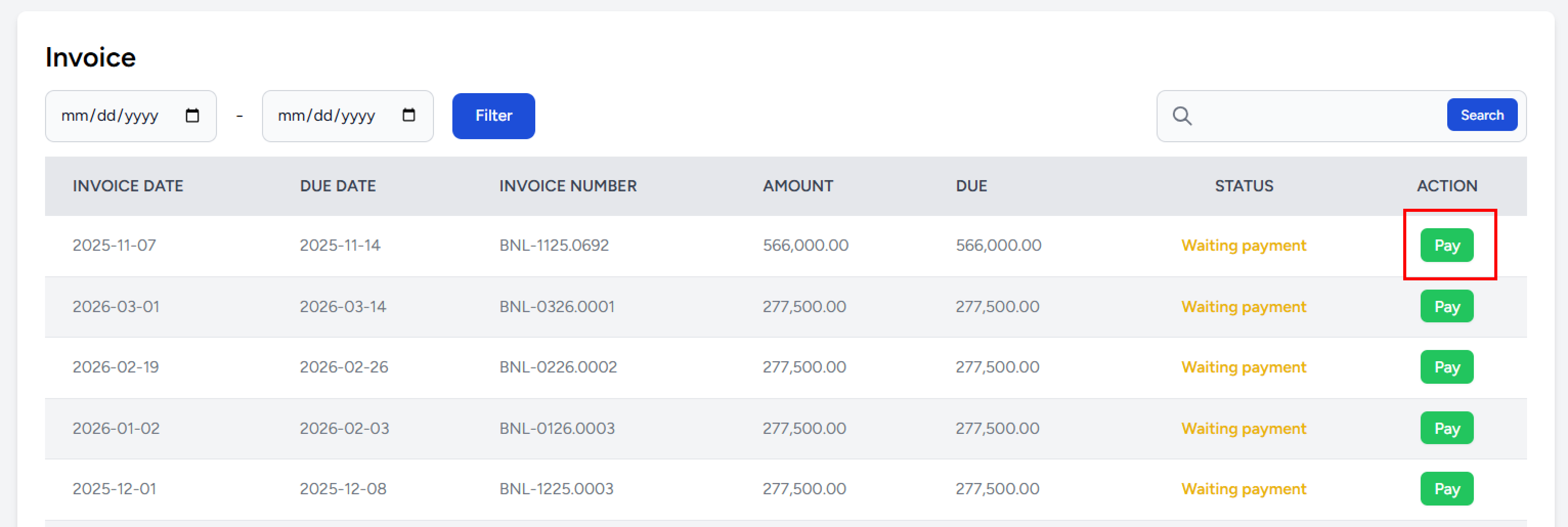
- You will be redirected to a payment page containing:
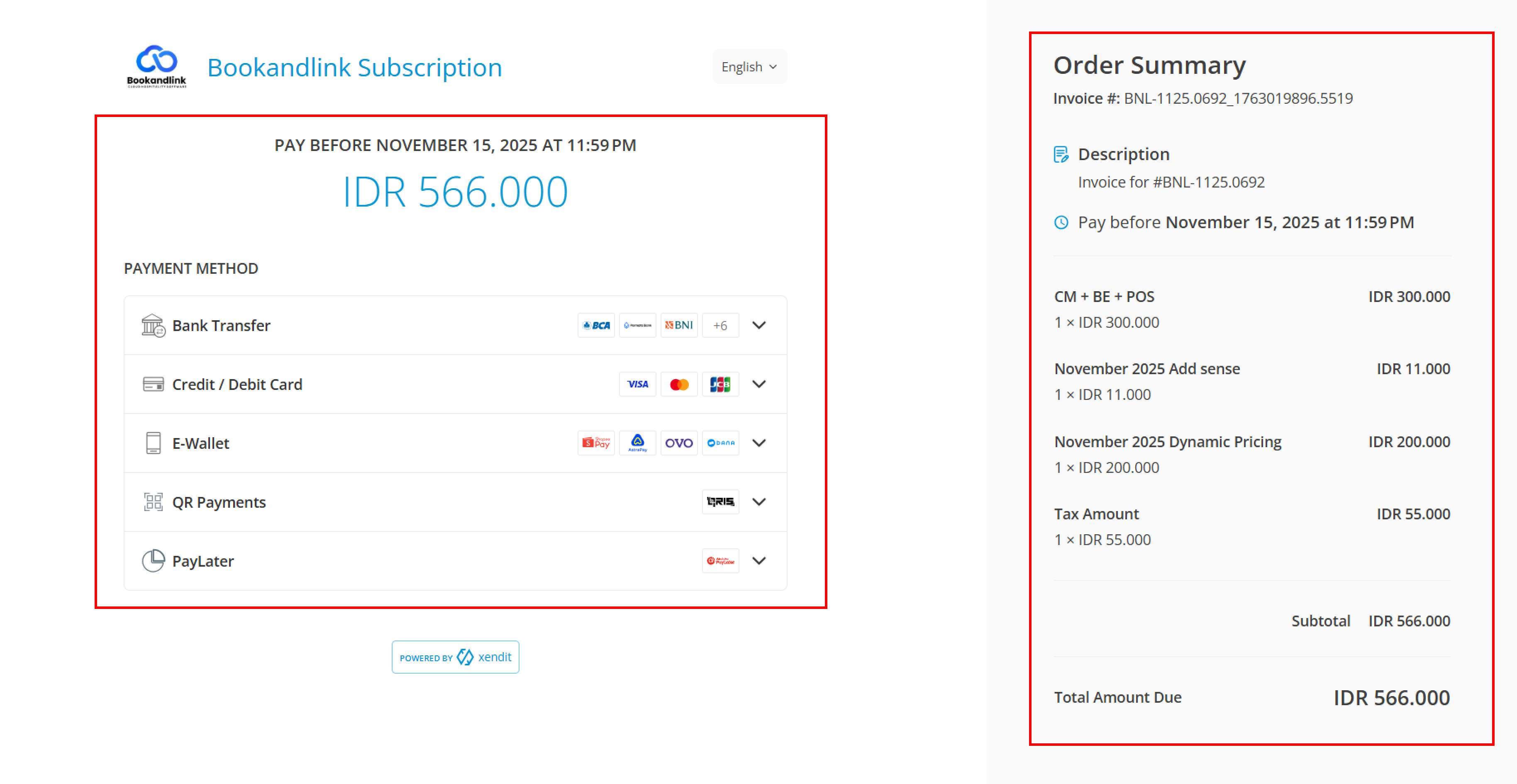
- Order summary Displays the invoice number, listed items, subtotal, due date and total amount.
- Payment Method
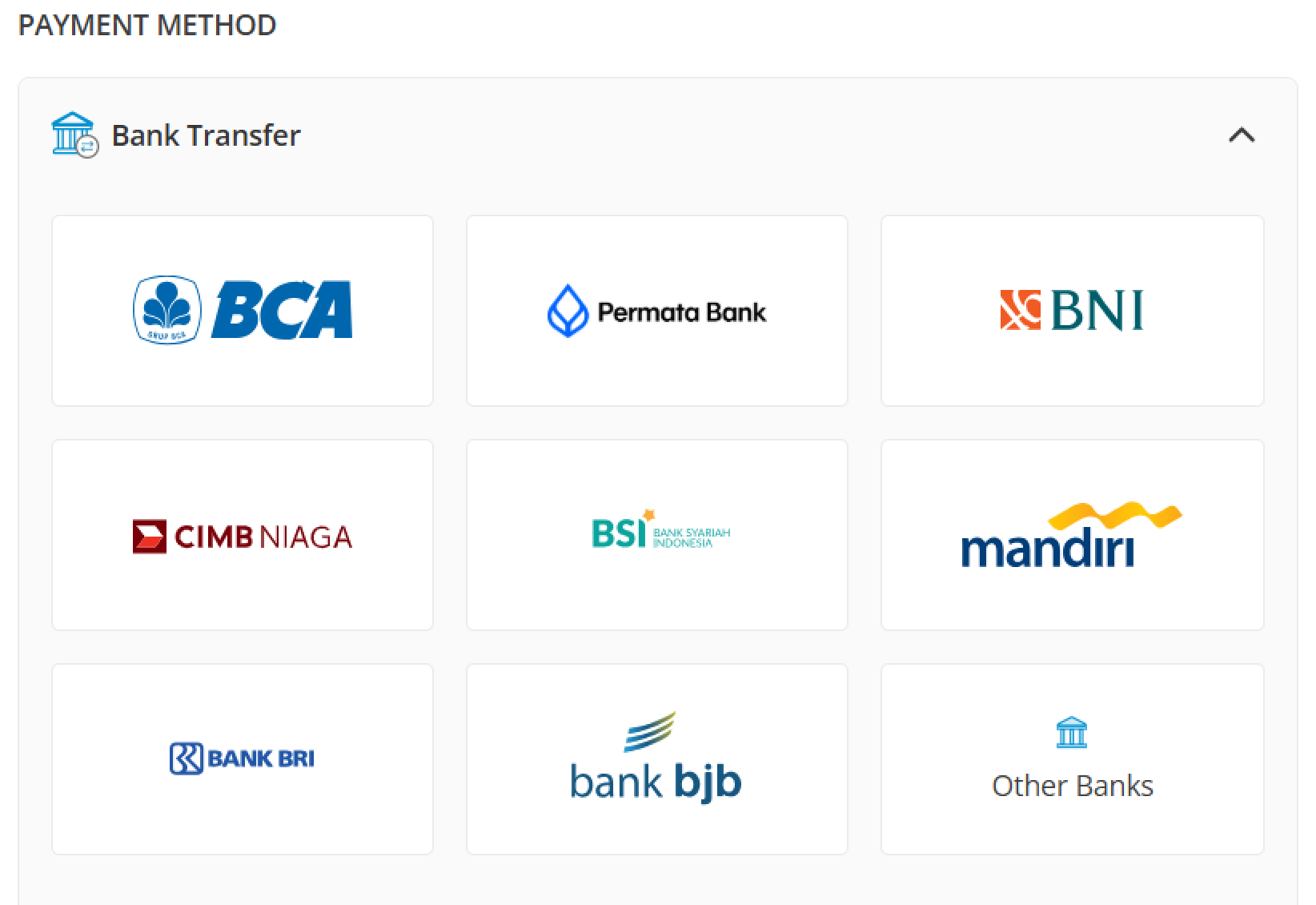
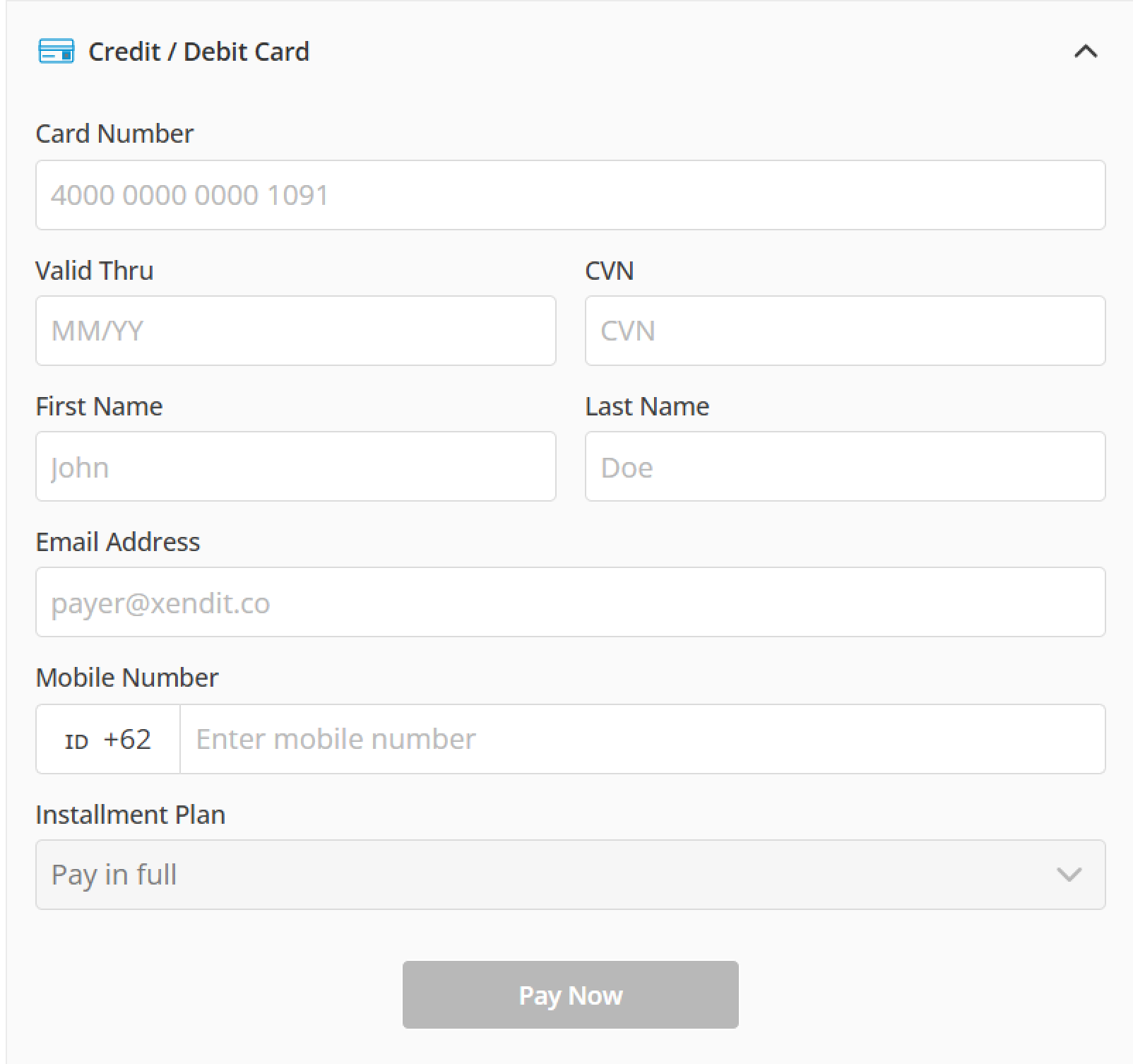
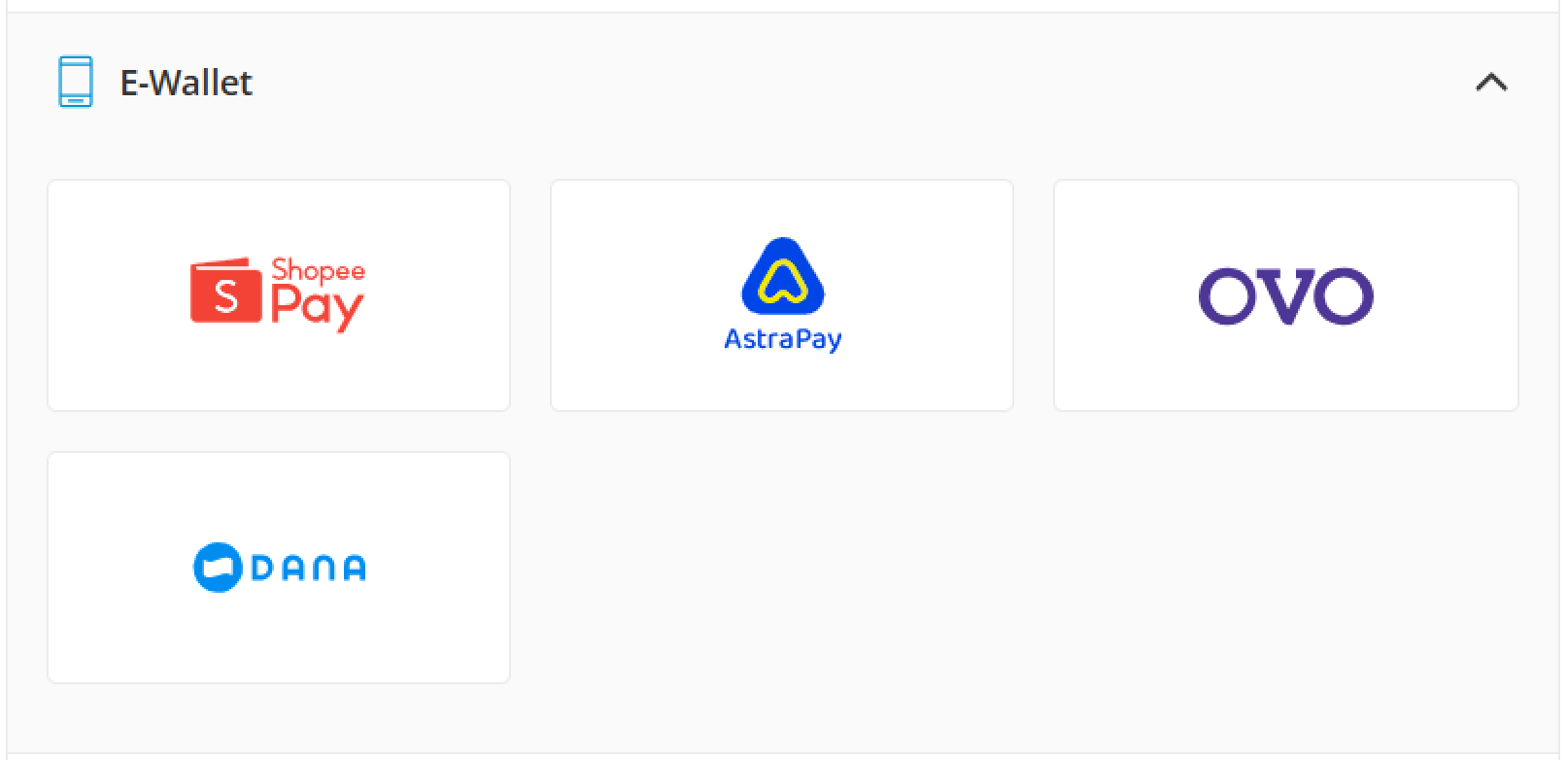
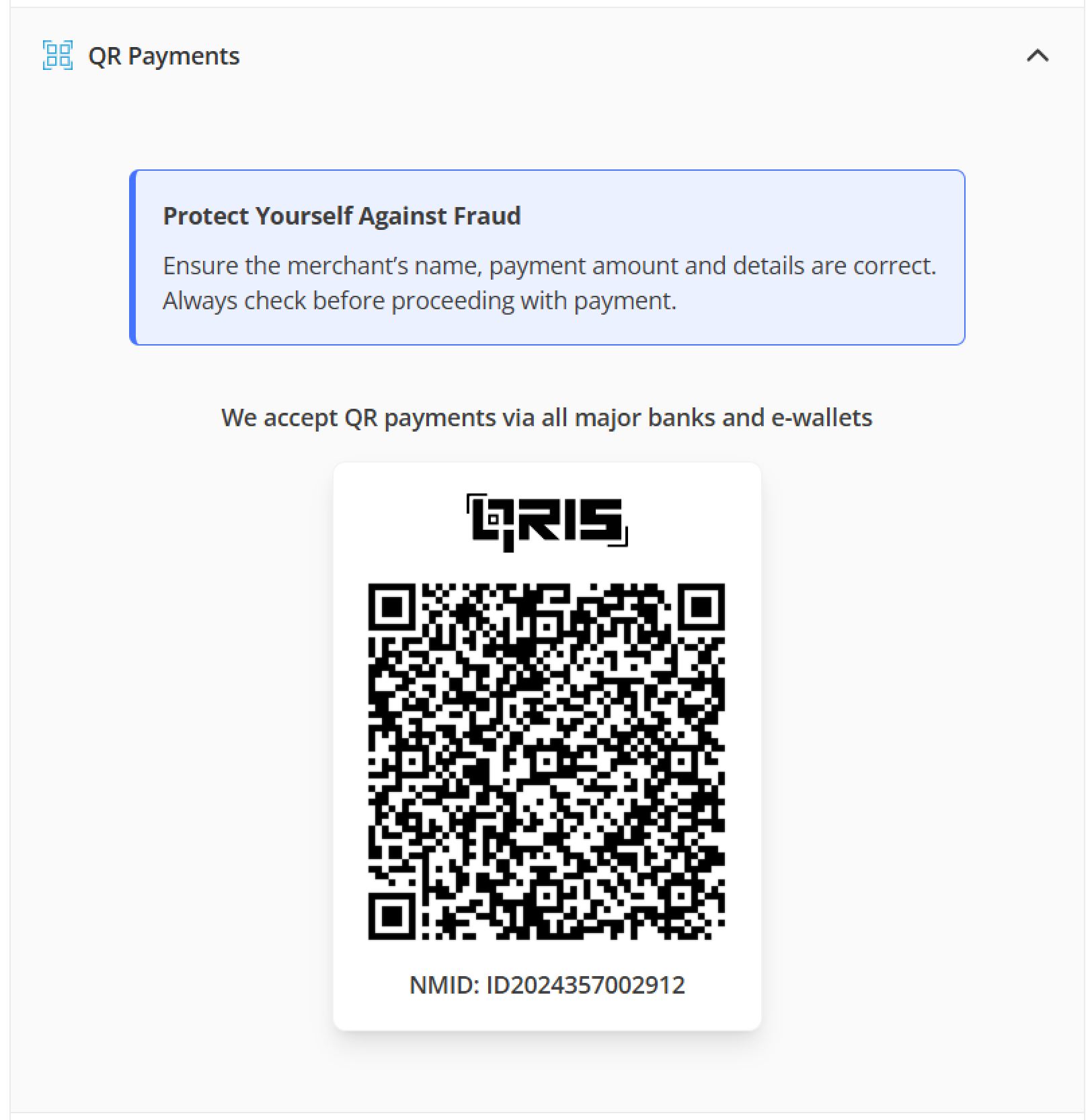
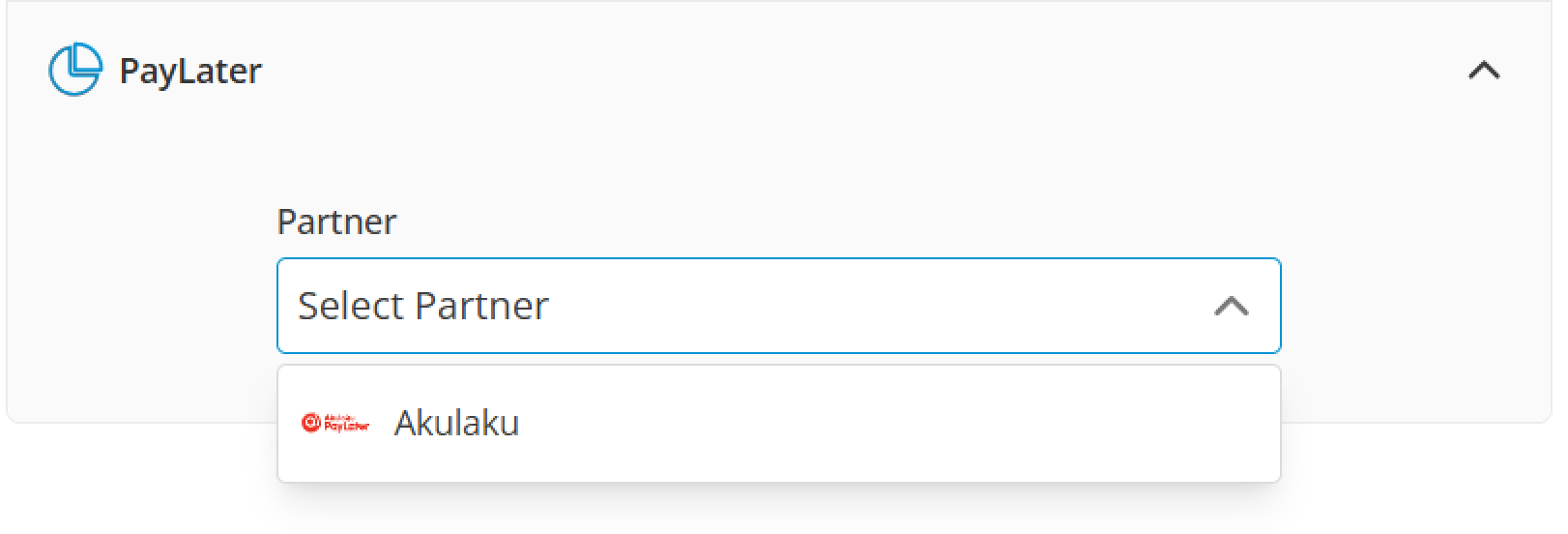
Shows due date, amount and available payment options along with step-by-step instructions. Payment methods may include:
- Bank Transfer
- Credit/Debit Card
- E-Wallet
- QR Payment
- PayLater
- Bank Transfer
Property List
The property list section allows you to manage the list of property that you have.
View and Navigate
To access this section, simply click on the Property List at the tab bar. It will shows you a table of property list.
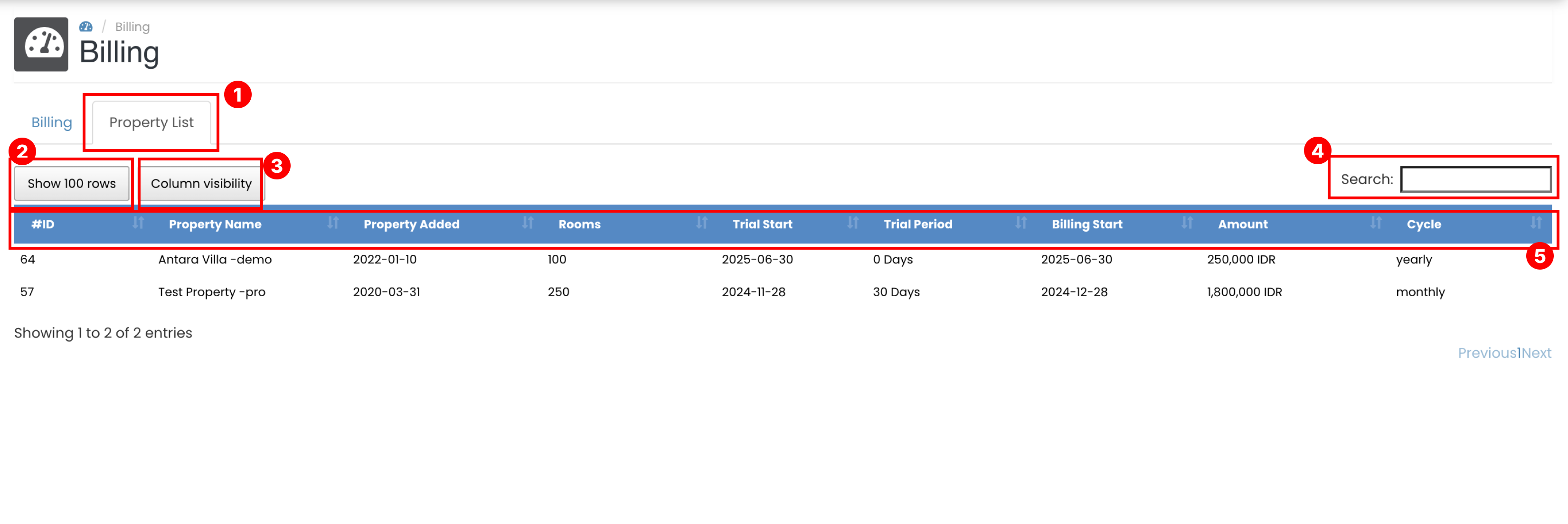
- Navigate to the Property List section by selecting Property List on the tab bar.
- Adjust the number of rows displayed by selecting 10, 25, 50, or 100 rows.
- Customize the table view by selecting which columns to display using the Column Visibility button.
- Use the Search bar to filter data. The table will display only the entries that match your keyword.
- Sort the data by clicking any column header.