Introduction
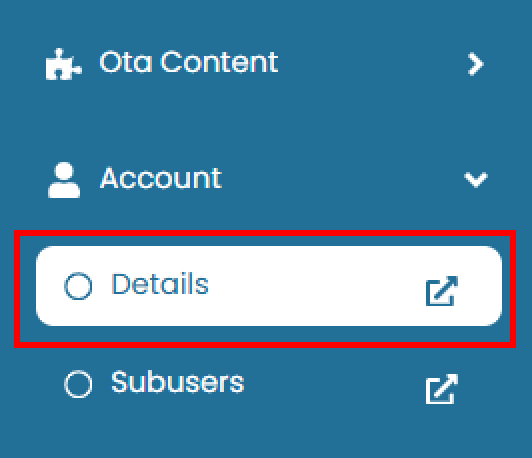
The Details page in the Account menu is used to manage your account information, including your profile, password, activity history, and device history. This feature helps you maintain accurate account data and monitor any activity associated with your account. You can access this page by navigating to Account > Details.
Edit Details
In this section, you can update your account information.
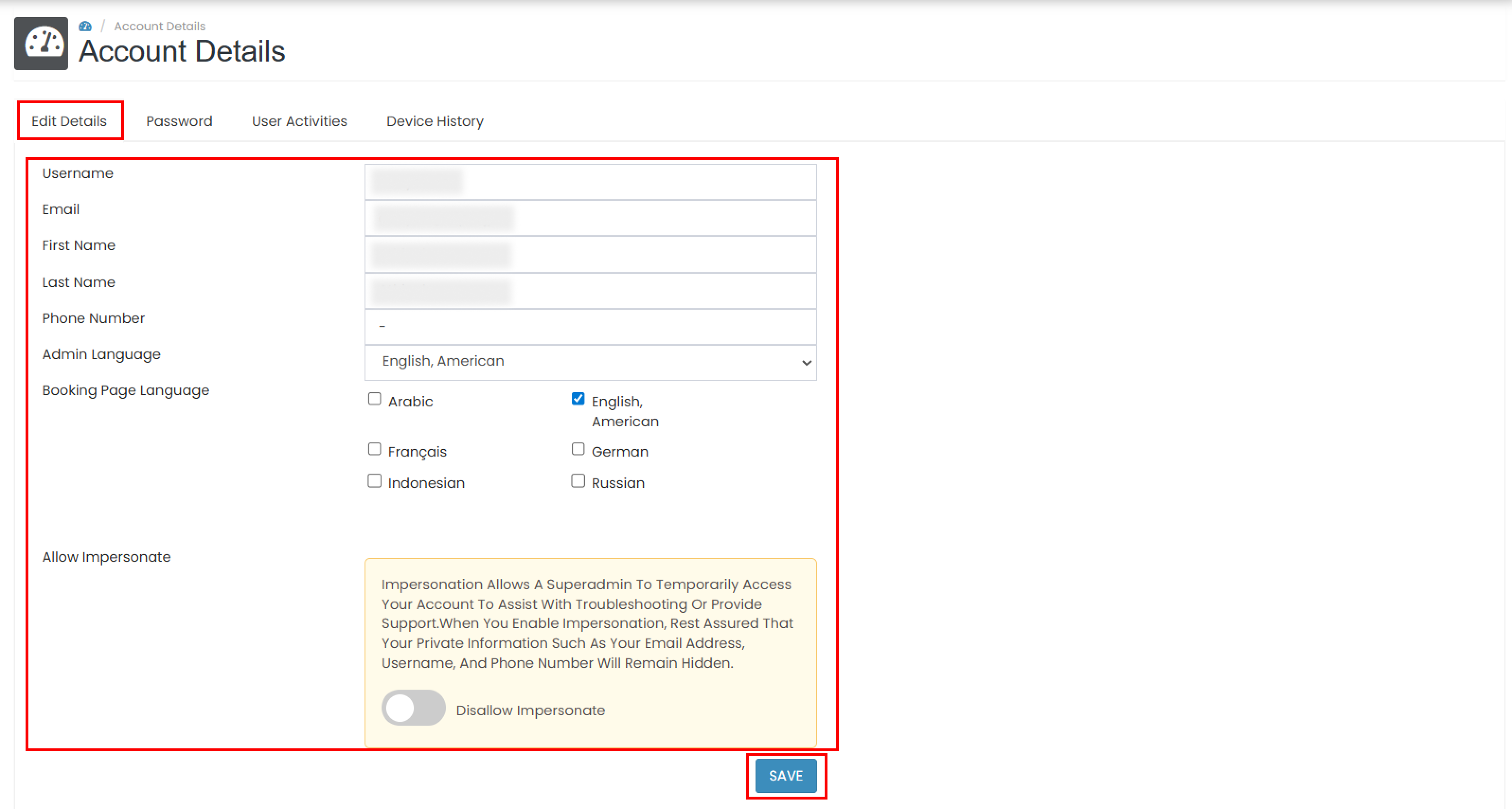
- Username
- First Name
- Last Name
- Phone Number
- Admin Language Select one of the available languages: Français, Indonesian, English American, Japanese, or Thai.
- Booking Page Language Tick one or more languages you want to enable on the booking page, such as Arabic, Français, Indonesian, English American, German, or Russian.
- Allow Impersonate This feature allows a Superadmin to temporarily access your account to assist with troubleshooting or support. Even when enabled, your private information Email Address, Username, and Phone Number remain hidden. Toggle the switch button to turn impersonation on or off. After making changes, click the Save button to apply the update.
Password
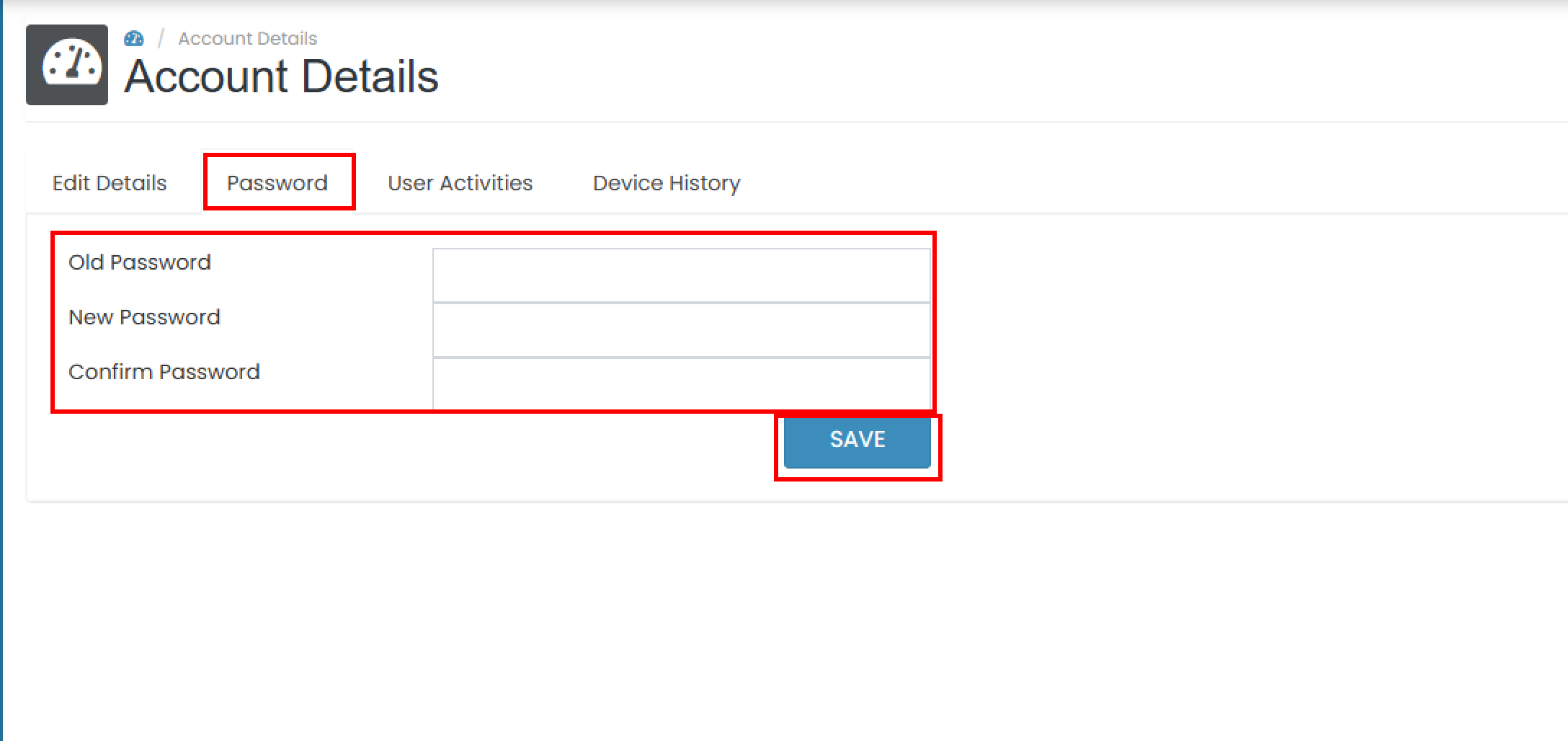
The Password section allows you to change your current password. Enter the required information in the provided fields:
- Old Password: Enter your current password.
- New Password: Enter the new password you want to create.
- Confirm Password: Re-enter your new password. Make sure it matches the New Password field
 Remember that your new password must meet all of the following requirements:
 - At least one letter
- At least one uppercase letter
- At least one number
- Minimum 8 characters
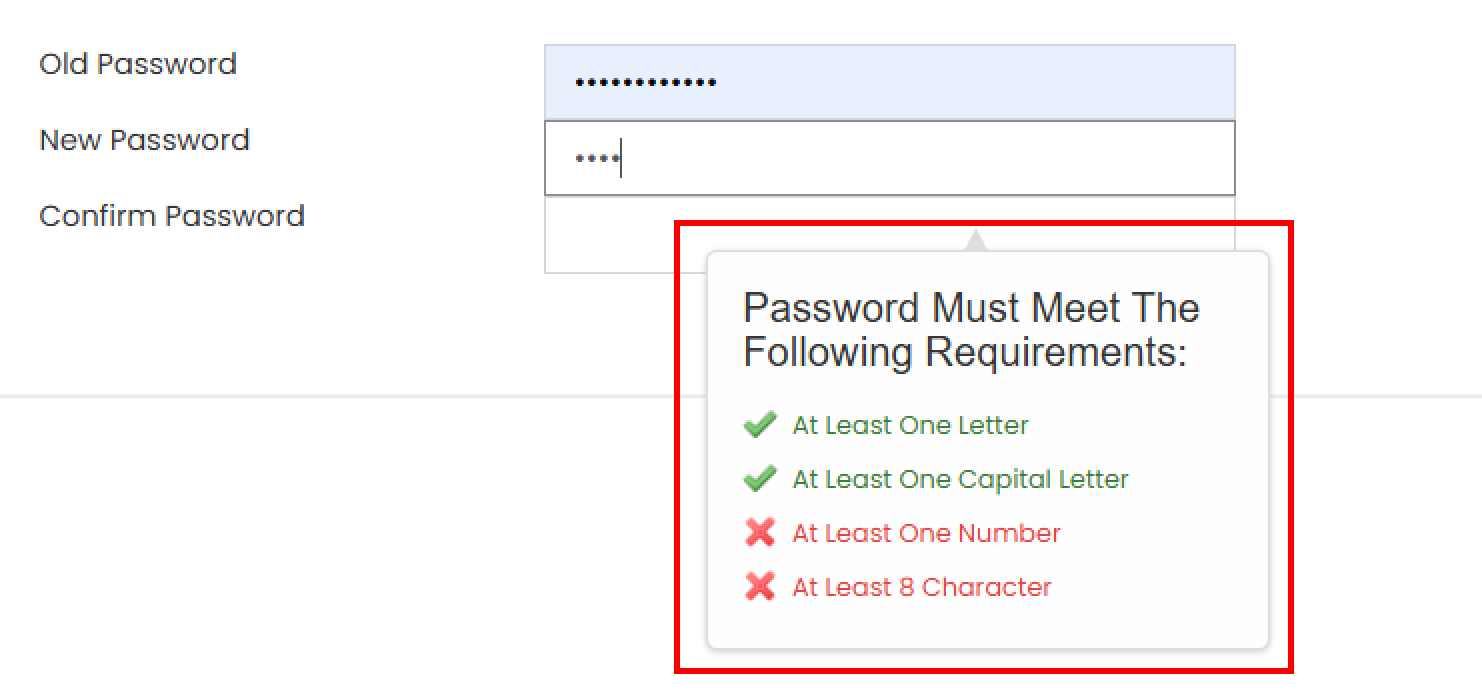 When you begin typing a new password, a requirement box will appear showing which conditions have been met.
 - A green check indicates the condition is valid.
- A red cross indicates the condition is incomplete. The requirement box will automatically close once all conditions are fulfilled.
User Activities
The User Activities section displays a history of your account activity. The table presents information such as the email used to log in, IP address, and the activity date.
View and Navigate Activities
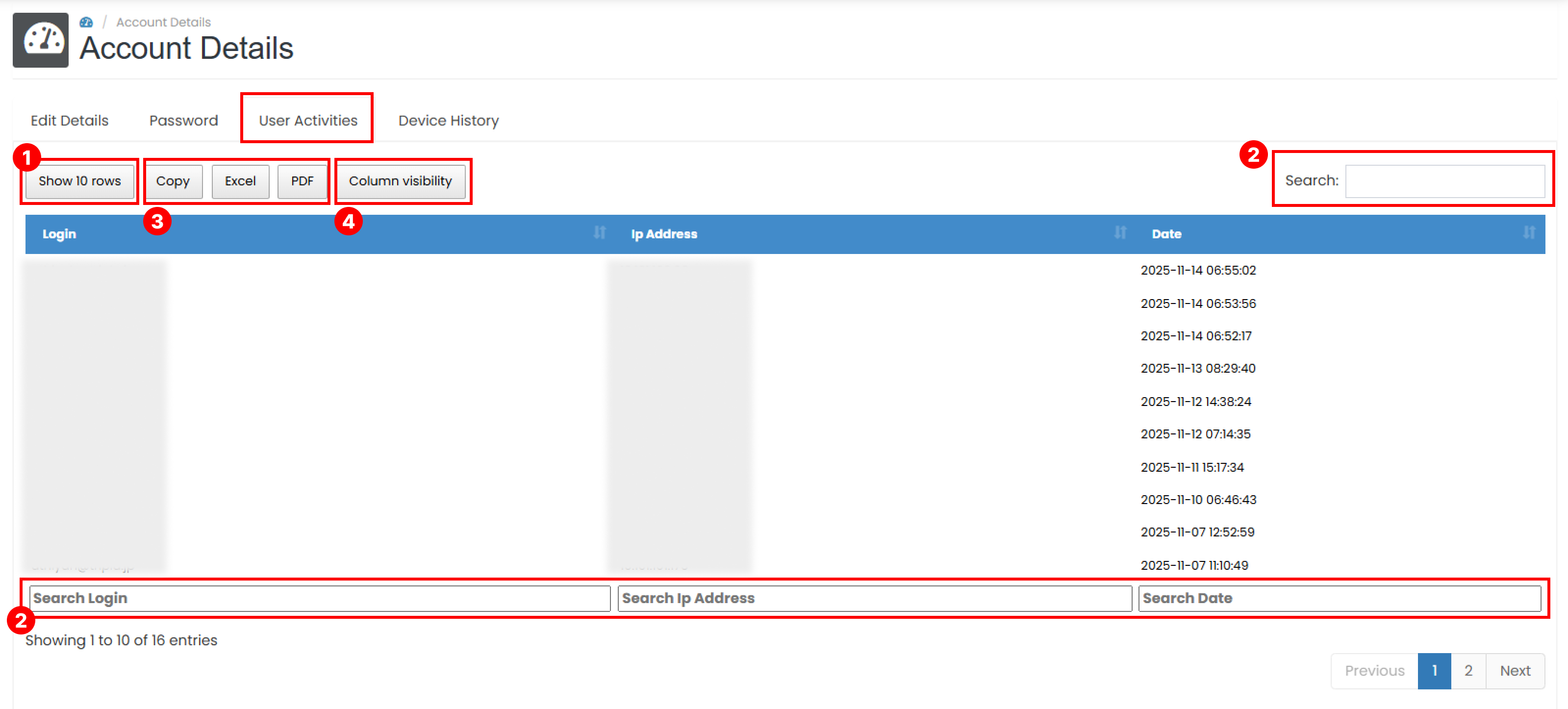
- The table can display 10, 20, or 50 rows per page. You can adjust this using the Show Rows dropdown.
- Use the Search bar to quickly find your activity by keywords such as email, IP Address or date. See Search Data for full details.
- Use the Export Data feature to download your activity logs. See Export Data for more information.
- Customize which columns appear in the table using the Column settings. See Customize Column for more details.
Search Data
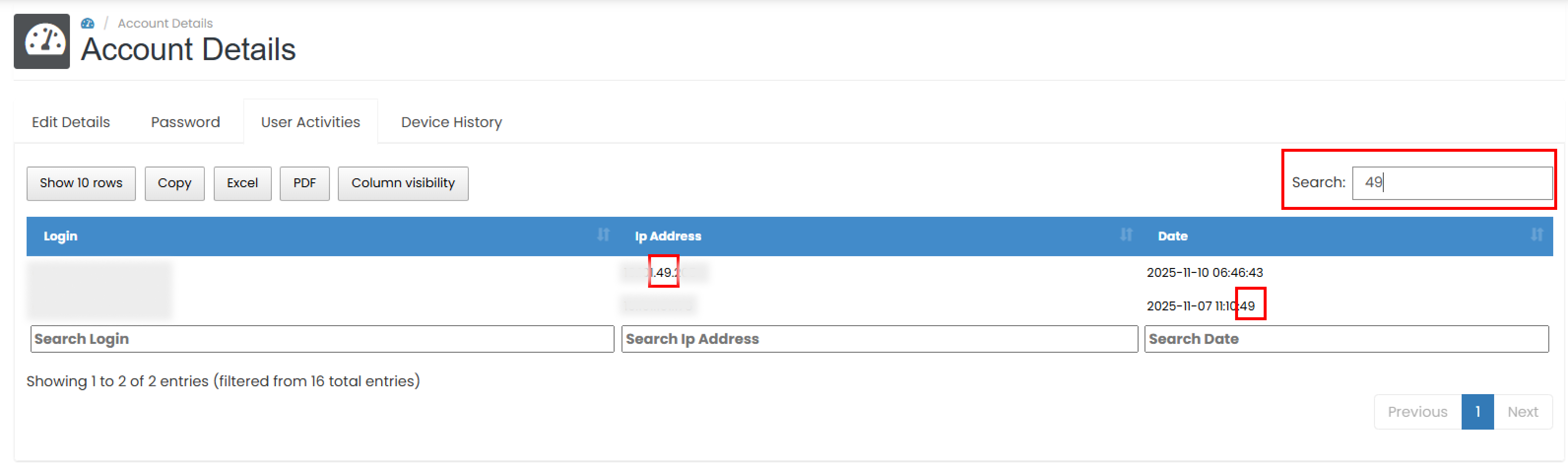
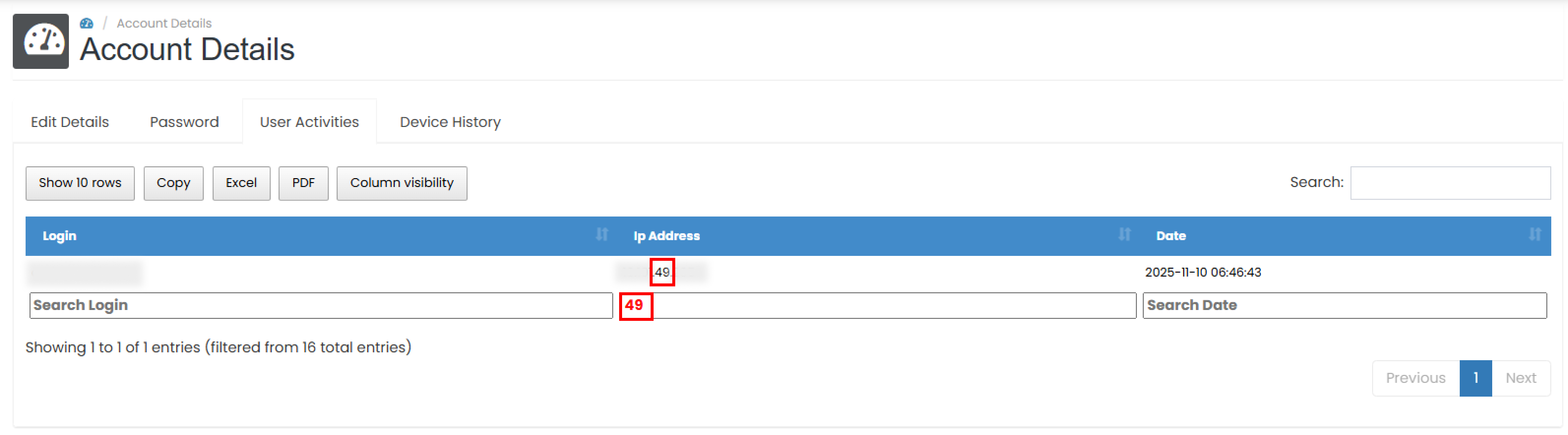
The Search feature allows you to quickly locate activity records using keywords found within the table. There are two ways to search:
- Using the Top Search Bar. Filters all columns and displays any row containing the entered keyword.
- Using the Column-Based Search Bar. Located at the bottom of each column to filters only the selected column
Export Data
The Export Data feature allows you to download activities records. Exporting only applies to the data currently shown in the table. If you have applied any search or filter options, only the filtered results will be included in the export.
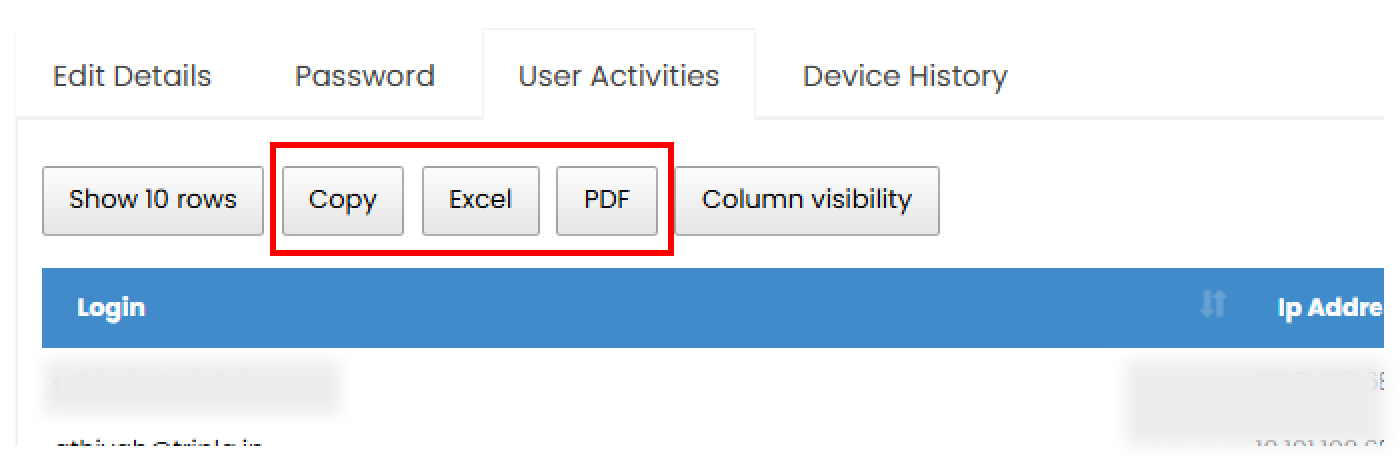
- Copy Button : This button will automatically copies the data to your clipboard in text format.
- Excel Button : This button will automatically generate and download the data into .xlsx format.
- PDF Button : This button will automatically generate and download the data into .pdf format.
Customize Column
You can customize which columns you want to display in the User Activities table.
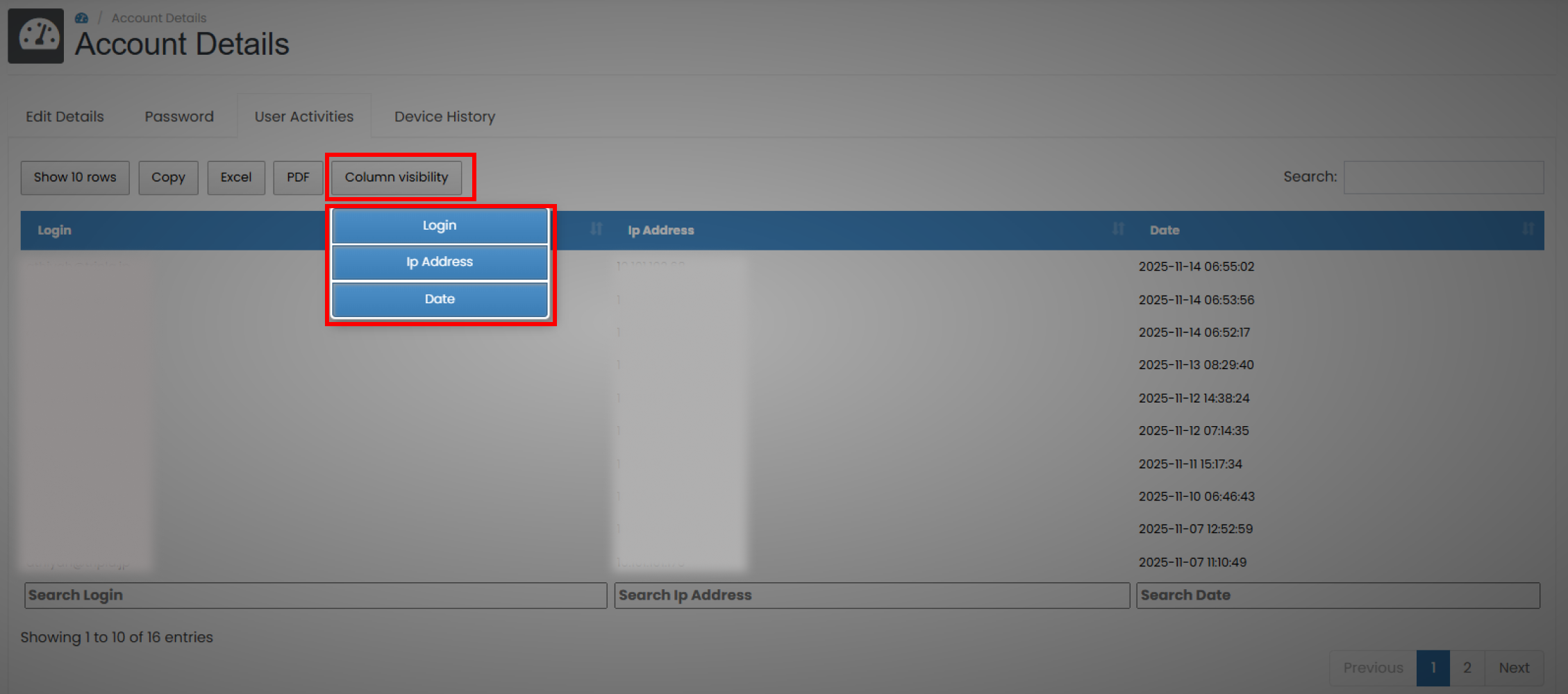
- Click the Column Visibility button.
- Tick or untick the columns you want to show or hide.
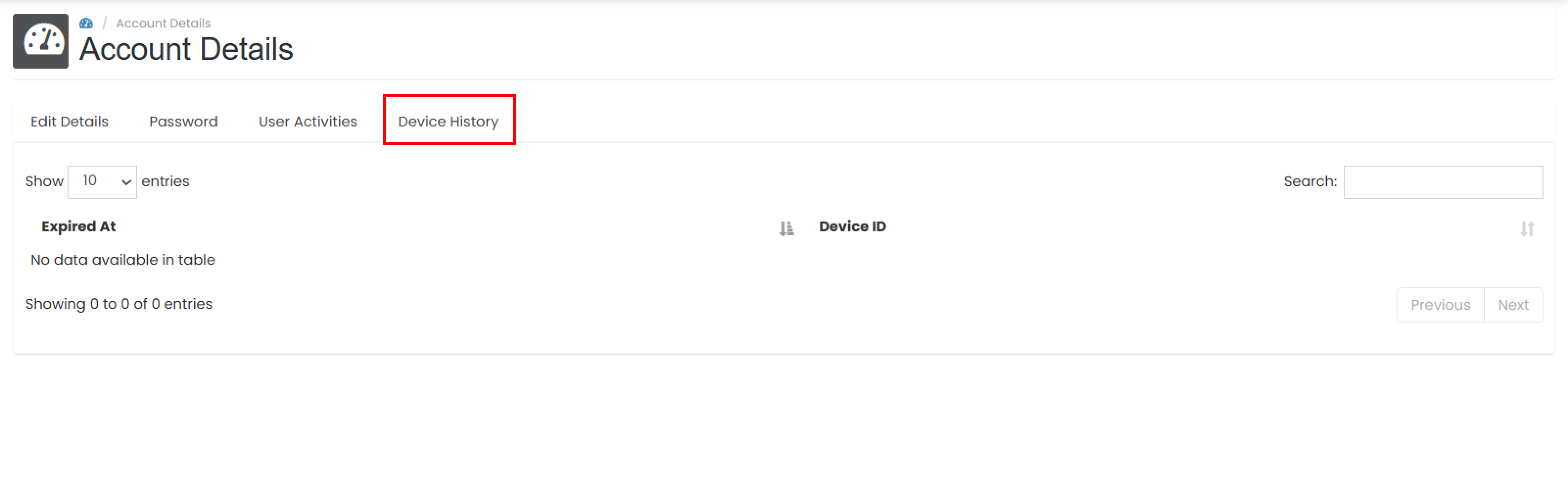
Device History
The Device History section displays a list of devices that have been used to access your account. The table shows information such as the device ID and expiration time of the login session.