Introduction
The Booking List page in the Channel Manager provides an overview of all reservations, allowing you to manage bookings efficiently. You can search, import, export, and customize the view based on property preferences. This section includes various features to help you monitor, filter, and manage booking data more flexibly.
Booking Summary
The Booking Summary appears at the top of the Booking List section and provides an overview of monthly booking data, including:
- Confirmed Booking: Total number of successful reservations in the current month.
- Cancelled Bookings: Total number of cancelled reservations in the current month.
- Deposit Amount and Due Amount:
- Displays the Total Deposit Amount, Total Due Amount, and the calculated Total Amount.
- The currency shown is based on the property settings and the currency used in the actual reservation data. Only currencies present in the reservations will be displayed.
- Property has multiple currency options and define one as default currency, and the booking list will show the currency according to the reservation's currency. For example, if the property is set to IDR a booking is coming in USD, the summary will display the transaction in USD.
- The totals are not converted or combined — each amount is shown based on the original currency of the transaction.
- All values are calculated directly from existing booking data, per currency.
- Click the Hide/Show toggle next to the Property label to collapse or expand the summary panel as needed.

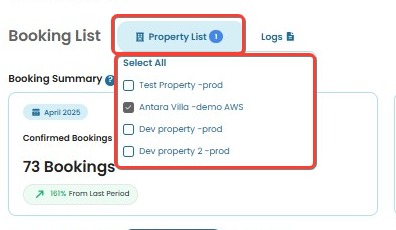
- Property List.
Users can be assigned to multiple properties. By default, the Booking Summary and List only display reservations for the currently selected property.
To view reservations across multiple properties:
- Click the Property List dropdown.
- Select multiple properties or use Select All to show combined booking data across selected properties.
[!NOTE]
Troubleshooting Booking Summary Issues
The totals seem incorrect or missing
- Ensure the correct property/properties are selected from the Property List. Totals are only calculated based on the selected properties.
- Make sure you've selected the correct currency. The totals only reflect bookings made in the selected currency.
- The data shown is based on the selected month. Adjust the date filter if you're looking for a different period.
Some bookings are not reflected in the totals
- Check if the bookings are under a different property that is not currently selected.
- Check if the missing bookings are in a different currency. Each currency has its own set of totals and is not automatically converted or combined.
- Verify that the bookings are successfully saved/imported and not in a pending or draft state.
I want to see totals in a different currency
- Use the currency selector to switch between available currencies: IDR, USD, JPY, EUR, GIP.
- The system does not perform currency conversion — all values are shown in the currency used in the original transaction.
The summary panel is hidden
- Click the Hide/Show toggle next to the Property name to expand the summary panel again.
Booking Details
The Booking Details section provides a detailed list of all reservations, allowing users to review, manage, and track each booking individually. It displays essential information such as booking status, guest details, reservation dates, booking source, and room type.
View and Navigate Bookings
- The table can display 10, 20, or 50 rows per page. You can adjust this using the Show Rows dropdown.
- Use the Search bar at the top right to quickly find bookings by keyword, such as guest name, booking ID, or room type. See Search for more details.
- You can download the current booking data by using the Export Data feature. It will generate a .xlsx file containing the displayed records, including any filters or searches applied. See Export Data for more information and troubleshooting tips.
- Columns such as Booking ID, Guest Name, or Arrival Date can be sorted by clicking the column headers. You can also customize which columns to show or hide using the Column settings. See Column for more details.
- The Action column provides options depending on the source of the reservation (e.g., PMS, OTA, Booking.com):
- PMS Bookings: Edit, Remove, Resend Voucher, Status Change, and more.
- OTA Bookings: View Voucher, Resend Voucher, Status Change.
- Booking.com: May include No Show, Cancel for Invalid CC, etc. See Action Column for full details.

Booking Status Indicators
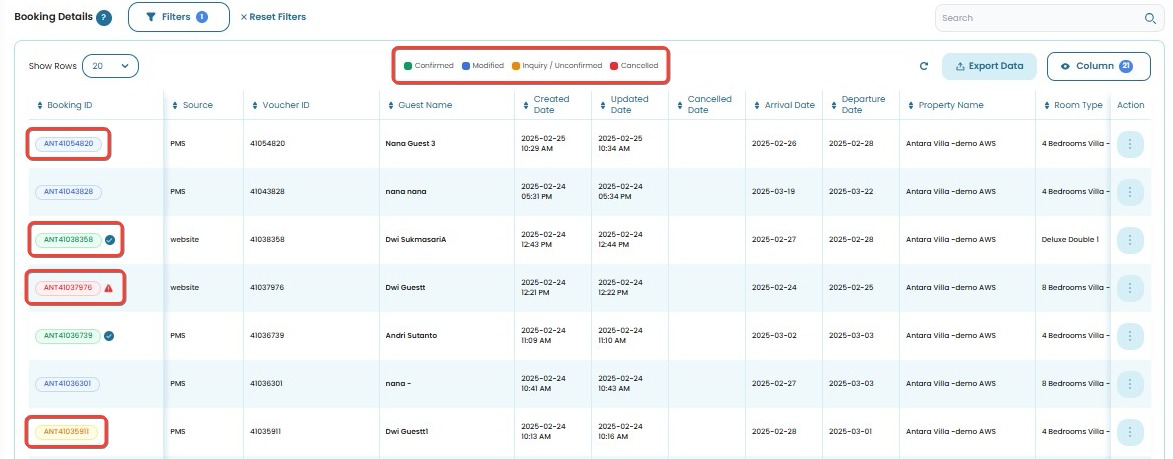
Each booking is labeled with a color-coded indicator:
- Green: Confirmed – the booking has been successfully confirmed.
- Blue: Modified – the booking has been changed after initial creation.
- Yellow: Inquiry / Unconfirmed – the booking has not yet been confirmed.
- Red: Cancelled – the booking has been cancelled.
These indicators appear next to the Booking ID to quickly show the current status of each reservation.
Booking Group
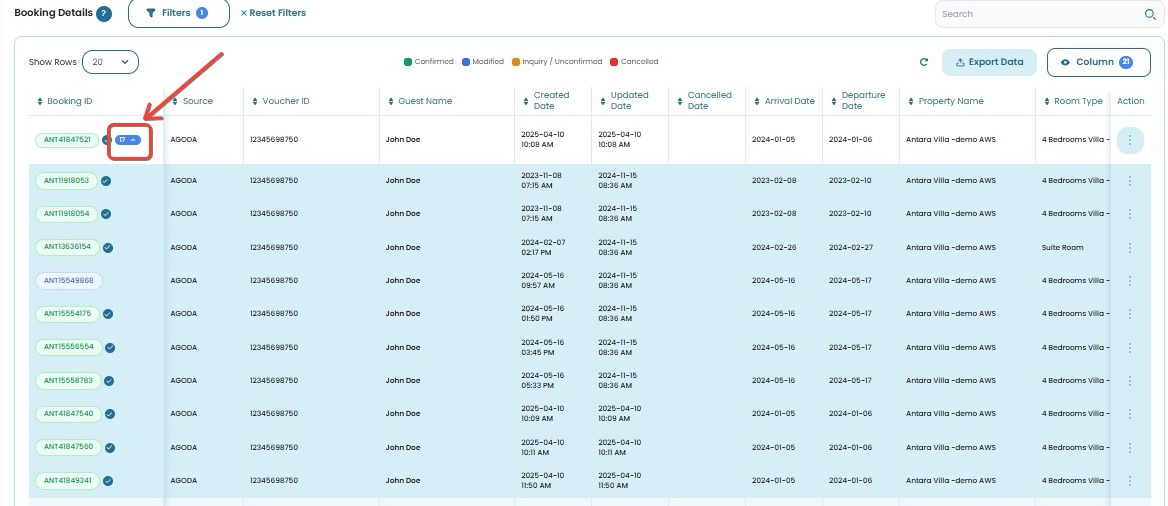
A Booking Group refers to a single reservation that includes multiple rooms under one email and voucher ID. For example, a guest booking two rooms in one transaction will have both rooms grouped under the same booking.
- Group bookings are treated as one reservation unit for tracking, guest handling, and reservation management.
- In the Booking List, group bookings are displayed with a booking count toggle (e.g., number with a dropdown arrow) next to the Booking ID.
- Click the booking count toggle to show or hide the list of bookings within the group.
[!NOTE]
Troubleshooting Booking Details
Table data is not loading or appears blank
- Refresh the page to reload the booking data.
- Check your internet connection.
- Try using a different browser or clear your current browser’s cache.
Search results do not appear as expected
- Make sure the search term matches the correct data format (e.g., exact Booking ID, full guest name, or room type).
- Clear any active filters that might be hiding relevant results.
- Try using broader or partial keywords.
- If searching by date, ensure the format matches the system (e.g.,
YYYY-MM-DD).Columns appear missing or misaligned
- Open the Column settings to verify that the necessary columns are selected.
- Scroll horizontally — some columns might be positioned further to the right.
Exported file is missing bookings
- Only the data currently visible on the screen will be exported.
- Check if filters or search settings are hiding the records you expect.
- Clear filters or expand your search range if you want to export all records.
Group booking toggle not working
- Click the arrow icon next to the Booking ID to expand or collapse the group.
- If nothing happens, reload the page and try again.
Unable to access actions for a booking
- Available actions depend on the booking’s source. Some features (such as Edit or Remove) are restricted for OTA bookings.
- Refer to the Action Column section for a full breakdown of actions by source.
Import Data
The Import Data feature helps you upload multiple reservation records at once using a .xlsx or CSV file. This is especially useful for onboarding large amounts of data efficiently or migrating bookings from another system.
How to Import Data
You can import booking records in bulk using a .xlsx or CSV file. Follow these steps:
- Click the Import Data button on the Booking List page.
- Before importing, prepare your reservation data using the correct format:
- Make sure your data follows the required format.
- You can Download Import Template at the top of the page to get the correct .xlsx or CSV format.
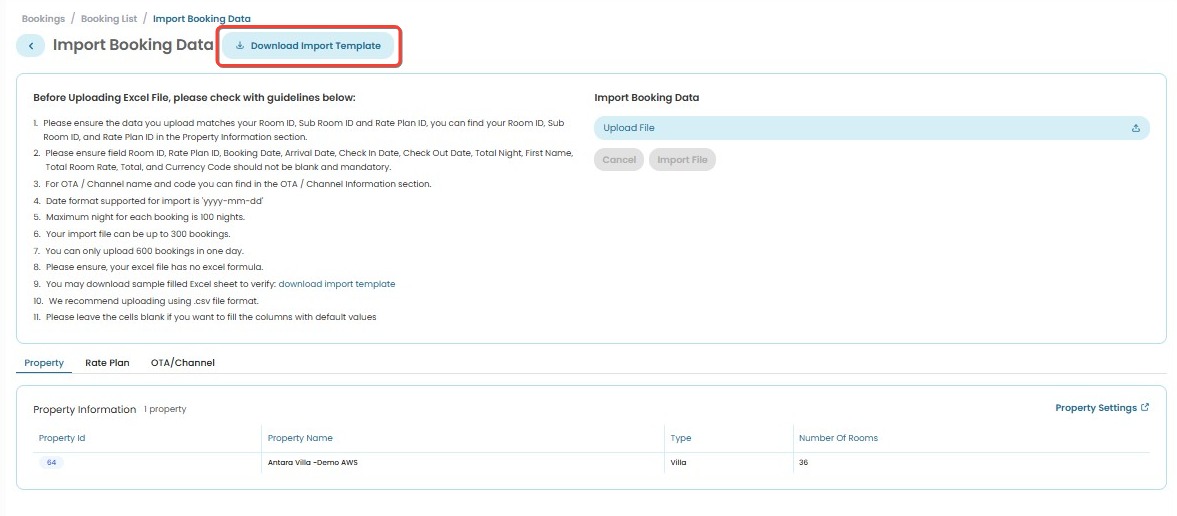
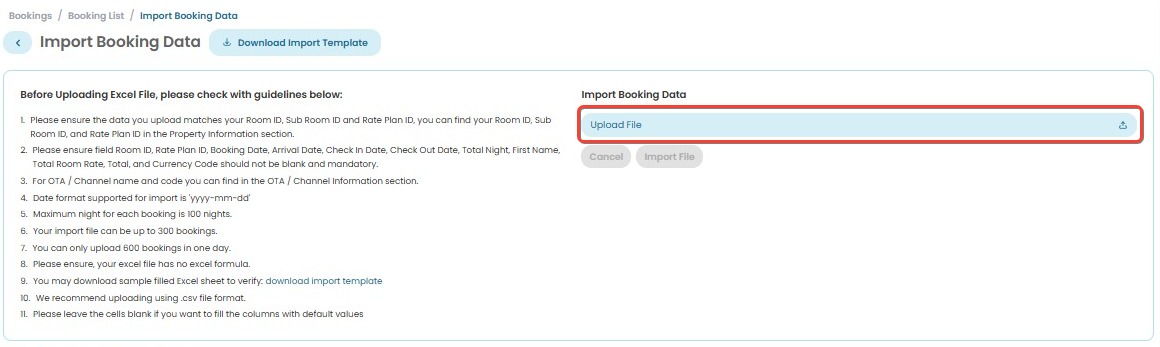
- On the Import Booking Data page, click the Upload File button.
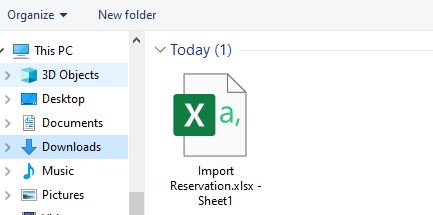
- Select and upload your completed .xlsx file to the system.
- If you uploaded the wrong file or need to update the file, click the Change File button to select and upload a new version before proceeding.
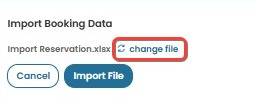
- After the file is uploaded, click Import File button to start the import process.
- Click Cancel if you want to stop and return without importing.
- Click Cancel if you want to stop and return without importing.
- Once uploaded, the system will automatically process and display the reservations in the Booking List.
[!NOTE]
Troubleshooting Import Data Issues
Import failed or not showing any data
- Make sure the uploaded xlsx file follows the correct template format. You can download the template again by clicking Download Import Template at the top of the page.
- Double-check that all required fields (e.g., Booking ID, Guest Name, Arrival/Departure Date) are filled correctly.
- Avoid using special characters or unsupported formats in any column.
Some reservations are missing after import
- Ensure those rows were not skipped due to invalid or incomplete data. Only properly formatted rows will be imported.
- Check if the selected Property, Rate Plan, and OTA/Channel match existing settings in the system.
- If your xlsx includes bookings from multiple currencies or properties, make sure they are correctly mapped in the template.
I can’t find the Import Template
- Click the Download Import Template button located at the top of the Import Booking Data page.
- If the button is not visible, try refreshing the page or check your browser zoom/display settings.
Uploaded the wrong file
- Before clicking Import File, select Change File or Cancel to upload a new one.
- If the wrong file has already been imported, you may need to remove the incorrect records manually.
The file is uploaded, but nothing happens
- Wait a few moments; large files may take time to process.
- Try re-uploading the file or check your internet connection.
- If the issue persists, log out and back in before retrying.
Export Data
The Export Data feature allows you to download booking records as a .xlsx file. This can be useful for reviewing data outside the system, generating reports, or creating backups.
How to Export Data
You can export your current booking records to review or process externally. Follow these steps:
- Click the Export Data button on the Booking List page.
- The export will include all bookings currently displayed — including those filtered using search or filter options.
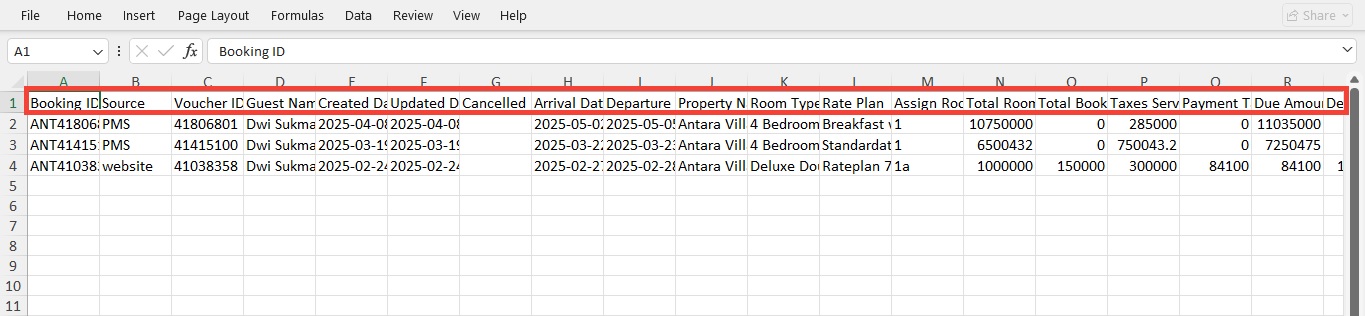
- A xlsx file will be generated and downloaded, containing details such as:
- Booking ID, Guest Name, Dates.
- Property and Room Info.
- Status, Source, Currency, and Amounts.
[!TIP]
Use filters before exporting if you only want to download specific records (e.g., confirmed bookings from a certain date range).
[!NOTE]
Troubleshooting Export Data Issues
Exported file is empty or missing records
- The export only includes bookings currently displayed on the screen. Make sure you haven't applied filters that hide the records you need.
- Try clearing filters or adjusting the date range, booking status, or other search criteria before exporting again.
Export button is not working or unresponsive
- Refresh the page and try again.
- Check your browser's pop-up blocker or download settings — some browsers may prevent automatic downloads.
- Try using a different browser to see if the issue persists.
Downloaded .xlsx file won’t open properly
- Ensure the file is opened with a compatible application (e.g., Excel, Google Sheets).
- If the data appears garbled, try changing the character encoding to UTF-8 when importing the xlsx into your spreadsheet tool.
I need to export only specific types of bookings
- Use the available filters before clicking the Export Data button. For example, filter by booking status (Confirmed, Cancelled), specific dates, or property.
- Only the records that match your current view will be included in the export.
Still having trouble?
- Clear your browser cache and cookies.
- If the problem continues, contact support and mention the issue along with your browser and device details.
Filter
The Booking List Filter allows you to refine and display only the booking records that match specific criteria. This is especially useful when managing a large volume of reservations and you want to quickly locate or analyze certain types of bookings.
How to Use the Booking List Filter
You can narrow down the booking records using multiple filter options. Here's how to use them:
- Click the Filter icon on the Booking List page.
- In the filter panel, you can choose from the following options:
- Booking Type: Choose whether to show Single Booking, Group Booking, or Show All.

- Source: Filter bookings based on the source channel, such as OTA, PMS, or direct booking.

- Room Type: Select one or more room types to narrow down the results.

- Booking Status: Filter by the current status of the booking, such as Confirmed, Modified, Cancelled, or Unconfirmed.

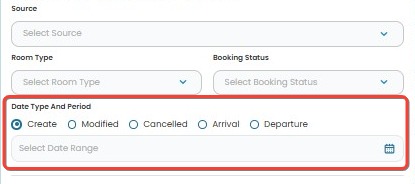
- Date Type and Period: Choose the date type (Create, Modified, Cancelled, Arrival, or Departure) and then set a date range. This field is required when applying filters such as Booking Type, Source, Room Type, or Booking Status. Without a date type and period selection, these filters won’t return accurate results.
- Guest Name: Enter the guest's name to search for specific bookings.

- Booking ID: Input the booking ID to locate a specific reservation.

- Voucher ID: Input the voucher ID to find bookings associated with it.

- Booking Type: Choose whether to show Single Booking, Group Booking, or Show All.
- After selecting the desired filters, you have the following action options:
- Click Apply Filters to display results based on your selected criteria.

- Click Cancel if you do not wish to apply the changes.

- To clear all selected filters and return to the default view, click Reset to Default.

- Click Apply Filters to display results based on your selected criteria.
- Once filters are applied, a Reset Filters button will appear at the top right of the filter section (next to the Filters button).
- Click this button to clear all active filters and return to the default view.

- Click this button to clear all active filters and return to the default view.
[!NOTE]
Troubleshooting Booking List Filter Issues
Filters reset after refreshing the page
- Make sure to enable or check Save Preferences (if available) before applying filters. Otherwise, selections will not persist after a page reload.
Booking list doesn't update after setting filters
- After selecting your filter criteria, make sure to click Apply Filters.
- If you click Cancel, no changes will be applied and the list will remain the same.
Filtered results are missing expected bookings
- Double-check the selected Date Type and Date Range, as bookings outside this range will not appear
- Also review other filters such as Booking Status, Room Type, or Source — overly narrow combinations might exclude expected results.
Currency-related confusion in results
- Filters do not affect currency, but note that the Booking Summary reflects totals based on the selected currency.
- If you’ve filtered by property or booking type, and there are no bookings in the selected currency, totals may show as 0.
Reset to Default doesn't clear filters
- If the Reset to Default button inside the filter panel does not clear filters as expected, try refreshing the page and clearing the fields manually.
Reset Filters button not visible
- The Reset Filters button (located next to the Filters button) only appears after filters have been applied.
- If it’s missing, ensure you have applied at least one filter using Apply Filters.
Search
The Search bar allows you to quickly find booking records using any keyword or value shown in the Booking Details table. It is located at the top-right corner of the Booking List page.
How to Use the Search Bar in Booking List
- Click inside the Search bar.
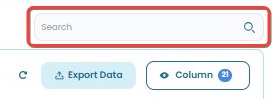
- Type any keyword based on the data available in the table, including:
- Booking ID
- Source
- Voucher ID
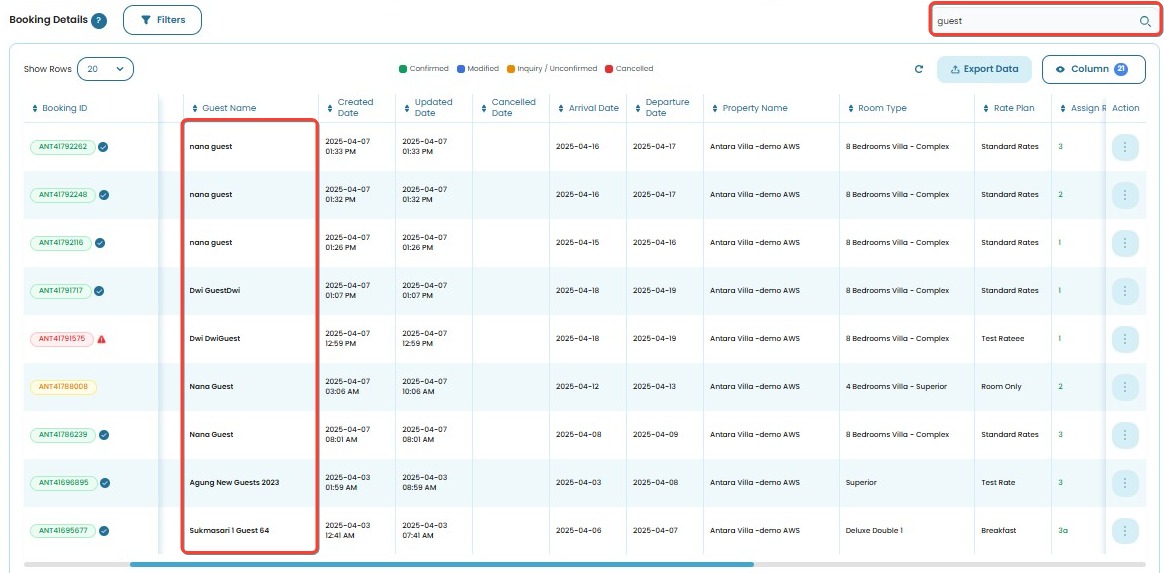
- Guest Name
- Created Date / Updated Date / Cancelled Date
- Arrival Date / Departure Date
- Property Name
- Room Type
- The table will automatically filter the results to match your input.
[!NOTE]
Troubleshooting Search Issues
No results found after typing
- Double-check your spelling or formatting.
- Try using a broader or partial keyword.
- Ensure there are no filters applied that might be limiting the results.
Search bar not responding
- Refresh the page and try again.
- Check your internet connection.
- Try accessing the Booking List using a different browser.
Column
You can customize the table view on the Booking List page by showing or hiding specific columns. This helps you focus only on the information relevant to you.
How to Customize Columns:
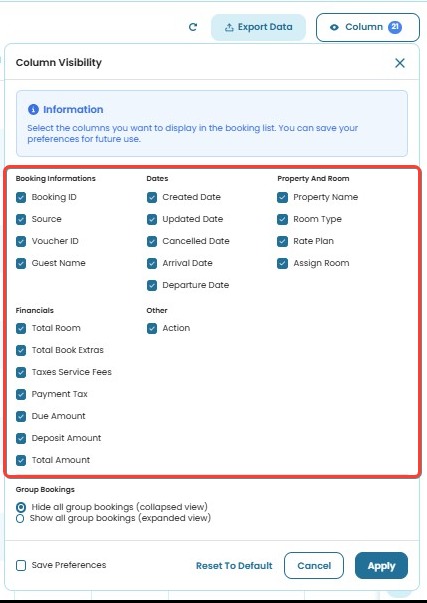
- Click the Column button at the top-right of the Booking List page.
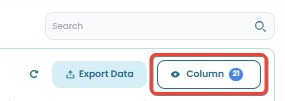
- In the Column Visibility panel, tick the checkboxes to show specific columns or untick them to hide the ones you don’t need. The columns are grouped by category (e.g., Booking Info, Dates, Financials).
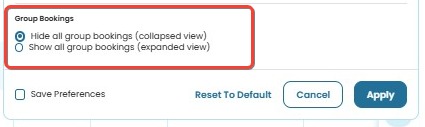
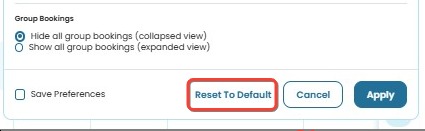
- Scroll to the bottom to adjust the Group Bookings view:
- Choose Hide all group bookings (collapsed view), or
- Show all group bookings (expanded view)
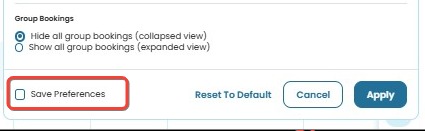
- (Optional) Tick Save Preferences if you want to keep your settings for the next time you visit.
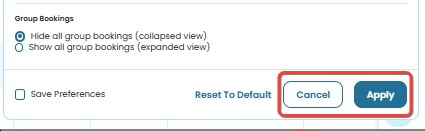
- Click Apply to confirm changes.
- Click Cancel if you don’t want to save the changes and prefer to close the panel.
- Click Cancel if you don’t want to save the changes and prefer to close the panel.
- Click Reset to Default to restore the original column settings.
[!NOTE]
Troubleshooting Column Customization Issues
Changes are not applied after selecting columns
- Make sure to click Apply after making your selections.
- Clicking Cancel will discard any changes you’ve made.
Column preferences are not saved for next visit
- Check the Save Preferences box before clicking Apply to retain your setup.
Reset to Default doesn't restore original columns
- Refresh the page after clicking Reset to Default, then open the column panel again.
Certain columns are missing from the table
- Ensure the relevant checkboxes are ticked in the Column Visibility panel.
- Scroll horizontally in the table if the column is located further to the right.
Group bookings view did not update
- Confirm you've selected the correct group booking option and clicked Apply.
Watch Guide
The Watch Guide feature provides a quick and easy way to understand how to use the Booking List section effectively. It includes a video tutorial covering key functions such as search, filters, import/export, and more.
How to Use the Watch Guide Feature
- Click the Watch Guide button on the Booking List page.
- You will be redirected to a YouTube video.
- Watch the tutorial to learn how to navigate and use the Booking List features efficiently.
[!NOTE]
Troubleshooting Watch Guide Issues
The Watch Guide button is not responding
- Try refreshing the page or using a different browser.
- Clear your browser cache and cookies if the issue persists.
Nothing happens after clicking the button
- Check if your browser is blocking pop-ups.
- Disable the pop-up blocker for this site to allow the video to open.
The video says "Unavailable"
- The YouTube video may have been removed or set to private.
- Contact support to request an updated or alternative tutorial.
No sound while watching the video
- Ensure your device is not muted and volume is turned up.
- Check your speaker or headphone connection.
You can’t access YouTube
- Your network might restrict access to YouTube (e.g., office or school networks).
- Try a different network or watch the video outside the restricted environment.
Action Column
The Action column in the Booking List contains a dropdown menu with several actions you can take for each reservation. The available options depend on the source of the booking.
Default Actions (e.g., PMS Bookings)
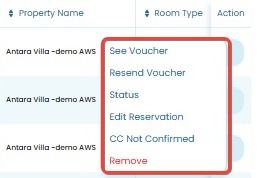
For reservations created via internal systems (like PMS), the following actions are typically available:
- See Voucher: View the invoice or hotel invoice.
- Resend Voucher: Re-send the voucher or invoice to the guest’s email address, the hotel’s main email, and the hotel’s CC email. This is useful if the guest didn't receive it or requests another copy.
- Status: Change the reservation status (e.g., Confirmed → Cancelled).
- Edit Reservation: Modify the booking details.
- CC Not Confirmed: Mark the credit card status as unconfirmed.
- Remove: Permanently delete the selected reservation from the system.
[!important] This action is permanent — once a reservation is removed, it cannot be recovered. Please double-check before proceeding to ensure the data is no longer needed.
OTA (e.g., Agoda, Airbnb, etc)
For bookings sourced from OTAs (Online Travel Agencies), such as Agoda or similar platforms, the available actions are limited because these reservations are managed externally. You can still perform some basic actions from the Booking List, including:
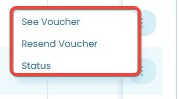
- See Voucher: View the guest’s reservation details or OTA invoice.
- Resend Voucher: Re-send the voucher or invoice to the guest’s email address, the hotel’s main email, and the hotel’s CC email. This is useful if the guest didn't receive it or requests another copy.
- Status: Update the reservation status to reflect changes such as cancellation or confirmation.
[!NOTE] You won’t be able to edit or remove OTA bookings directly from the platform, as those actions must be handled through the respective OTA.
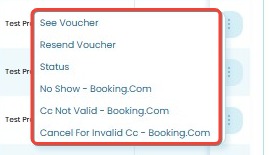
Booking.com-Specific Options
If the booking source is Booking.com, additional options might appear depending on the booking status:
- No Show - Booking.com: Mark the reservation as no-show if the guest didn’t arrive.
- CC Not Valid: Informational only — the credit card is invalid.
- Cancel for Invalid CC: Cancel the reservation due to invalid credit card.
[!NOTE]
Troubleshooting Action Column Issues
The Action menu doesn’t appear when I click it
- Refresh the page and try again.
- Make sure your internet connection is stable.
- Try using a different browser to rule out browser-specific issues.
Some actions are missing from the dropdown
- The available actions depend on the booking source. For example, bookings from OTAs have limited actions compared to PMS bookings.
- Ensure you're viewing a reservation from the correct source (e.g., PMS vs OTA).
I want to edit or remove an OTA booking, but those options are unavailable
- These actions are intentionally restricted for OTA bookings. You must make changes directly through the OTA platform (e.g., Booking.com).
- Use the Status option if you only need to update the booking’s status in the system.
Clicking “Resend Voucher” doesn’t seem to send anything
- Double-check if the guest email address is correctly stored in the reservation.
- Wait a few moments and ask the guest to check their spam folder.
- If the issue persists, contact the support team.
Booking.com-specific actions like “Cancel for Invalid CC” are missing
- These actions only appear under specific conditions (e.g., if the credit card is flagged as invalid).
- Ensure the booking is from Booking.com and meets the required status conditions for those options to show.
I clicked “Remove,” but the booking is still there
- “Remove” is only available for bookings created via PMS. For OTA or Booking.com bookings, this action is disabled.
- If the booking is still visible after clicking Remove on a PMS booking, refresh the page and check again.
- If the issue persists, it may be due to permission settings or sync delays — contact support for further help.
Action buttons are greyed out or unresponsive
- Check if your user account has the required permissions to perform the action.
- Log out and log back in to refresh user session.
- Try clearing your browser cache or switching browsers.
Logs

The Logs button redirects you to the Logs page, where you can review the system’s recent activities. The page summarizes detected errors and shows performance distribution across all connected booking channels. For detailed guidance, refer to the full Logs Documentation.