Create Reservation
The Create Reservation feature allows you to manually add a new booking to the system. This is especially useful for walk-in guests, phone reservations, or direct bookings not received through OTAs.
How to Navigate
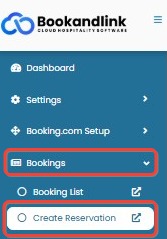
- Go to the Bookings menu on the sidebar.
- Click on Create Reservation.
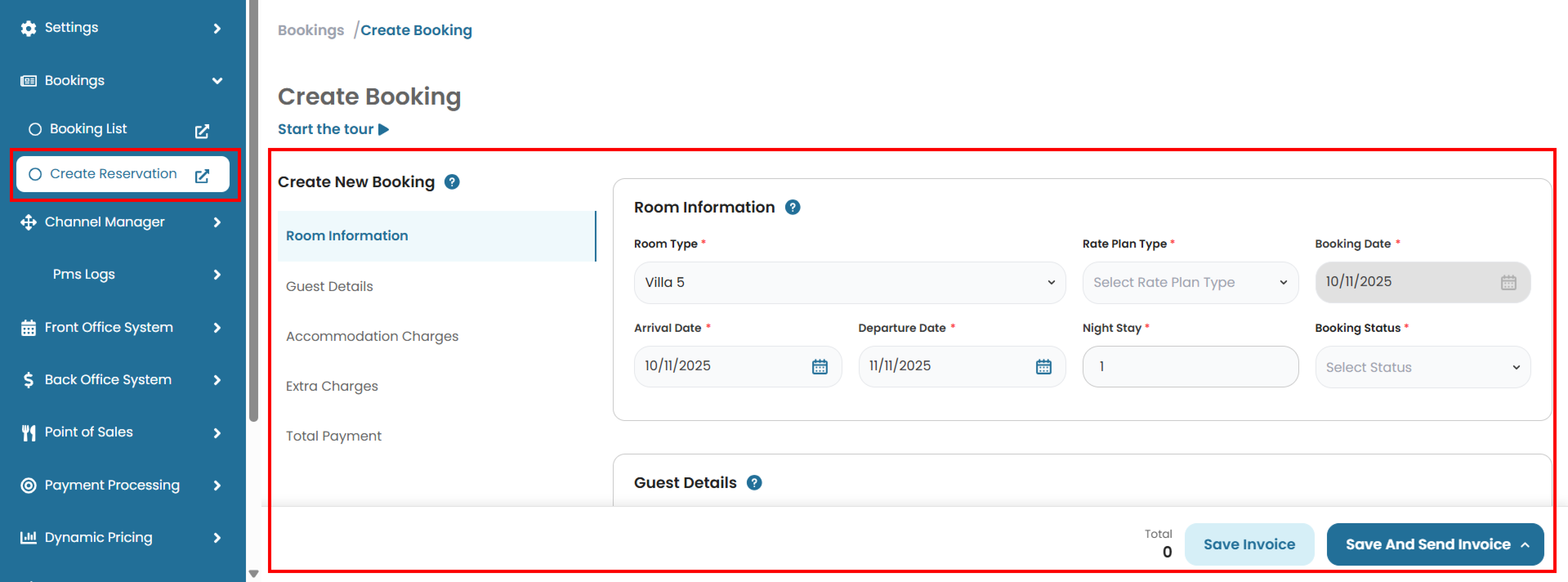
- You will be directed to the Create New Booking page, where you can input room and guest details.
[!NOTE]
Troubleshooting Navigation to Create Reservation Page
Create Reservation page is not loading
- Ensure you are connected to the internet and logged in to your account.
- Refresh the page or try logging out and logging back in.
- If the issue persists, try accessing the page from a different browser or device.
Create Reservation option is not visible in the Bookings menu
- Your user role might not have permission to create reservations. Contact the admin to check your access rights.
- The feature may be temporarily disabled due to system updates. Try again later or check with your system administrator.
Redirection to the Create Reservation page is not working
- Check for any browser extensions that may be blocking redirection scripts.
- Clear browser cache and cookies, then try again.
- Use an updated version of your browser.
How to Create Reservation
Fill in each section according to the following steps:
Room Information
This section provide key details about the guest’s stay, including room type, rate plan, and booking dates. You can access this section by clicking Room Information on the side menu.
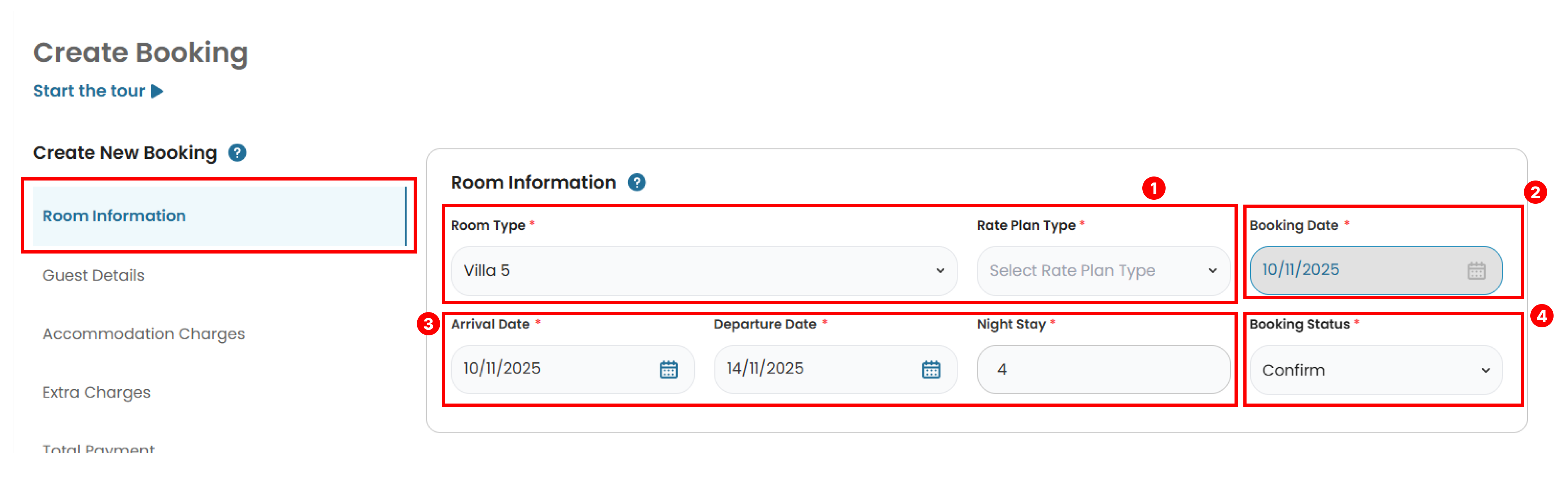
- Select the appropriate Room Type and Rate Plan Type.
- The Booking Date will be auto-filled based on the current date.
- Set the Arrival Date and Departure Date. The system will automatically calculate the Night Stay, but you can adjust it manually if needed.
- Choose the Booking Status, such as Confirmed, Modified, Cancelled, or Inquiry_Unconfirmed.
Guest Details
This section provide key information about the guest, including their name, contact details, address, number of guests, and estimated arrival time. You can scroll down from the previous section or click Guest Details on the side menu to access it.
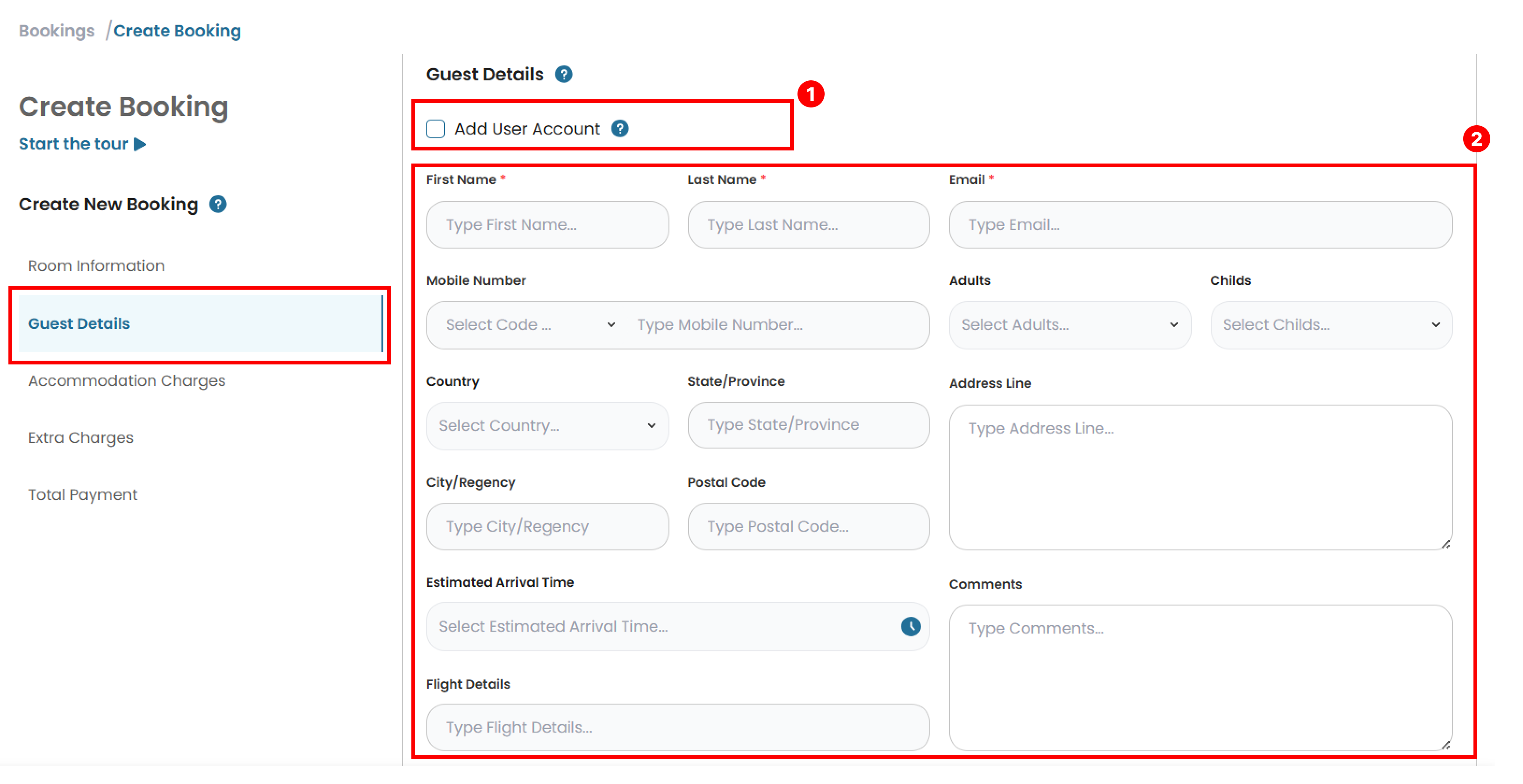
- (Optional) Tick Add User Account if you want to create a login account for the guest. A unique account will be created based on the guest’s email address. All information will be linked to this email.
- Enter the guest’s details: a. First Name, Last Name, and Email. b. Country Code and Mobile Number. c. Number of Adults and Children. d. Country, City, State, Postal Code and Address Line. e. (Optional) Estimated Arrival Time, Flight Details and Comments.
Accommodation Charges
This section allows you review and adjust accommodation charges per night, including the base price, additional fees, and extra person charges. The number of rows in this section matches the Night Stay set in the Room Information section. The Length of Stay indicator above the table shows the same value, ensuring the number of rows matches the total nights of the guest’s stay.
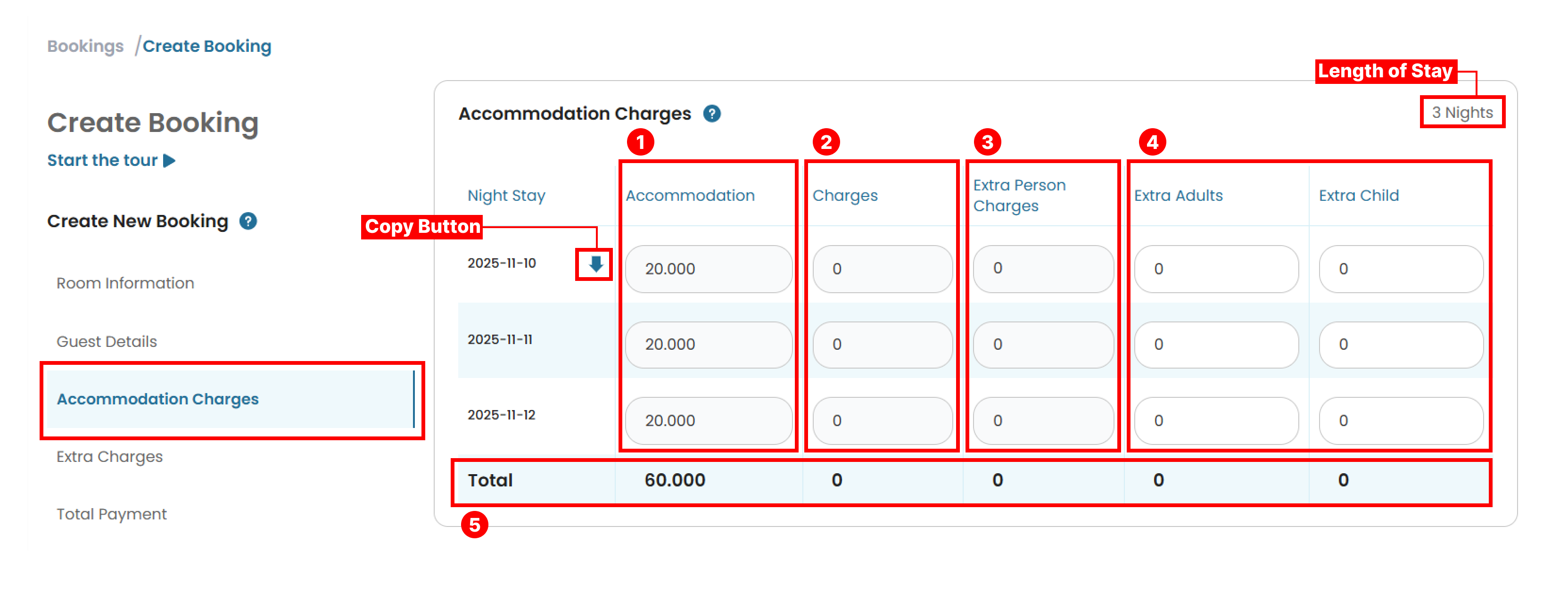
- Accommodation: Base room price. You can edit this manually if needed.
- Charges (optional): Total based on room rate multiplied by the number of nights.
- Extra Person Charges (optional): Additional fee for guests exceeding the room’s standard capacity. Editable if adjustments are required.
- Extra Adults / Extra Child (optional): Enter the number of extra adults or children. The system may apply charges accordingly.
- The Total amount is shown at the bottom of this section. The total row calculates the overall amount for the stay. You can use the Copy Button (arrow icon) next to the first row’s date to quickly fill in data for the entire rows. Clicking this button will copy the values from the first row to every row below.
Extra Charges (Optional)
This section lets you optionally manage additional charges for the booking, such as taxes, service fees, or other extra costs. The total number of extra charges added will appear at the top-right corner. If there are any additional charges:
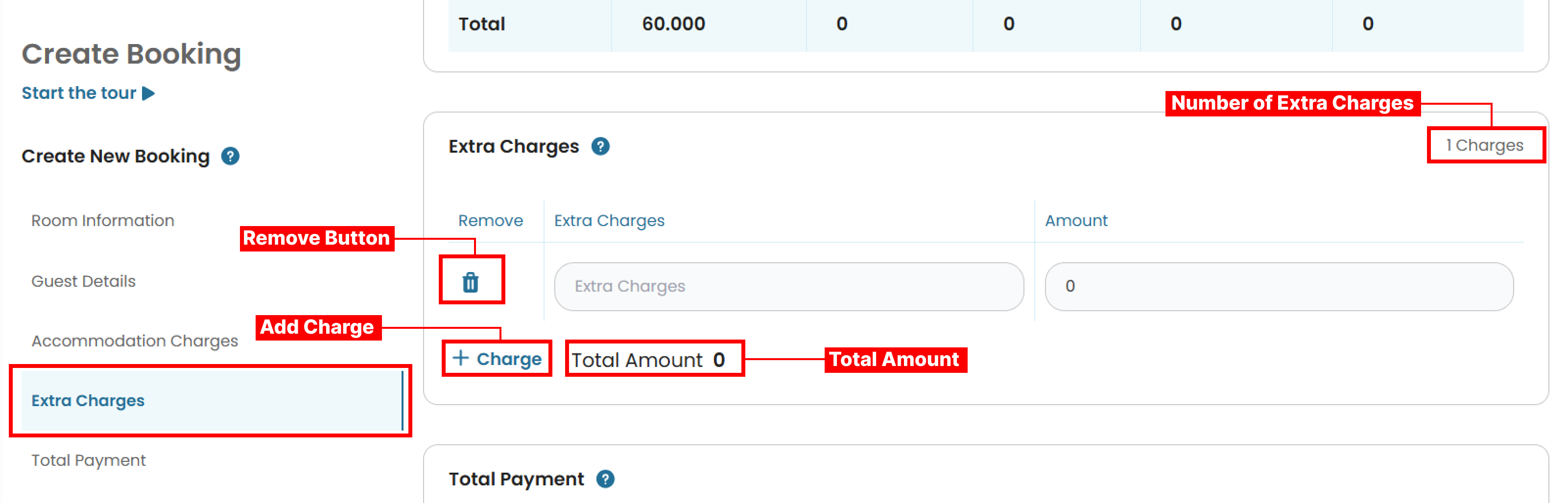
- Click + Charge to add a new row.
- Enter the Extra Charge Description and Amount.
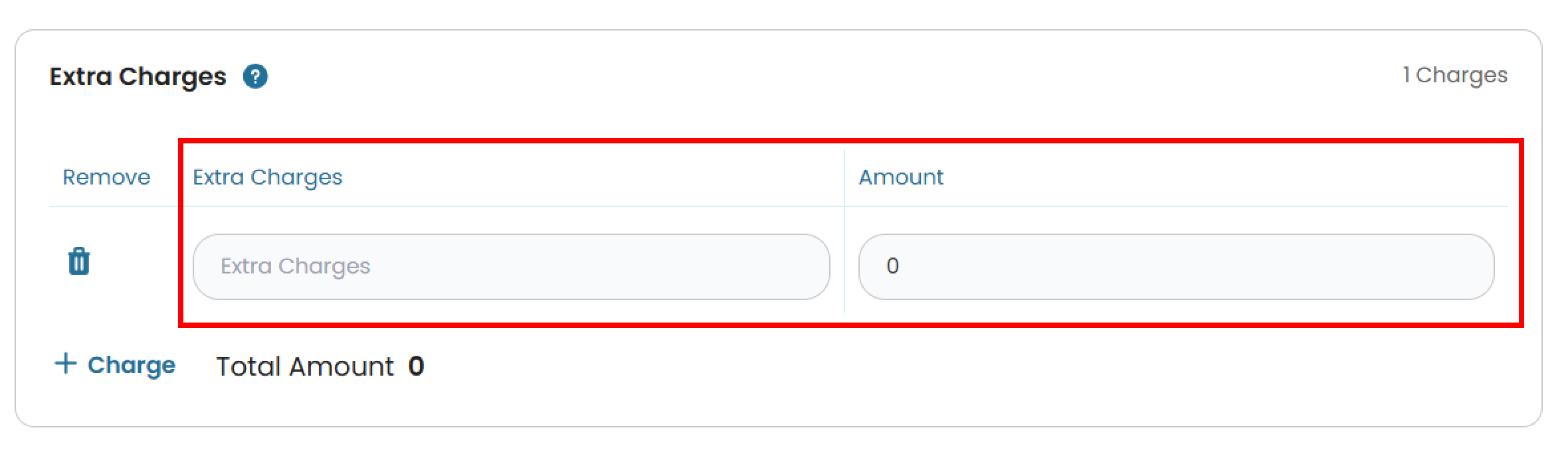
- You can remove any charge by clicking the Remove Button (trash icon).
- The Total Amount of extra charges is automatically calculated.
Total Payment
This section displays the total payment information, providing a complete breakdown of all charges.
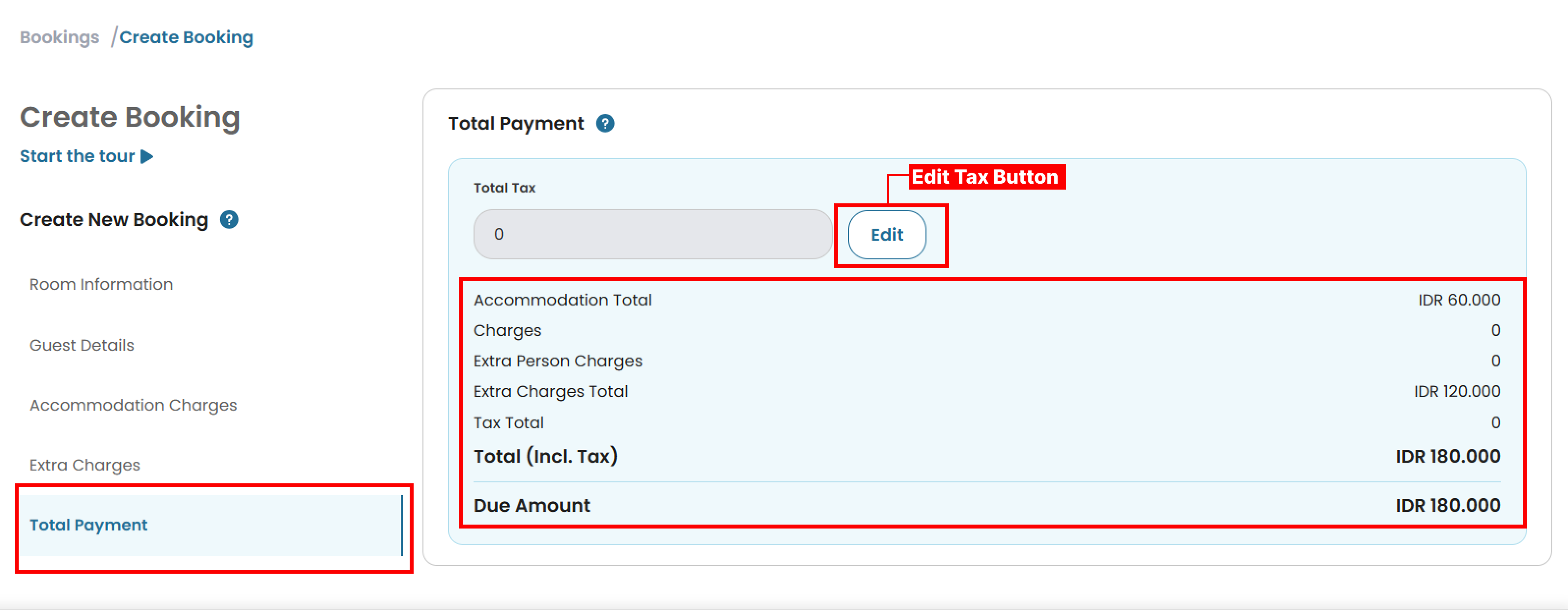 Review the following breakdown:
- Accommodation Total
- Charges
- Extra Person Charges
- Extra Charges Total
- Tax Total
- Total (Incl. Tax)
- The system automatically calculates the Due Amount based on the total charges and any recorded payments.
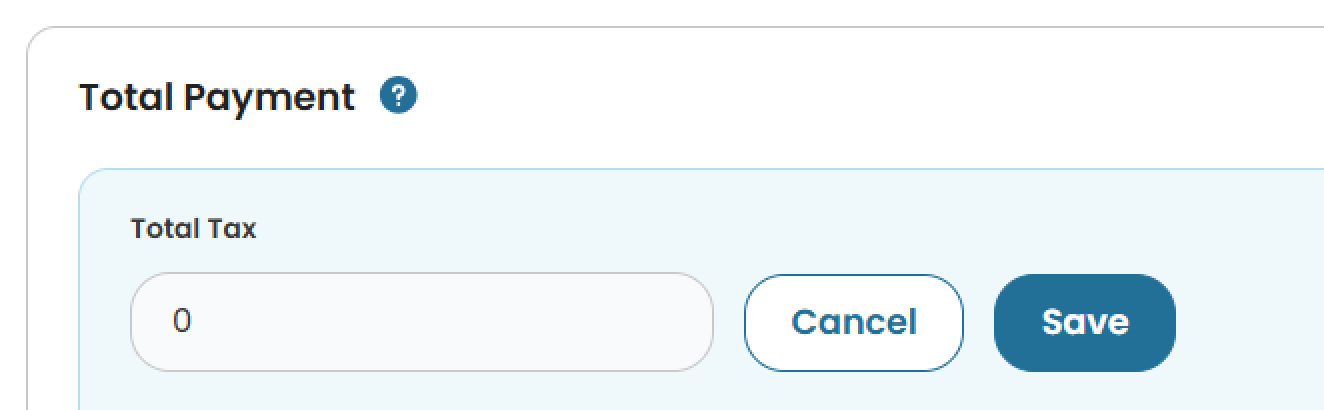
You can edit taxes to modify the Tax Amount if needed. Click the Edit Tax button, enter the tax amount, then click Save to apply the changes or Cancel to discard them.
Save Options
-
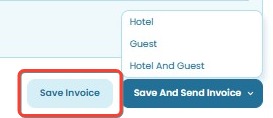
Save Invoice: Saves the reservation without sending the invoice.
-
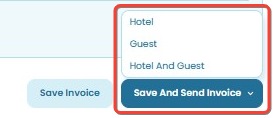
Save and Send Invoice: Sends the invoice via email based on your selection:
- Hotel: Sends the invoice to the hotel only.
- Guest: Sends the invoice to the guest only.
- Hotel and Guest: Sends the invoice to both hotel and guest.
[!NOTE]
Troubleshooting Create Reservation Form Issues
Unable to select Room Type or Rate Plan
- Make sure room types and rate plans are properly configured for the selected date range.
- If fields are empty, verify that rooms are available and the inventory is set.
Arrival or Departure Date cannot be selected
- Confirm your date format settings are correct.
- Ensure the room type doesn’t have restrictions like minimum/maximum stay blocking selection.
- Try a different browser or clear your cache.
Booking Status not saving correctly
- Ensure you’ve selected one of the valid options (Confirmed, Cancelled, etc.).
- Avoid switching tabs or refreshing the page before saving the form.
Guest information cannot be saved
- Check all required fields are filled (e.g., First Name, Email, Mobile Number).
- If “Add User Account” is checked, confirm the email is not already registered in the system.
Extra Charges not calculating correctly
- Each charge must have a valid description and numeric amount.
- Avoid adding empty charge rows.
- Refresh the section and re-enter the data if totals appear incorrect.
Incorrect Total or Amount Owing
- Review all charge sections (Accommodation, Extra Person, Extra Charges, Taxes).
- Double-check payment entries under Payment Method.
- Use “Edit Taxes” to correct tax-related discrepancies.
Unable to Save or Send Invoice
- Make sure all mandatory fields are completed.
- Check for internet connection stability.
- Refresh the page or switch browsers if the buttons remain unresponsive.
Still having trouble?
- Clear your browser cache and cookies.
- Try again using a different browser or device.
- Contact support and provide relevant screenshots, your browser version, and steps taken.