Introduction
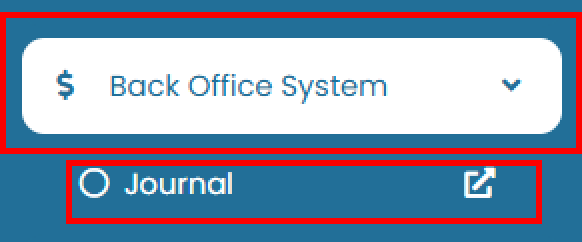
The Journal page provides a detailed overview of all financial transactions recorded within the system. This feature allows users to review income, expenses, payments, and property-owner balances with ease and clarity. To access this page, go to Back Office System > Journal.
View and Navigate
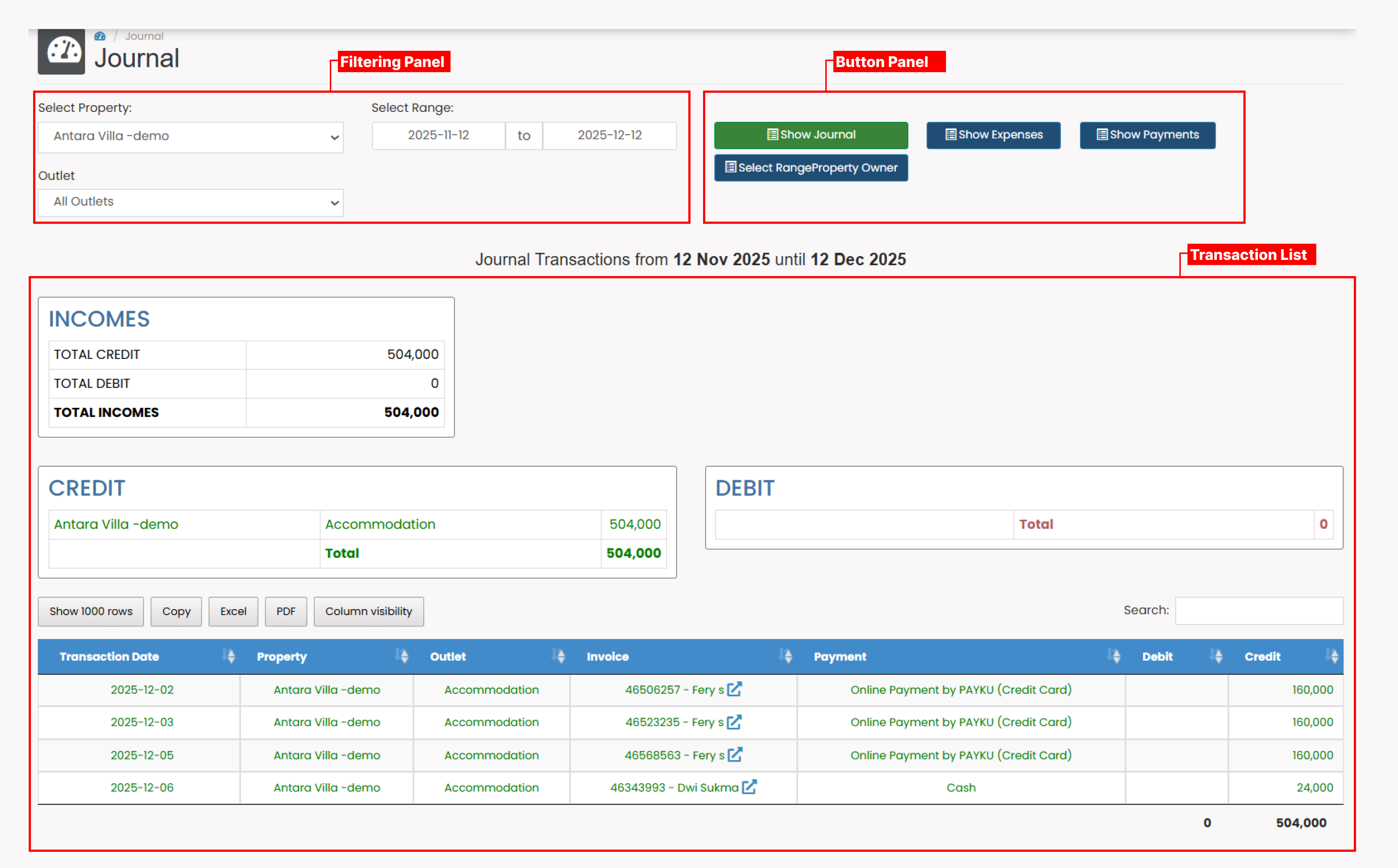
- Use the filtering panel to refine your search based on property, date range, and outlet. The transaction list section below will update automatically based on your selected filters.
- The button panel allows you to switch between different journal types: Journal, Expenses, Payments, and Property Owner Range. Once filters are applied, the transaction list will display a summary section relevant to the selected journal type, followed by a detailed transaction table.
Filtering Panel
Use the filtering panel to narrow down the transaction results.
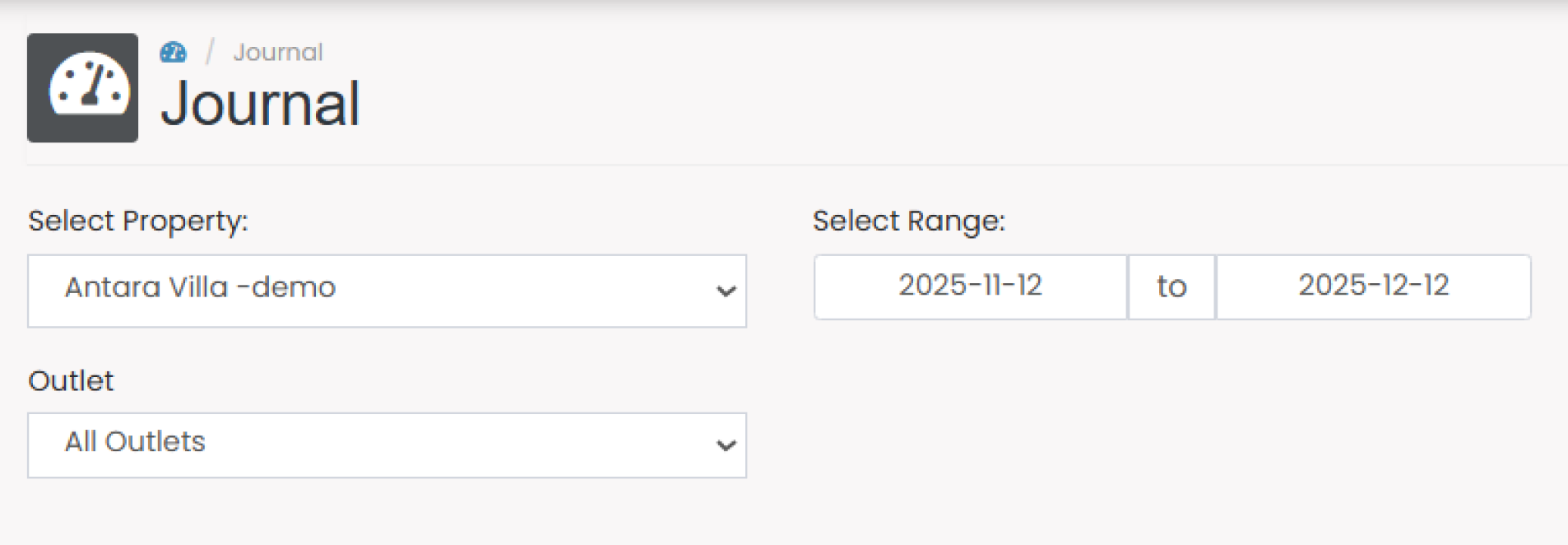
- Property
Select a specific property or choose All Properties to view combined results. - Date Range
Define a specific period by selecting both Start Date and End Date. - Outlet
Choose the outlet associated with the transaction, if applicable.
Button Panel
 The button panel contains four options:
- Journal
- Expenses
- Payments
- Property Owner Range Click any of these options to display the corresponding transaction type. The active selection will be highlighted in green.
Type of Journal
Show Transaction
Summary Panel
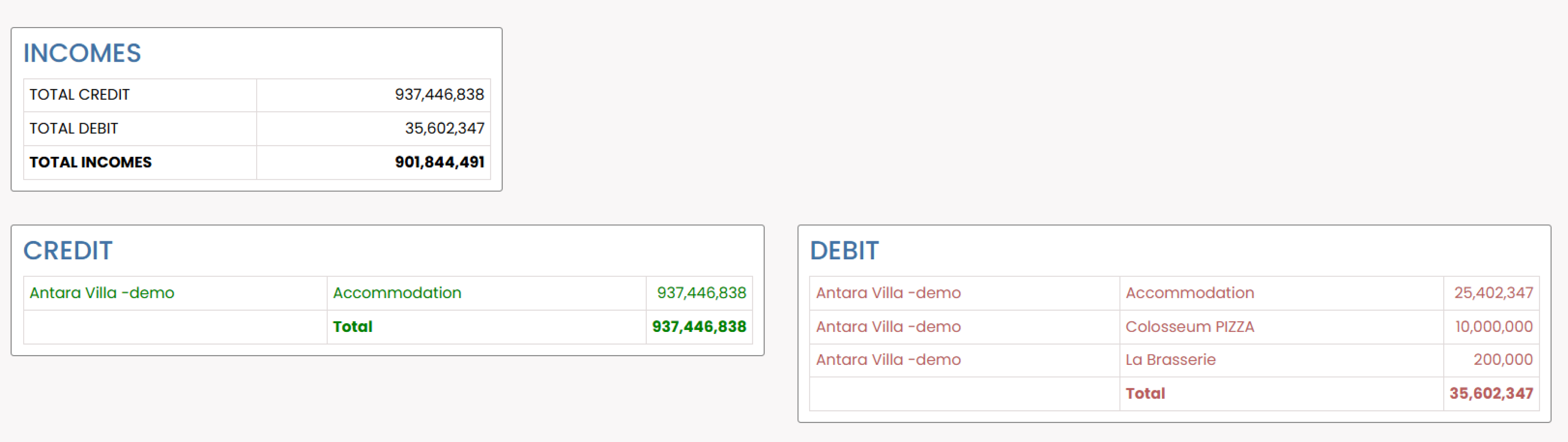
- Income Summary
Displays the total credit, total debit, and the net balance calculated as credit minus debit. - Credit Transactions
Provides a detailed list of all credit transactions, including individual amounts and the total credited value. - Debit Transactions
Provides a detailed list of all debit transactions, including individual amounts and the total debited value.
Transaction List
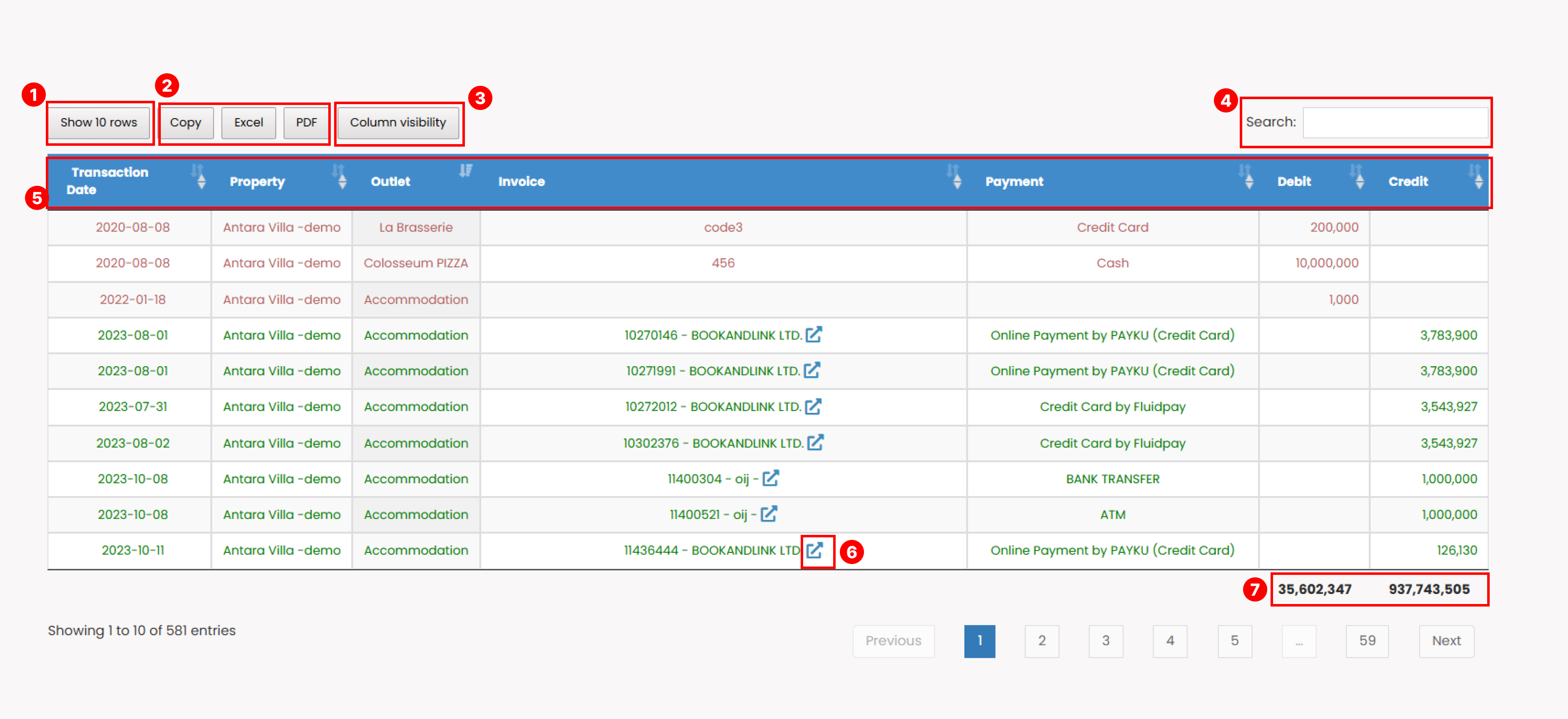 On the transaction list you can use this features:
- Show Rows
Adjust how many rows appear in the table (10, 25, 50, or All). - Export Options
- Copy : Export table data in text format to clipboard.
- Excel : Export data to
.xlsxformat. - PDF : Export data to
.pdfformat.
- Column Visibility
Select which columns to display in the table. - Search Bar
Enter any keyword to search across all columns. The table will display matching results. - Sort Data
Click any column header to sort the list. - Show Invoice
Available only for credit transactions. Click Show Invoice button at the invoice column to open the invoice in a new browser tab. The following image shows an example of the displayed invoice.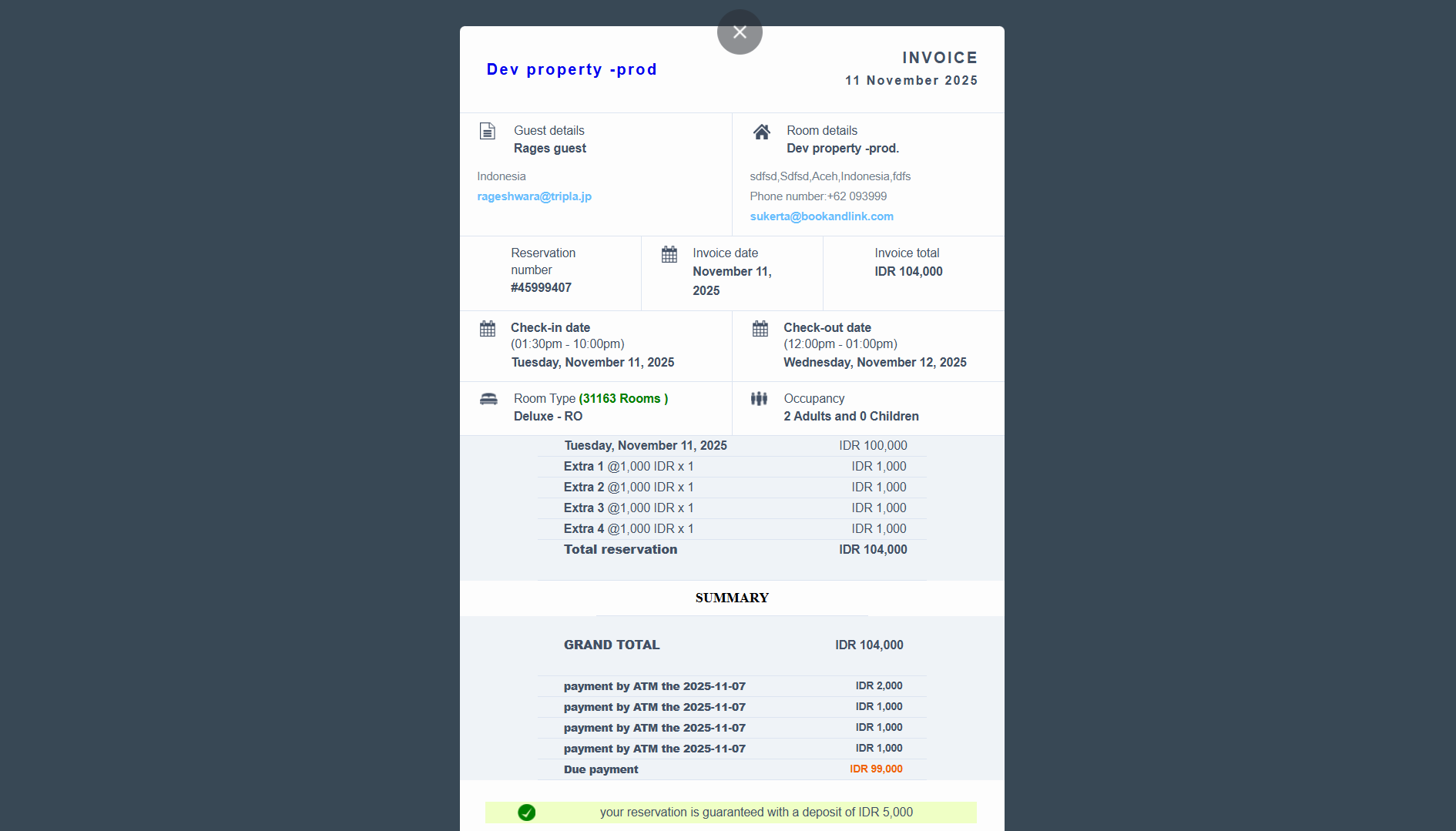
- Total debit and credit Displayed the total amount of debit and credit at the bottom of the table.
Show Expenses
This section displays detailed information on all debit transactions.

Below the summary panel, a transaction table is provided:
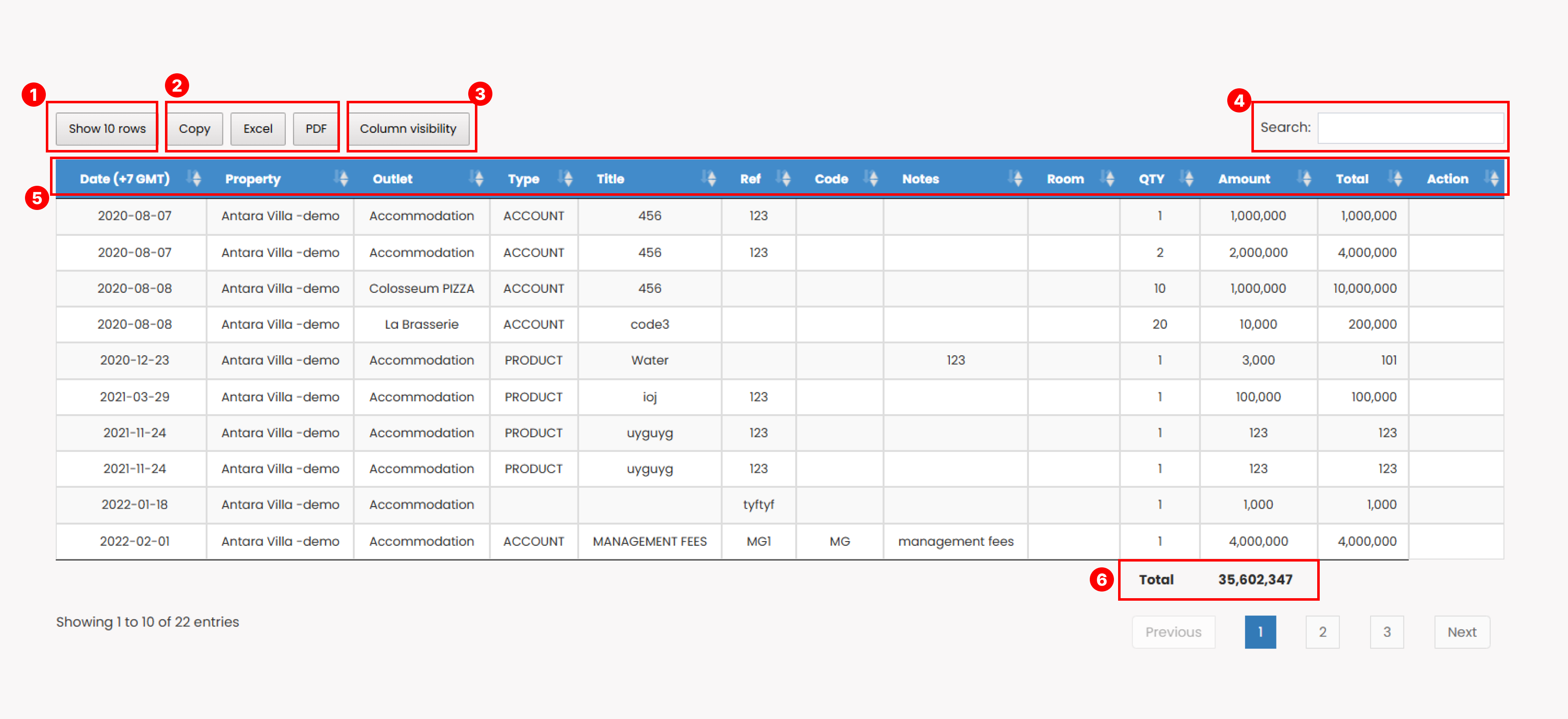
- Show Rows
Adjust how many rows appear in the table (10, 25, 50, or All). - Export Options
- Copy : Export table data in text format to clipboard.
- Excel : Export data to
.xlsxformat. - PDF : Export data to
.pdfformat.
- Column Visibility
Select which columns to display in the table. - Search Bar
Enter any keyword to search across all columns. The table will display matching results. - Sort Data
Click any column header to sort the list. - Total expense Displayed the total amount of expense at the bottom of the table.
Show Payments
This section displays detailed information on all payment-related transactions, which represent credit entries in the journal. It is primarily used to monitor incoming funds and revenue-related movements.

A detailed transaction table is available below the summary panel, showing all payment records that meet the selected filter criteria.
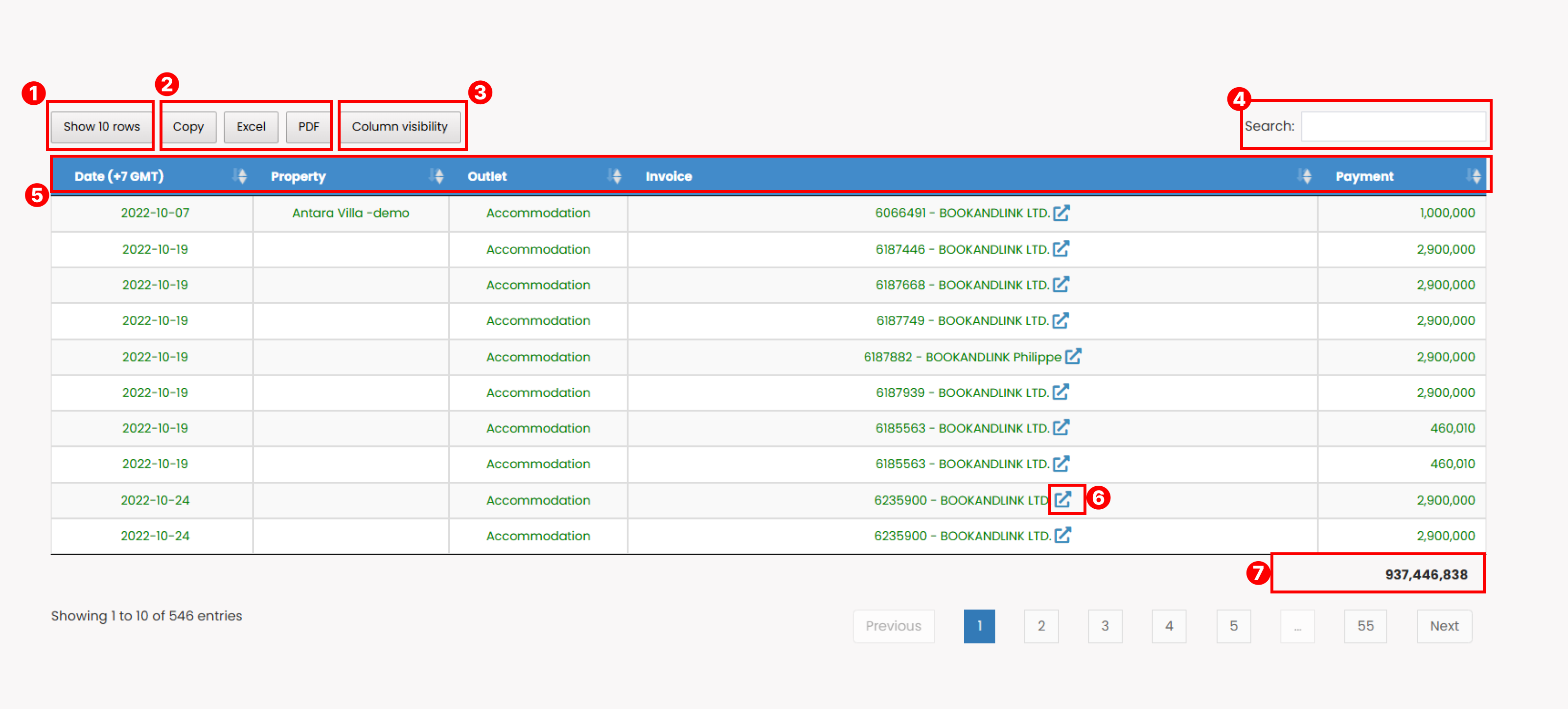
- Show Rows
Adjust how many rows appear in the table (10, 25, 50, or All). - Export Options
- Copy : Export table data in text format to clipboard.
- Excel : Export data to
.xlsxformat. - PDF : Export data to
.pdfformat.
- Column Visibility
Select which columns to display in the table. - Search Bar
Enter any keyword to search across all columns. The table will display matching results. - Sort Data
Click any column header to sort the list. - Total payment Displayed the total amount of payment at the bottom of the table.
Select Range Property Owner
Summary Panel
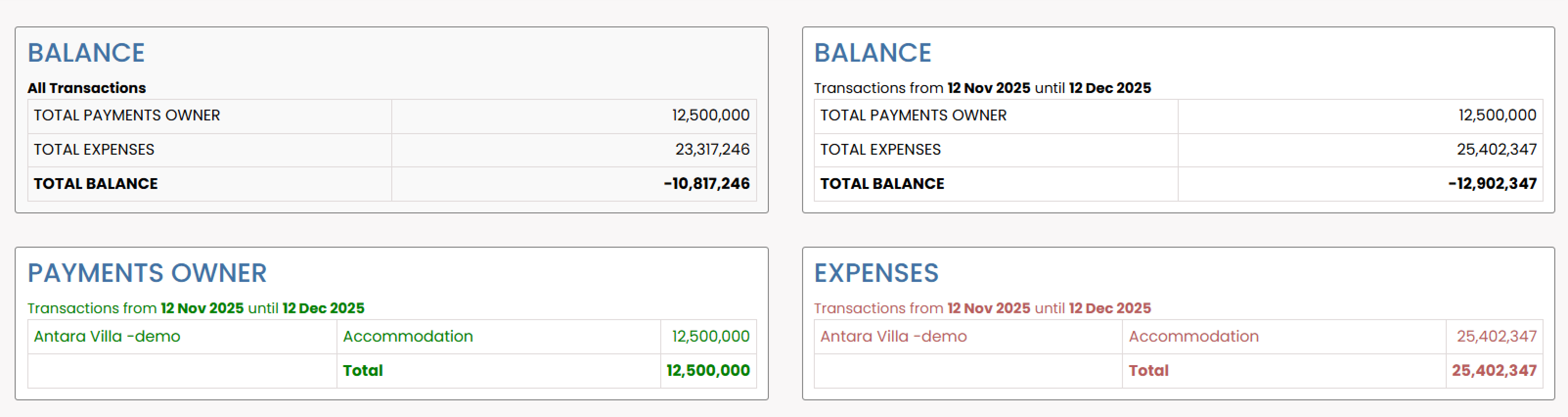
- All Transaction Balance
Displays total payments, total expenses, and the resulting balance for all recorded data. - Period Transaction Balance
Shows totals based on the selected date range. - Payment Owner
List of credit transactions within the applied date range. - Expense
List of debit transactions within the applied date range.
Transaction List
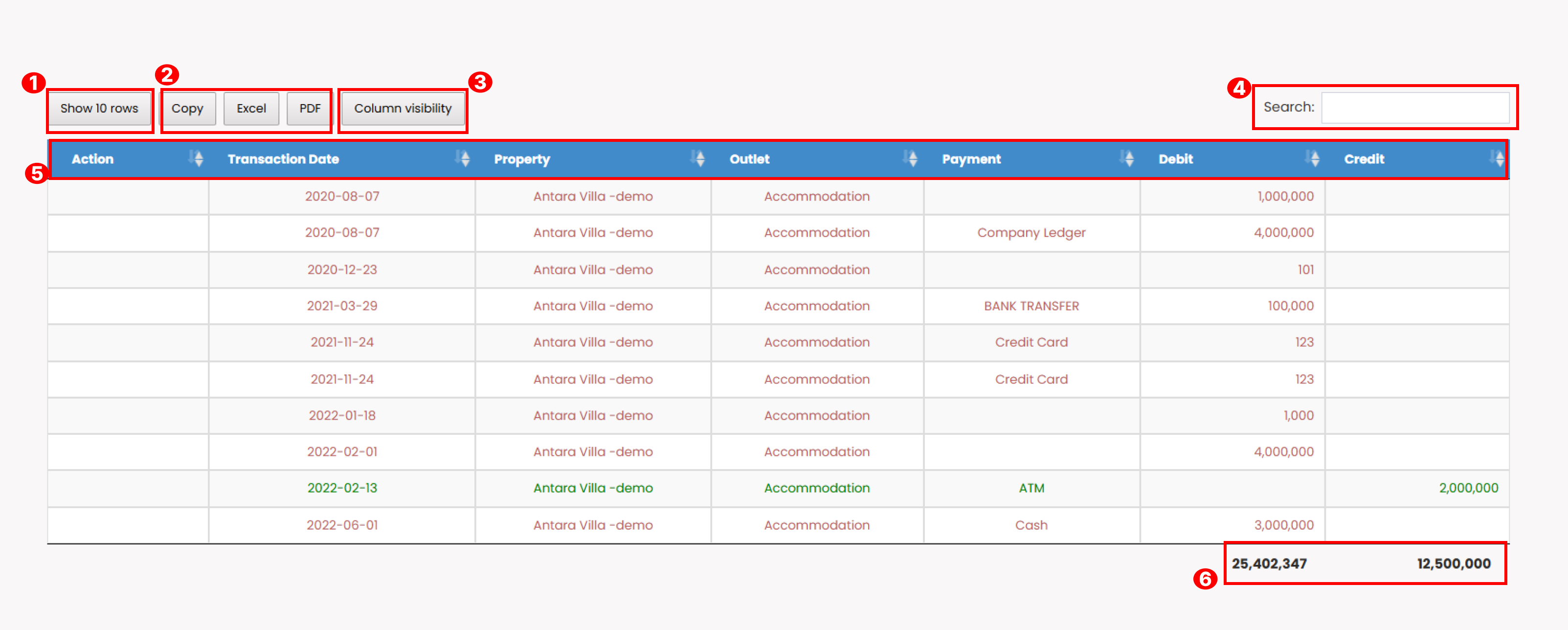 On the transaction list you can use this features:
- Show Rows
Adjust how many rows appear in the table (10, 25, 50, or All). - Export Options
- Copy : Export table data in text format to clipboard.
- Excel : Export data to
.xlsxformat. - PDF : Export data to
.pdfformat.
- Column Visibility
Select which columns to display in the table. - Search Bar
Enter any keyword to search across all columns. The table will display matching results. - Sort Data
Click any column header to sort the list. - Total debit and credit Displayed the total amount of debit and credit at the bottom of the table.