Introduction
The Mapping feature allows you to connect your internal room and rate plans in Channel Manager with external room and rate plans from OTA (Online Travel Agency) and IBE (Internet Booking Engine) partners.
This process ensures that room availability, rates, restrictions, and reservations are synchronized correctly between your property system and the connected partner platform.
Mapping
Mapping for OTA and IBE partners is managed in the Mapping tab. Before creating a mapping, make sure you have already imported the room and rate plan data from the selected partner.
How to Import Rooms
The Import Rooms feature retrieves room and rate plan data from connected partner.
- Click the Import Rooms button in the Mapping tab.

- The system will display available room and rate plans. Tick the rooms you want to import from the available rooms list.

- Click the Save button to complete the import process.
[!NOTE]
Troubleshooting Import Rooms
Import Rooms button not working
- Check your internet connection and try again.
- Log out and log in again before attempting the import.
Imported list is empty or incomplete
- Confirm with partner that your property is live and room/rate plans are available.
- Re-import after making changes on partner’s extranet.
How to Add Mapping
After importing the room list, you can create a mapping between the external room and your internal rate plan.
- Go to the Mapping tab and locate the Internal Rate Plan Name you want to map. Then click Add Mapping next to the rate plan.
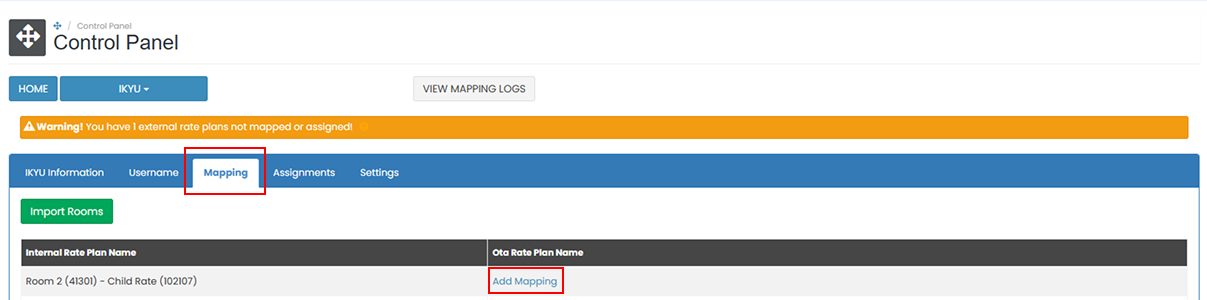
- A list of available room and rate plan combinations will appear. Only room and rate plans that have already been imported and have not yet been mapped to an internal room will be displayed in this list.
- Select the room and rate plan that matches the internal rate plan you want to connect.
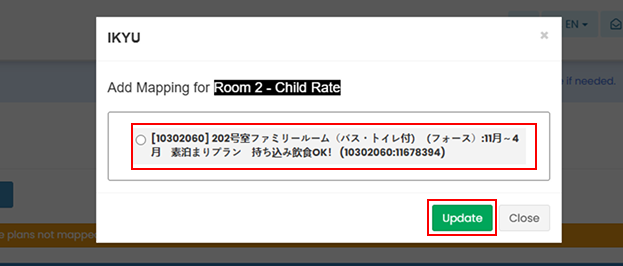
- Click Update to save the mapping. If you don’t want to continue, click Close to cancel the process.
How to Unmapped Rooms
If you need to update or change an existing mapping, you must first remove the current one. To unmap a room, click the Remove (×) button next to the mapped room.

Mapping Status Indicators
The system provides visual indicators to help you quickly identify the mapping status of your rooms and rate plans. These indicators help ensure that all rooms are properly connected, allowing accurate synchronization of availability, rates, and reservations across systems.
Yellow Warning Sign
Indicates that there are rooms or rate plans that have not yet been mapped.
 This commonly appears right after importing rooms from an OTA, IBE, or PMS. It serves as a reminder that the imported rooms still need to be mapped. The indicator also shows the number of rooms or rate plans that remain unmapped.
Green Indicator
Indicates that all imported and available rooms and rate plans have been successfully mapped.

[!NOTE]
Troubleshooting Mapping
No room or rate plan appears for mapping
- Make sure you have imported the latest room and rate plan data using the Import Rooms feature.
- Confirm with partner that your property has active rate plans configured.
Unable to save mapping
- Ensure a valid room and rate plan are selected before clicking Update.
- Try refreshing the page and repeating the process if the issue persists.
Assignment
The Assignments feature allows you to link child rate plans from connected partner to your internal rate plans for reservation purposes. This is a receive-only function, which means it supports receiving reservations only and does not allow sending rates, availability, or restriction updates.
How to Assign Child Rates
- On the Assignments tab, find the OTA Rate Plan Name you want to assign. Then click Add Internal Rateplan next to the selected OTA rate plan.
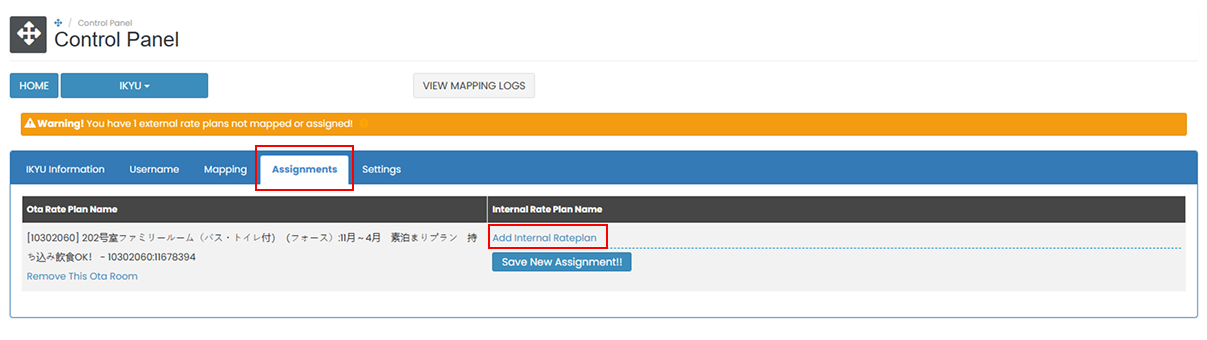
- Select the internal rate plan from the dropdown list.

- Click Save New Assignment to complete the assignment. If you want to cancel the process, click the cancel button before saving.
- If needed, you can remove a previously assigned rate plan by clicking Remove This Ota Room.

[!NOTE]
Troubleshooting Assignments
Cannot find internal rate plan in the dropdown
- Ensure the internal rate plan exists in the system before assigning.
- Refresh the page to load the latest list of rate plans.
Assignment saved but reservations not received
- Confirm the assignment was saved correctly.
- Make sure the rate plan is active on partner and eligible for reservation delivery.
Unable to remove assigned rate plan
- If the Remove This Ota Room button does not respond, try refreshing the page.
- Ensure your user role has permission to modify assignments.