Introduction
This page allows you to create and manage promotions or discounts distributed through Online Travel Agencies (OTAs) such as Booking.com, Airbnb, Agoda, Expedia, and Google Hotels.
From this page, you can configure promotion details, control visibility, and manage promotion status across multiple OTAs.
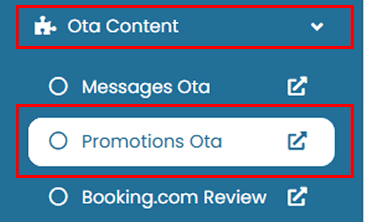
To access this page, go to OTA Content > Promotions OTA.
Add Bulk Promotions
Use this feature to create a promotion and apply it to multiple OTAs at once.
- Click the Add Bulk Promotions.
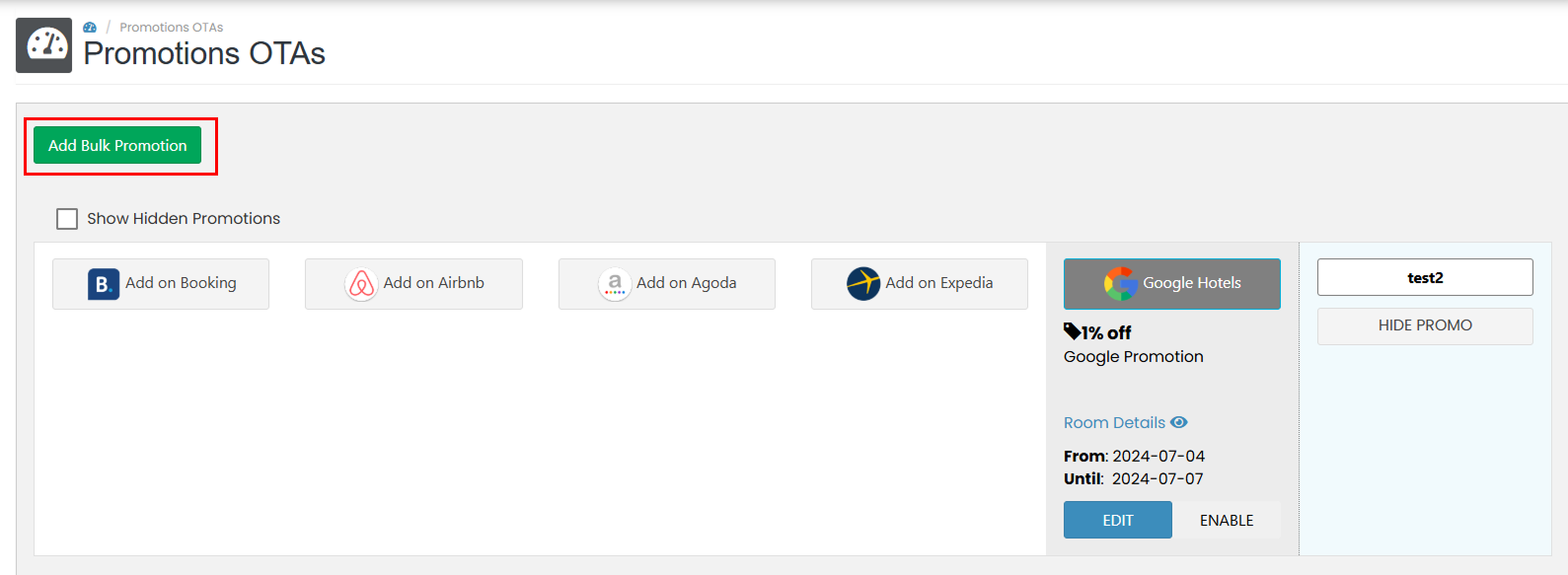
- A pop-up form will appear. Complete the required fields below:
-
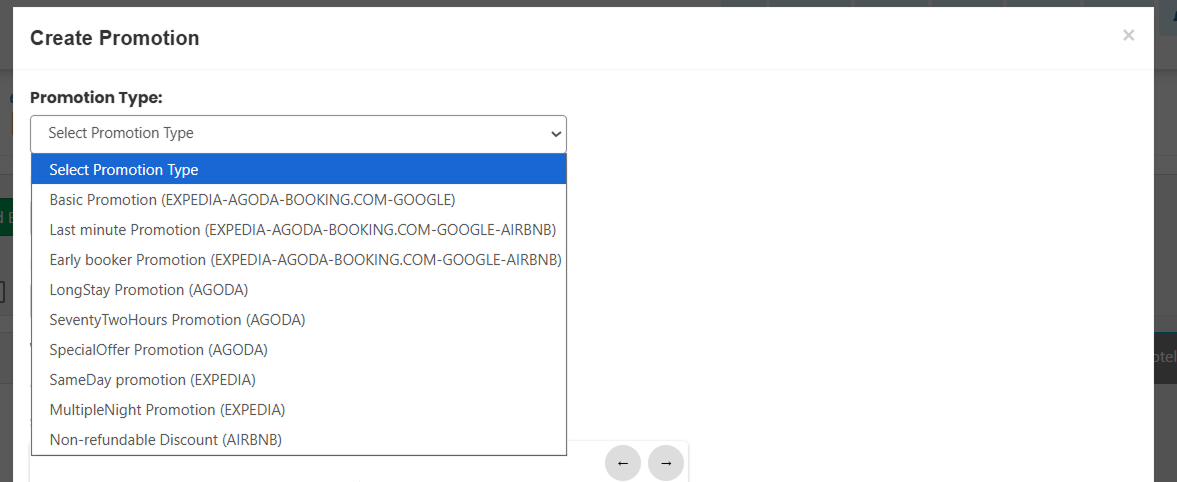
Promotion Type
Select the type of promotion, such as Basic, Last Minute, or Special Offer.
-
Promotion Name
Enter the promotion name.

-
Discount
Specify the discount percentage to be applied.

-
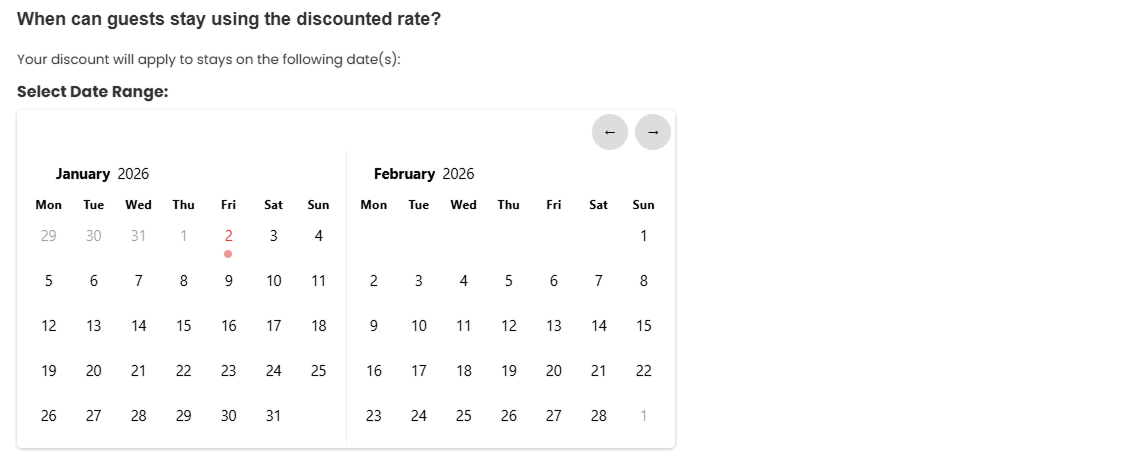
Discounted Range Date
Select the stay date range during which the discount will apply by specifying the start and end dates.
-
Book Time Start and End
Define the booking period during which guests can make reservations using this promotion.

-
Exclude Start and End Date
Select specific dates to be excluded from the promotion, if applicable.

-
Minimum Night
Enter the minimum number of nights required to qualify for the promotion.

-
Maximum Night
Enter the maximum number of nights allowed for the promotion.

-
Select Rate
Choose the rate plans that will be eligible for this promotion. Multiple rate plans can be selected.
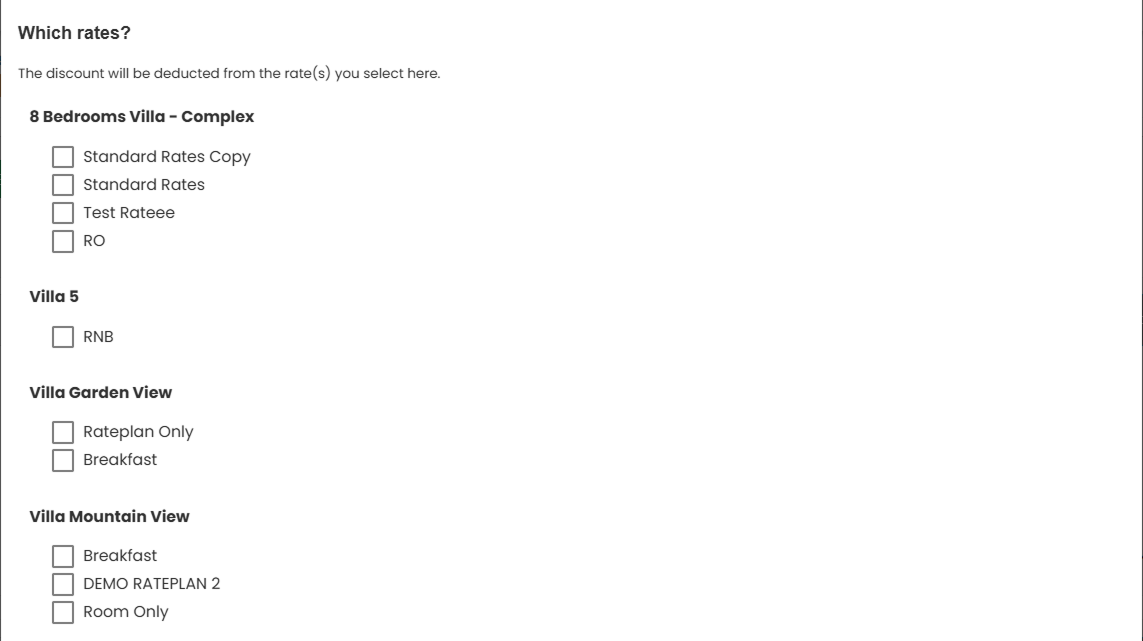
-
Select OTA
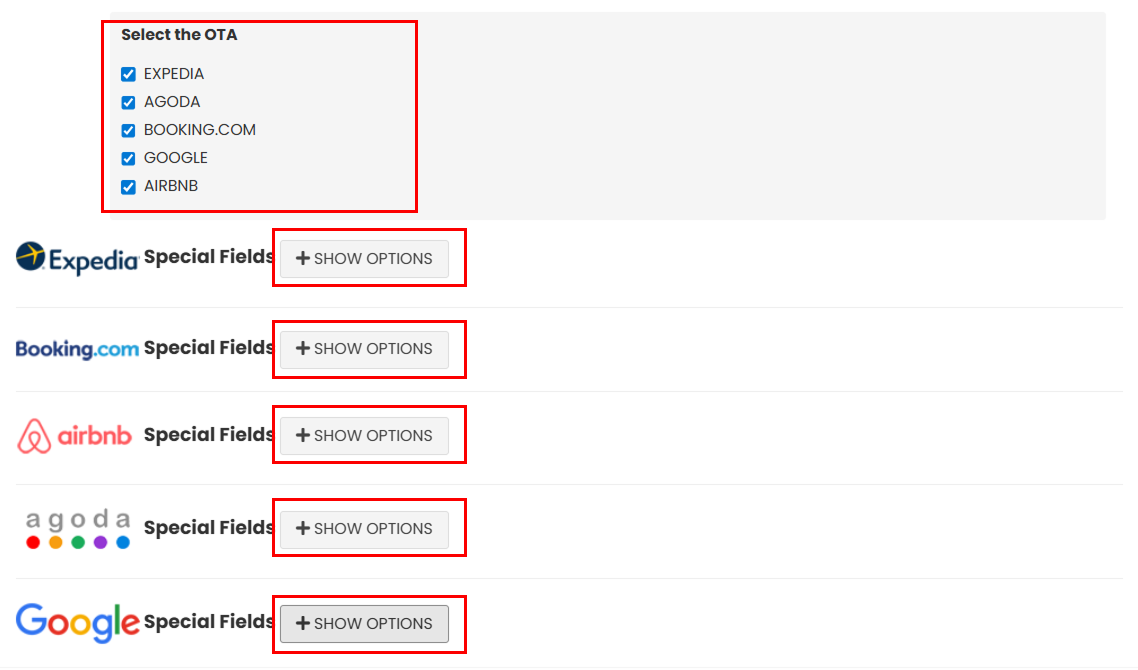 Each OTA provides additional configuration fields specific to its promotion rules. To view and configure these fields, click the Show Option button on the selected OTA.
- Expedia
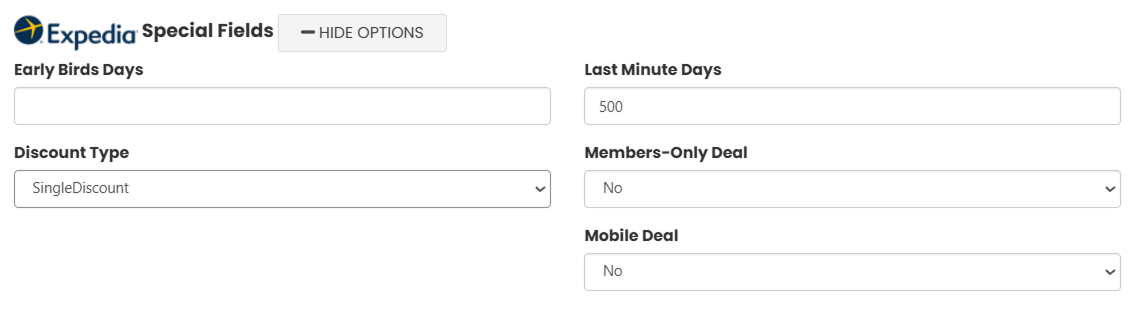 Configure promotion settings for Expedia.
- Early Bird Days : Number of days in advance required to qualify for the promotion
- Last Minute Days : Number of days before check-in for last-minute eligibility.
- Discount Type : Defines how the discount is applied between single discount or days of week. Choosing the "DayofWeek" option will shows you a days on weeks checkbox.

- Members-Only Deal : Choose yes to restricts the promotion to Expedia members only.
- Mobile Deal
- Agoda
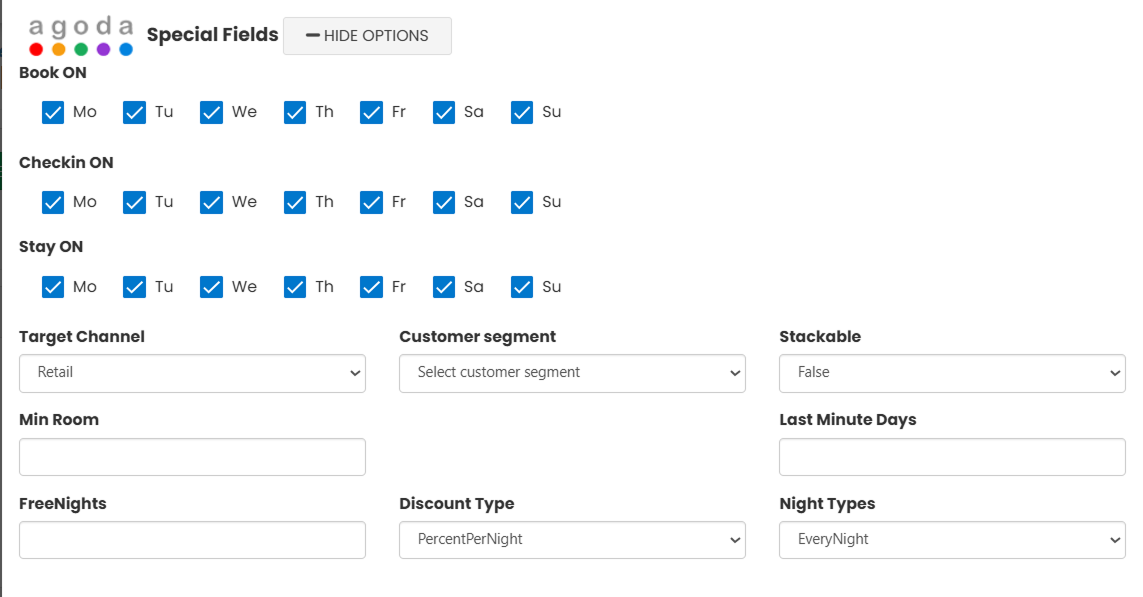 Configure promotion settings for Agoda.
- Book On : Booking date eligibility.
- Checkin On : Booking date eligibility.
- Stay On : Booking date eligibility.
- Target Channel : Target booking channel.
- Customer Segment : Defines eligible customer segments.
- Stackable : Allows the promotion to be combined with other promotions.
- Minimum Room : Minimum number of rooms required.
- Last Minute Days : Eligibility period for last-minute deals.
- Free Nights : Free night offers based on stay duration.
- Discount Type : Type of discount applied
- Night Types : Specifies applicable night categories.
- Booking.com
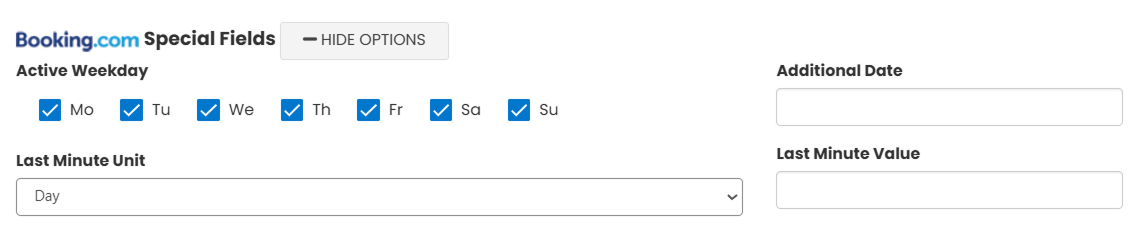 Configure promotion settings for Booking.com.
- Active Weekday : Select applicable weekdays.
- Additional Date : Additional eligible date range.
- Last Minute Unit : Defines the unit of time for last-minute deals.
- Last Minute Value : Discount value applied for last-minute bookings
- Google
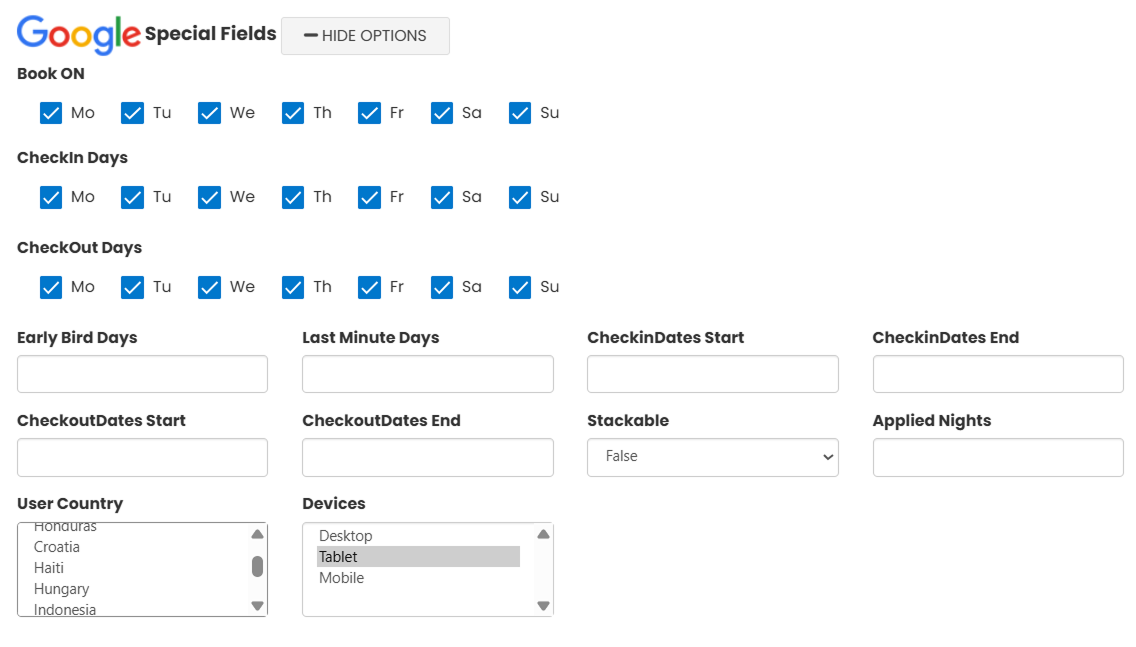 Configure promotion settings for Google Hotels.
- Book On : Eligible booking dates.
- Check-in Days : Allowed check-in days.
- Check-out Days : Allowed check-out days.
- Early Bird Days : Advance booking requirement.
- Last Minute Days : Last-minute booking eligibility.
- Check-in Date Start / End : Valid check-in date range.
- Check-out Date Start / End : Valid check-out date range.
- Stackable : Allows promotion to be combined with others.
- Applied Nights : Number of nights the promotion applies to.
- User Country : Target guest country.
- Device : Target device type (e.g., mobile or desktop).
- AirBnB
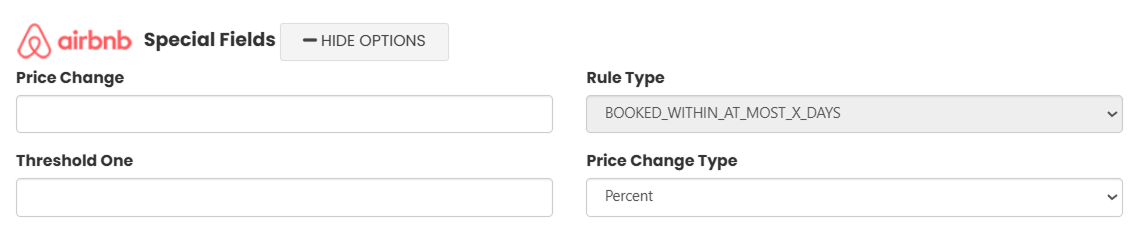 Configure promotion settings for AirBnB.
- Price Change : Amount of price adjustment.
- Rule Type : Defines the promotion rule type.
- Threshold One : Minimum requirement to activate the promotion.
- Price Change Type : Defines whether the change is a percentage or fixed value
- Expedia
-
- Click the Create Promotions to add new bulk promotions.

Promotion Details
Room Details
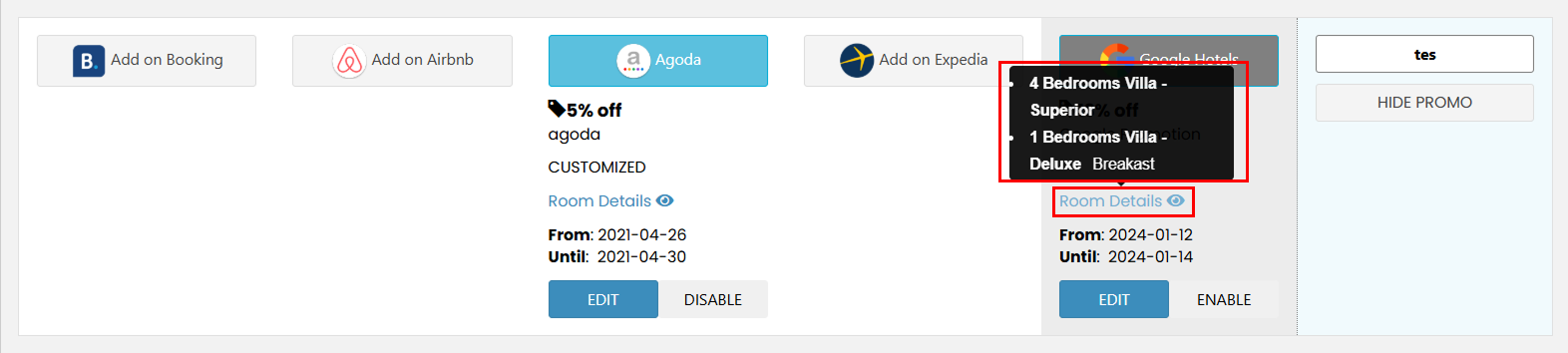 Hover over the Room Detail icon to view a summary of room types included in the promotion.
Edit Promotions
To update an existing promotion:
- Click the Edit button for the OTA you want to modify.
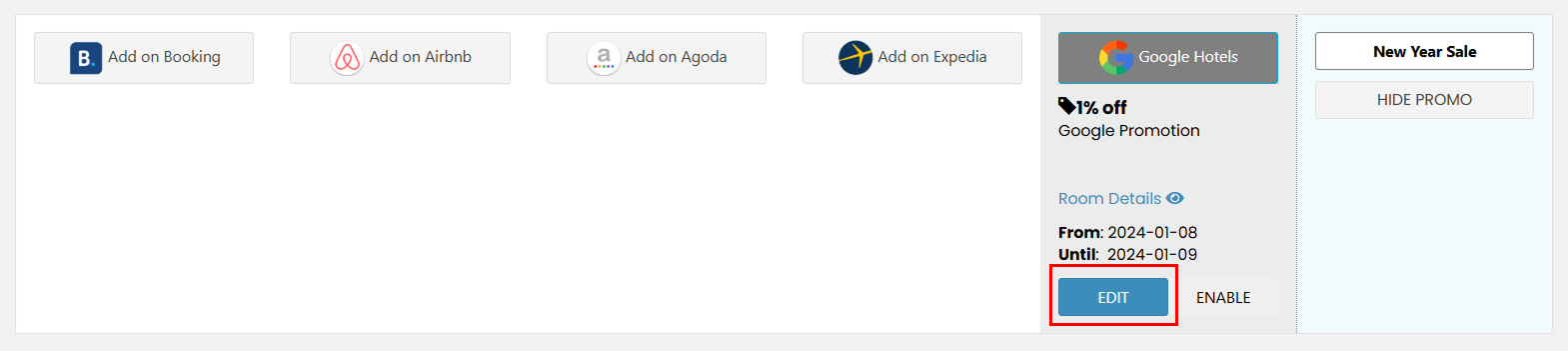
- A pop-up form will appear. Update the required fields as needed.
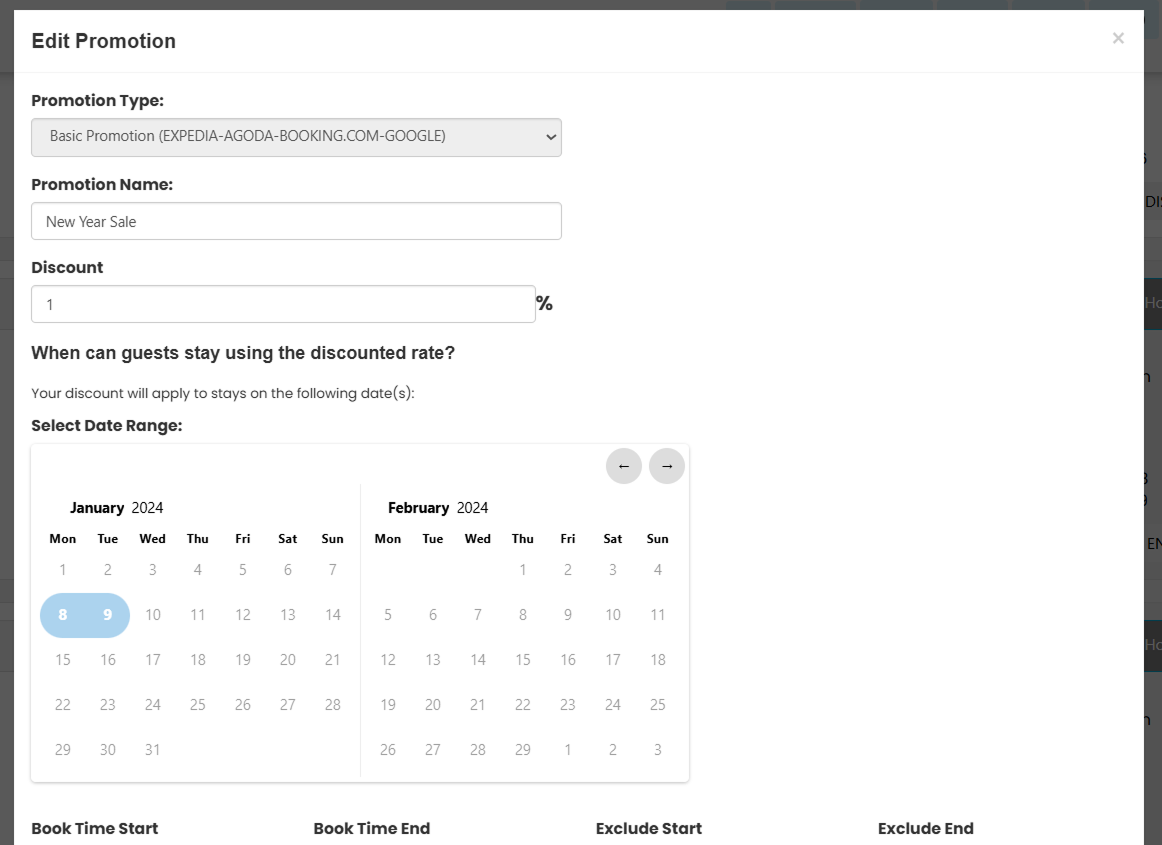
- Click Update Promotions to save the changes.

Set Status
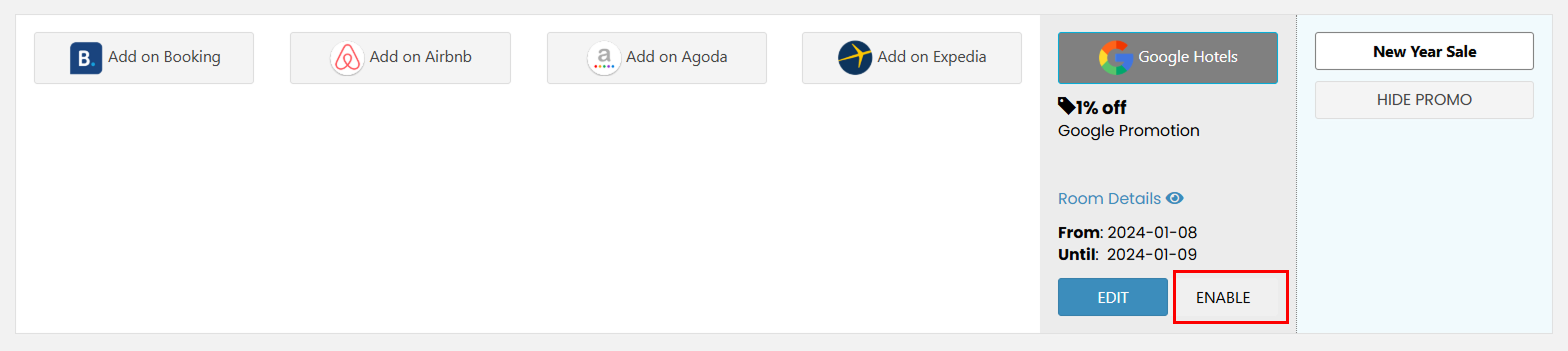 You can enable or disable a promotion per OTA using the toggle button. This allows you to activate the promotion on specific OTAs while disabling it on others.
Set Promotion Status
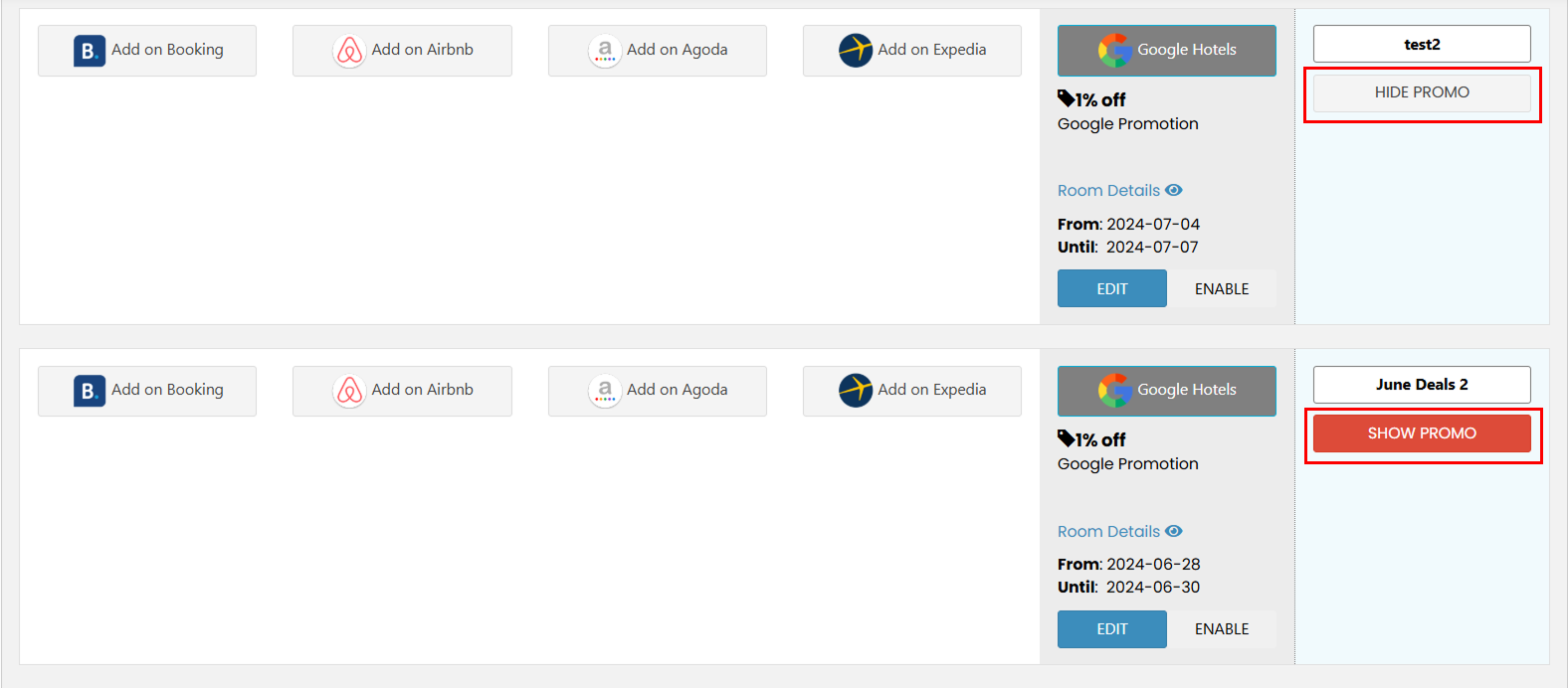 This option controls the overall visibility of the promotion across all OTAs.
- Show : The promotion is active and visible on all connected OTAs.
- Hide : The promotion is disabled on all OTAs at once.