Introduction
Housekeeping is a feature to manage room cleanliness status, add internal notes, and facilitate communication between housekeeping staff and front office teams. This feature ensures that room conditions are accurately tracked and updated in real time, helping improve operational workflow and overall property efficiency.
Housekeeping Overview
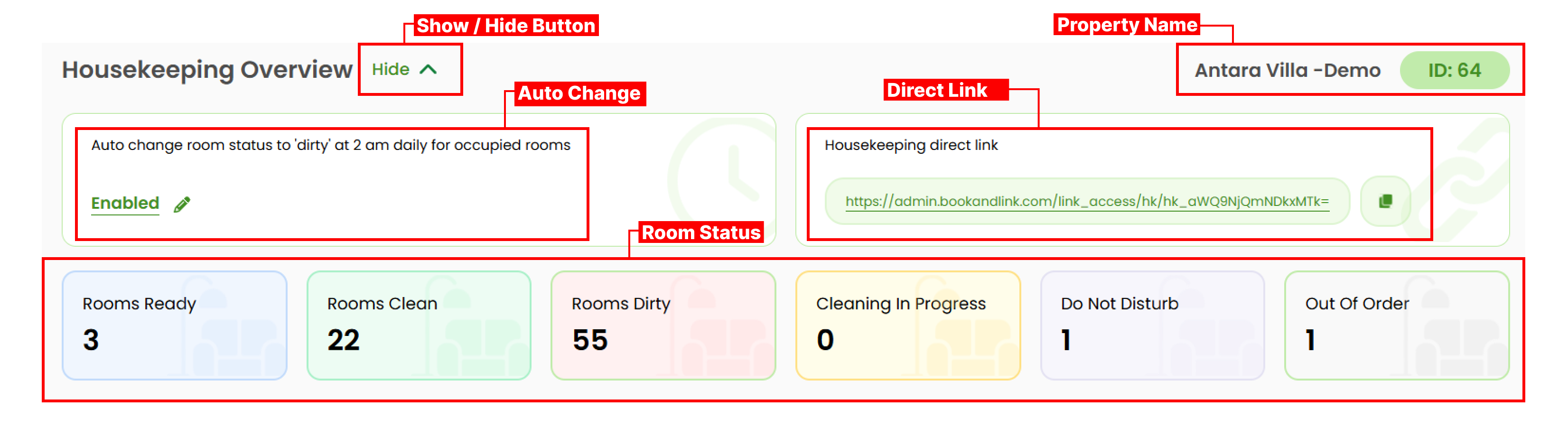
- You can expand or close the overview section by clicking the show/hide button.
- You can see the information of your property name on the top right corner.
- Auto Change Setting : This setting will allow you to set the auto change room status to dirty at 2 a.m daily only on occupied rooms. You can enable or disable this function with simply click the button. After change the setting, click the check (✓) button if you want to save the changes or the cross (x) button if you want to cancel the changes.

- Housekeeping Link : This section displays the direct housekeeping link. For details on how to use it, refer to the Housekeeping documentation.
- Room Status : The room status panel display the information of amount of each room status like ready, clean, dirty, cleaning in progress, do not disturb and out of order.
Housekeeping Direct Link
The system provides a Housekeeping Direct Link that allows housekeeping staff to update room statuses without logging into the main system.
- Accessible via mobile devices or any browser-supported device.
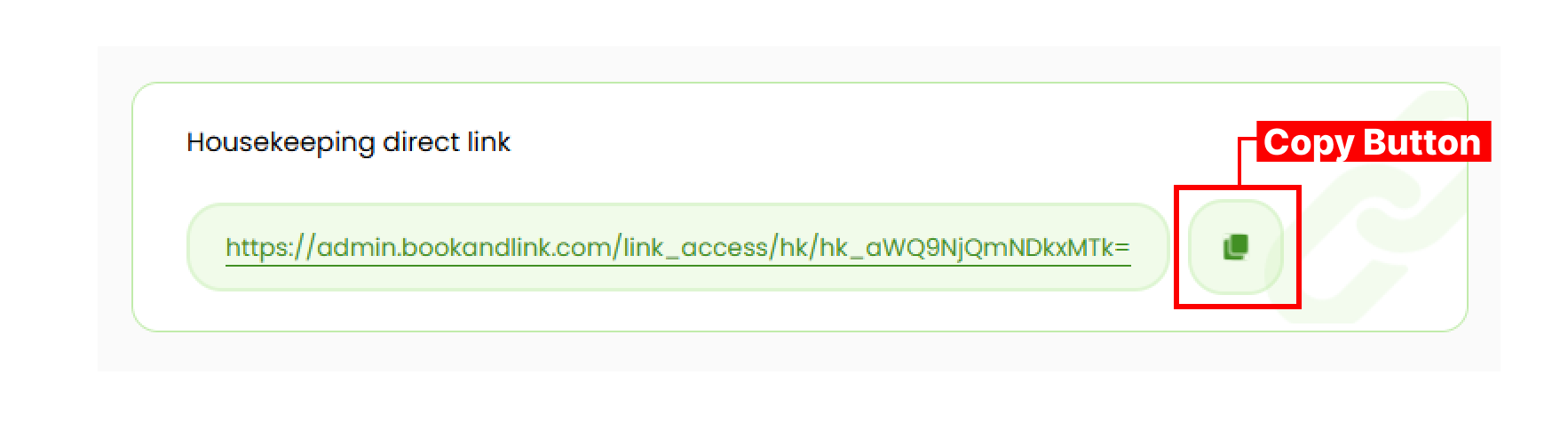
- To use this feature, copy and share the link with your housekeeping team.
- The interface shown to staff will look similar to the example below:
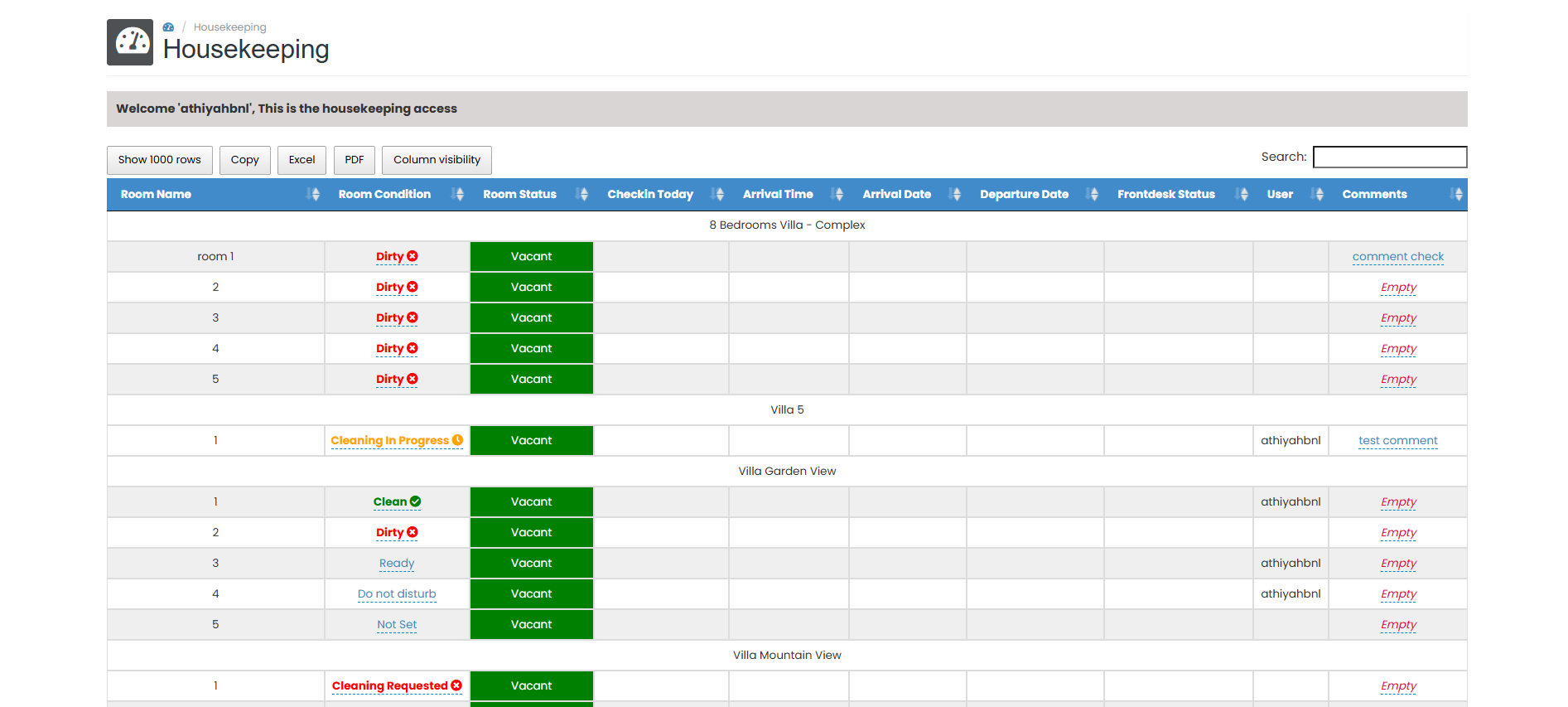 The staff can update the status and leave any comment. Refer to How to Change Status and How to Add Comment for guidance..
[!NOTE]
Troubleshooting Housekeeping Direct Link
Direct link is not accessible
- Ensure the link was copied correctly and shared in full.
- Check that the link is being opened in a supported browser or device.
- If the link is expired or restricted, generate a new one from the system.
Housekeeping staff cannot update room status from direct link
- Confirm that the link has proper permissions enabled for updates.
- Check if the device used has an active internet connection.
- Make sure the link is not set to “view-only” mode, if such setting exists in the property setup.
Housekeeping List
This section display a data table of all rooms and its condition on each rooms. The table list also inform the date of check in, arrival time and date, departure date, front desk status, user and comments.
View and Navigate
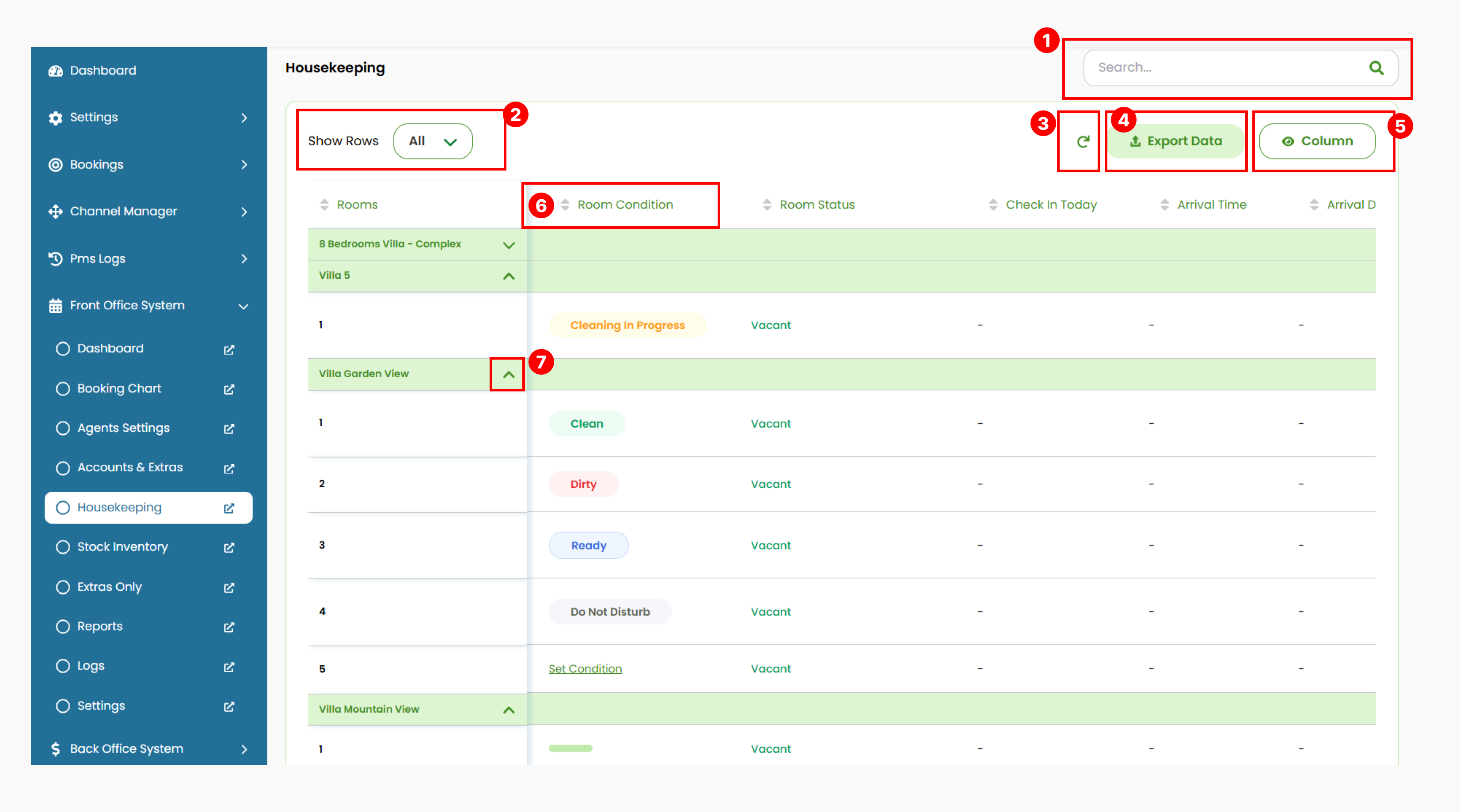
- Use the Search Bar to find specific data using keywords (room name or room condition). The table will display matching results.
- Adjust the number of rows displayed by selecting 10, 25, 50, 75, 100 or all rows.
- Use the Refresh button to reset sorting data on the table.
- Export the table by clicking Export Data. The exported file will be in .xlsx format. Only the visible data (after filters, search, or column visibility changes) will be included in the export.
- You can customized the column view by clicking the Column button. Check the column you want to shown.
- The table columns can be sorted by clicking the column headers.
- Expand or collapse the rooms list by clicking the arrow button.
How to Change Status
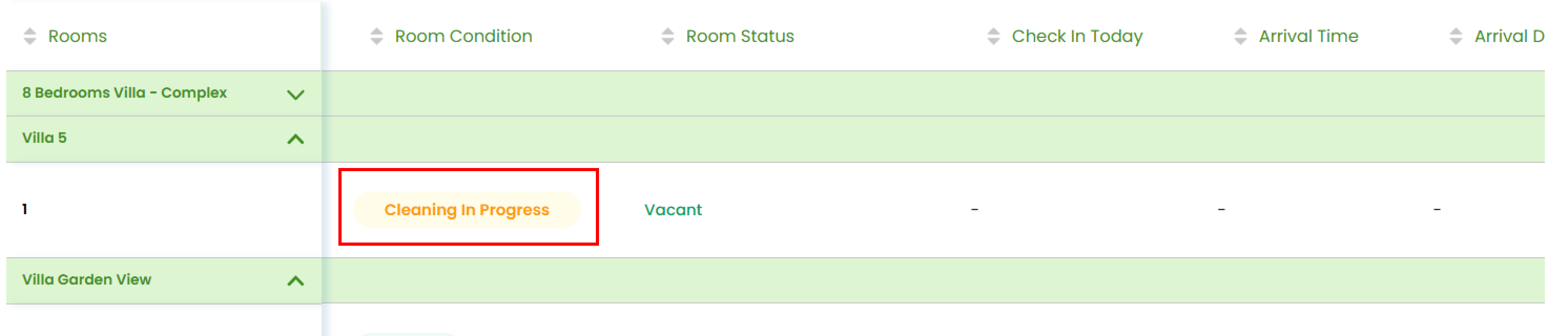
- Navigate to the housekeeping list, in the Room Condition column, click on the current status of the desired room.
- Select the new status from the available options (e.g., Clean, Dirty, Ready).
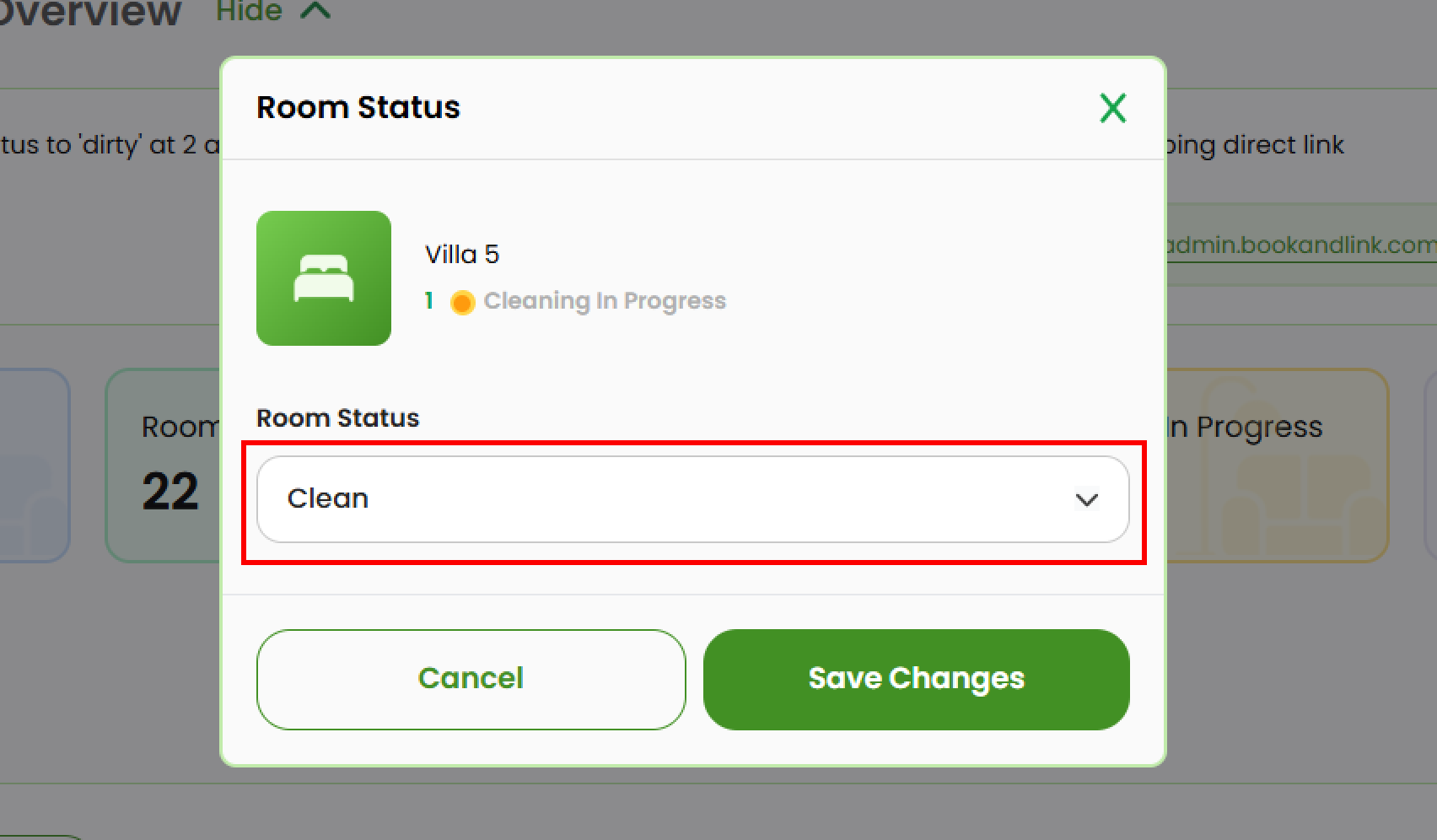
- Click the Save Changes button to apply the changes. The status will be updated.
[!NOTE]
Troubleshooting How to Change Room Status
Status cannot be changed / dropdown not responding
- Ensure you have the appropriate user role or permission to modify room status.
- Refresh the page and try again to ensure the interface is fully loaded.
- If using the mobile version or an outdated browser, switch to a desktop browser for full functionality.
Status not saved after clicking checkmark
- Wait a few seconds after clicking the checkmark to allow the system to process the update.
- Double-check your internet connection; unstable connections may prevent saving changes.
- If the issue persists, try reselecting the status and clicking the checkmark again.
Room status not automatically changed at 2:00 AM
- Check if the auto-dirty feature is enabled in your property settings.
- If auto-dirty is enabled but not working, contact support to verify scheduled automation settings.
How to Add Comments
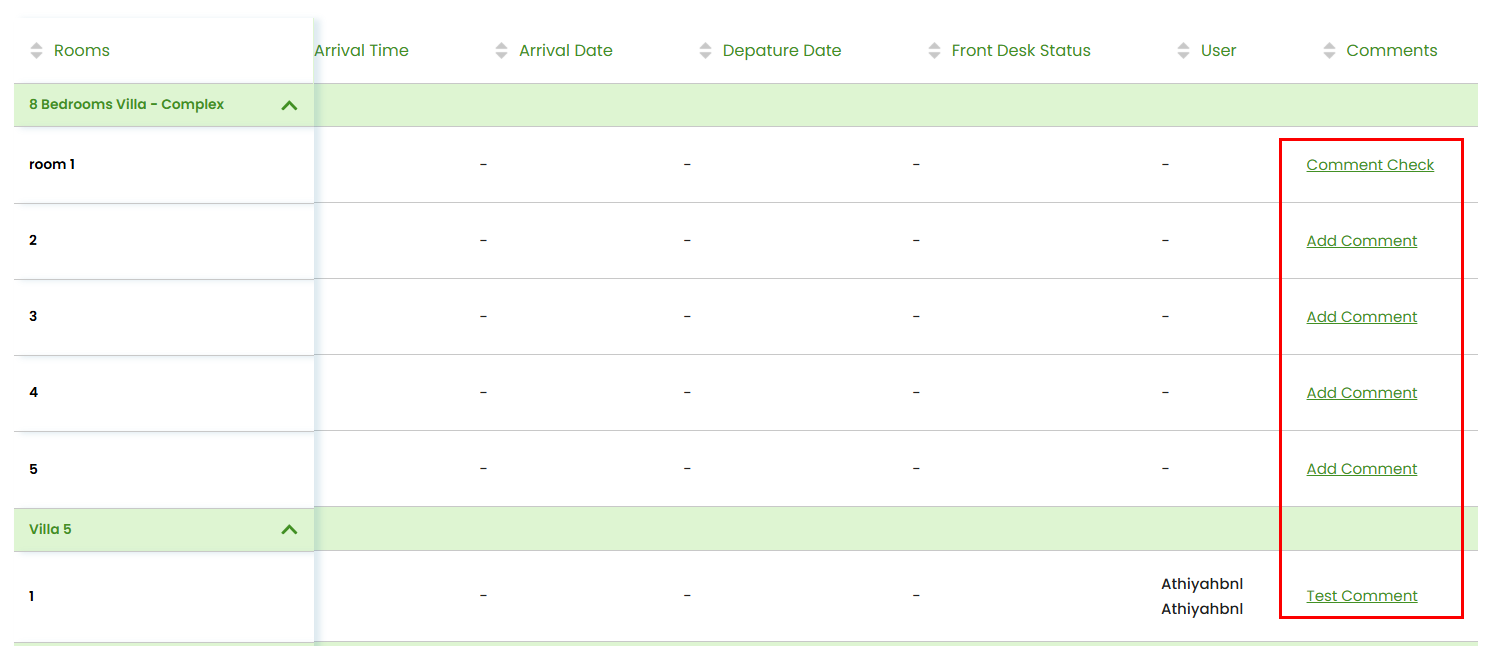
- In the housekeeping list table, in the Comments column, click on the existing comment or the Add Comment button for the desired room.
- Enter your comment in the text box.
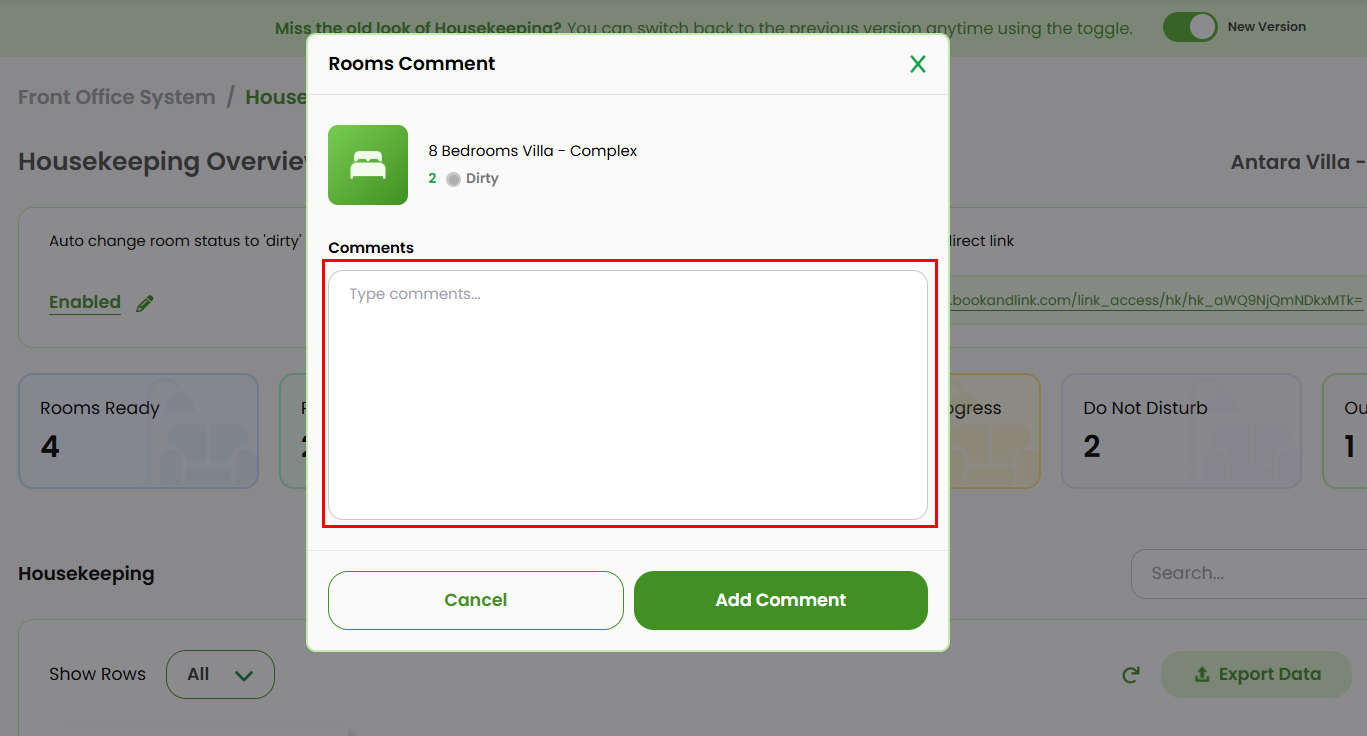
- Click the Add Comment button to apply the changes.
_Notes:_
- The registered user is based on the username used to log in
- Comment at Housekeeping are not connected with Private Comment and Guest Comment on Booking Chart
[!NOTE]
Troubleshooting How to Add Comments
Unable to add or edit comments
- Ensure you are logged in; the system tracks comments based on logged-in users.
- Confirm you’re clicking within the Comments column, not elsewhere in the row.
- Avoid using special characters that may not be supported.
Comment not saved after clicking the checkmark
- Wait a moment after saving; it may take a second to reflect.
- Refresh the page to verify if the comment has been applied.
- If unsaved, re-enter the comment and save again.