Introduction
The Widget page allows you to create, view, and manage widgets for displaying customer reviews directly on your website. You can monitor the status and total hits of each widget, create a new widget when needed, and easily copy the provided widget tag for integration with the Bookingku Booking Engine. This feature helps you showcase guest feedback seamlessly, enhancing your property's credibility and attracting potential guests.
How to Create a New Widget
- On the Widget page, click the New Widget button at the top-right.
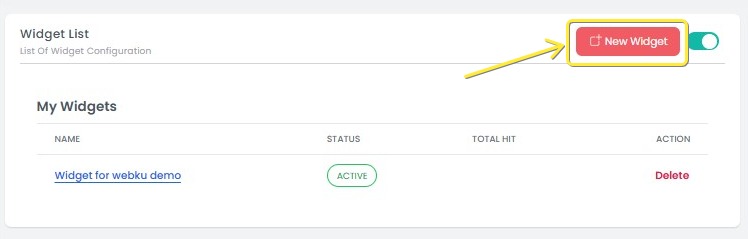
- You will be redirected to the Widget Editor page to configure your widget. The Widget Editor is divided into several sections
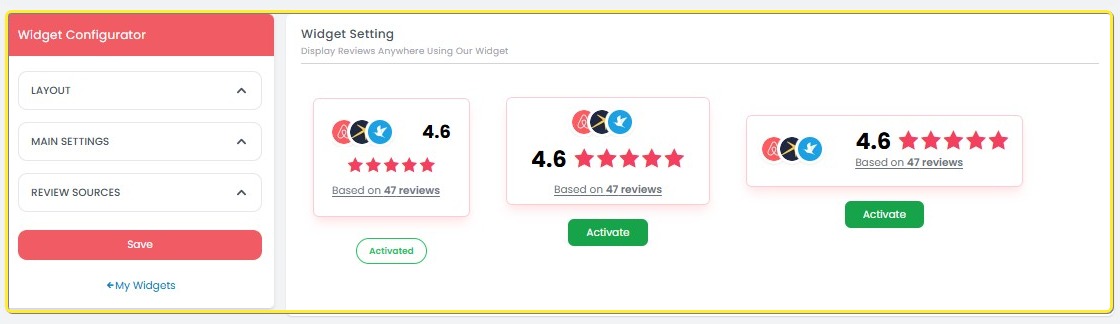
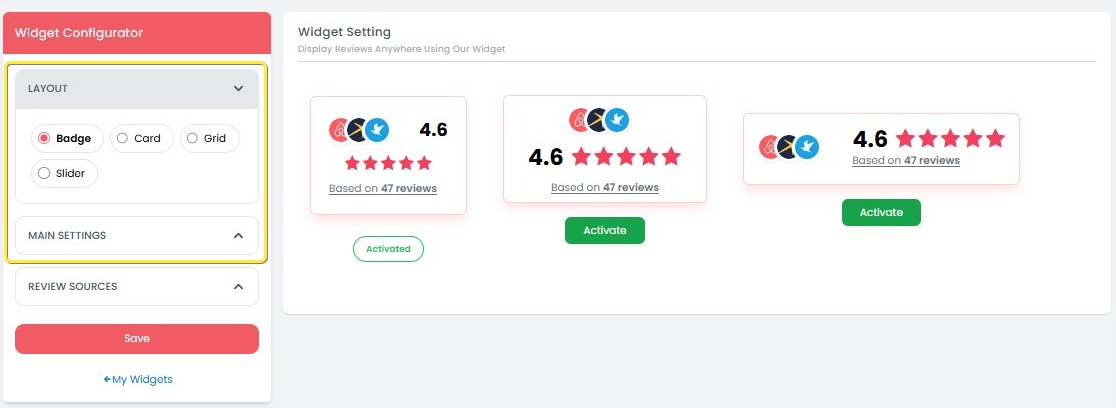
Layout
- Choose the desired widget layout to match your website design.
- You can switch between layout options to preview the appearance.
Main Settings
- Widget Name: Enter a name to identify your widget.
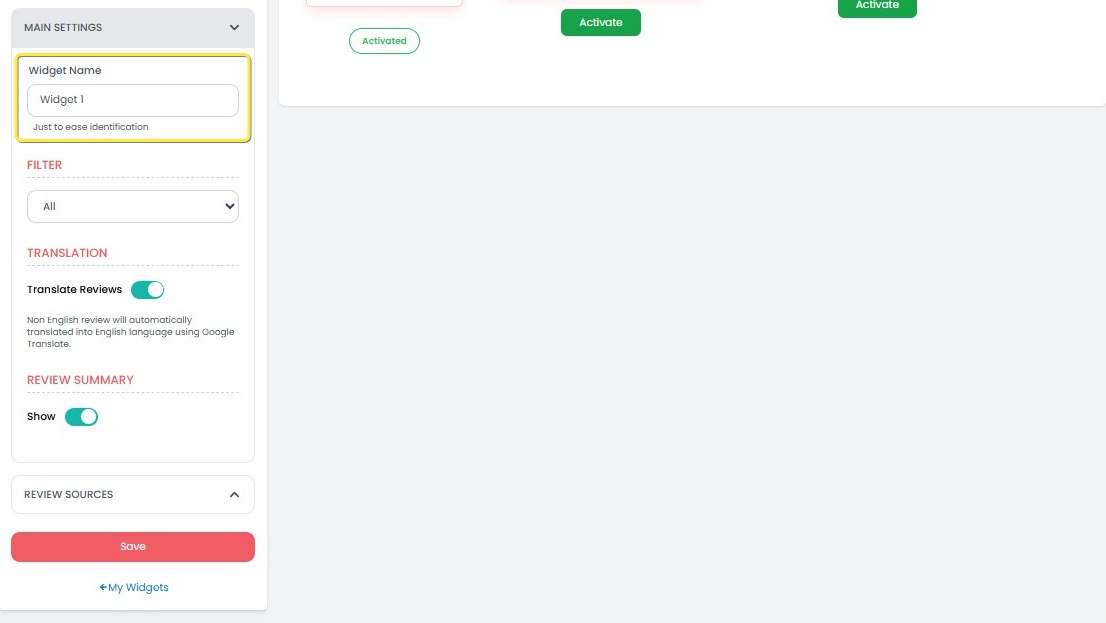
- Filter by Ratings: Choose which reviews to display based on their rating:
- All: Display all reviews regardless of rating.
- 5 Stars Only: Display only 5-star reviews.
- 4-5 Stars Only: Display reviews with 4 and 5 stars.
- 3-5 Stars Only: Display reviews with 3, 4, and 5 stars.
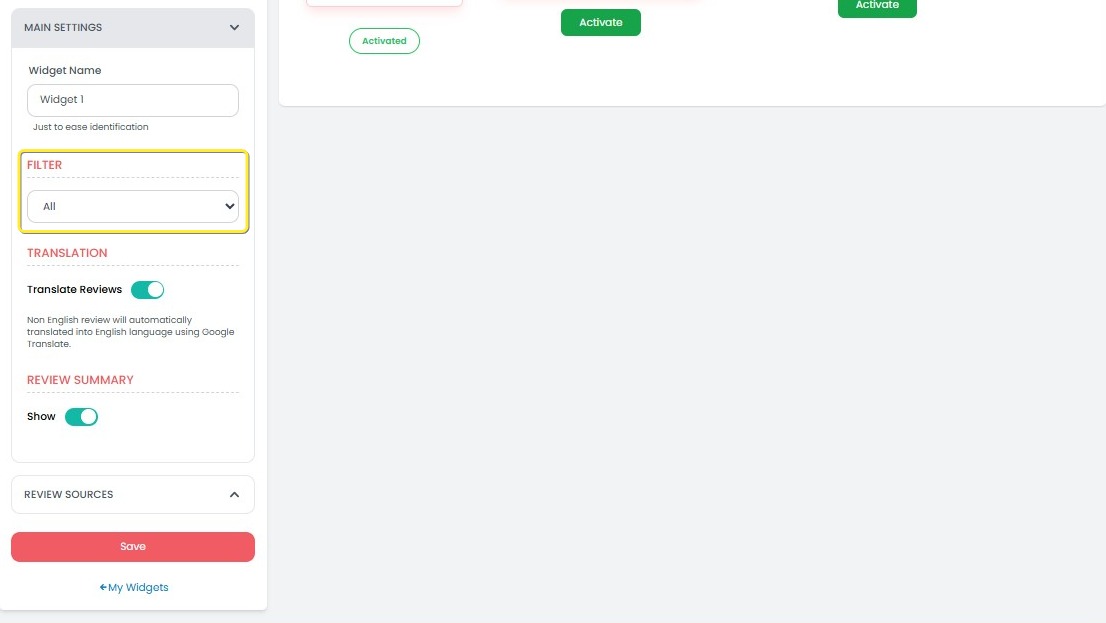
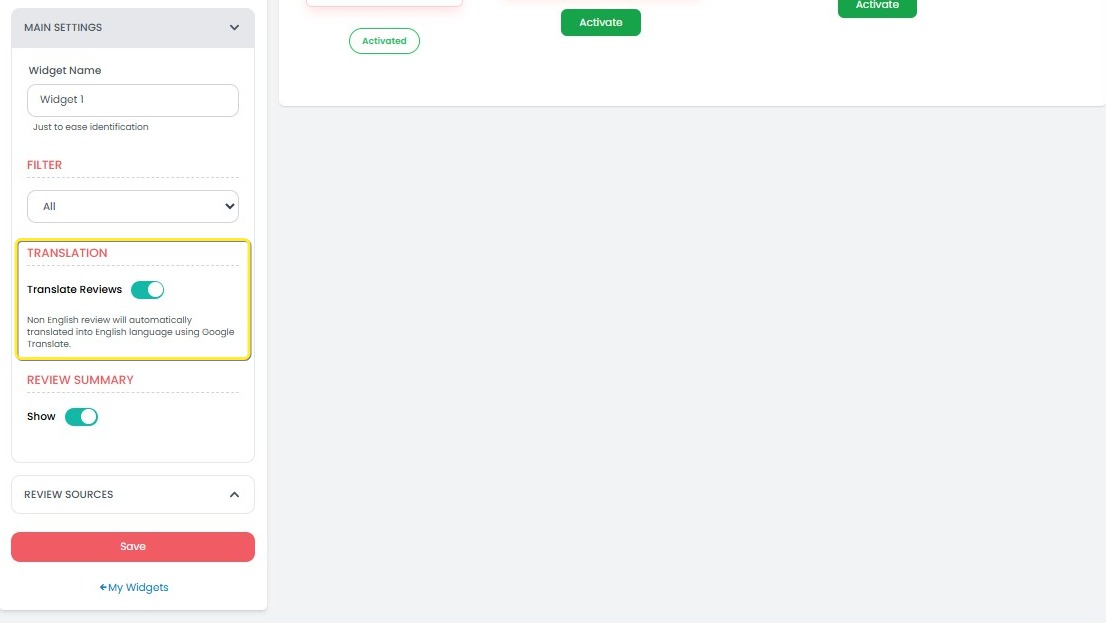
- Translation: Toggle on/off to automatically translate reviews into the user's preferred language.
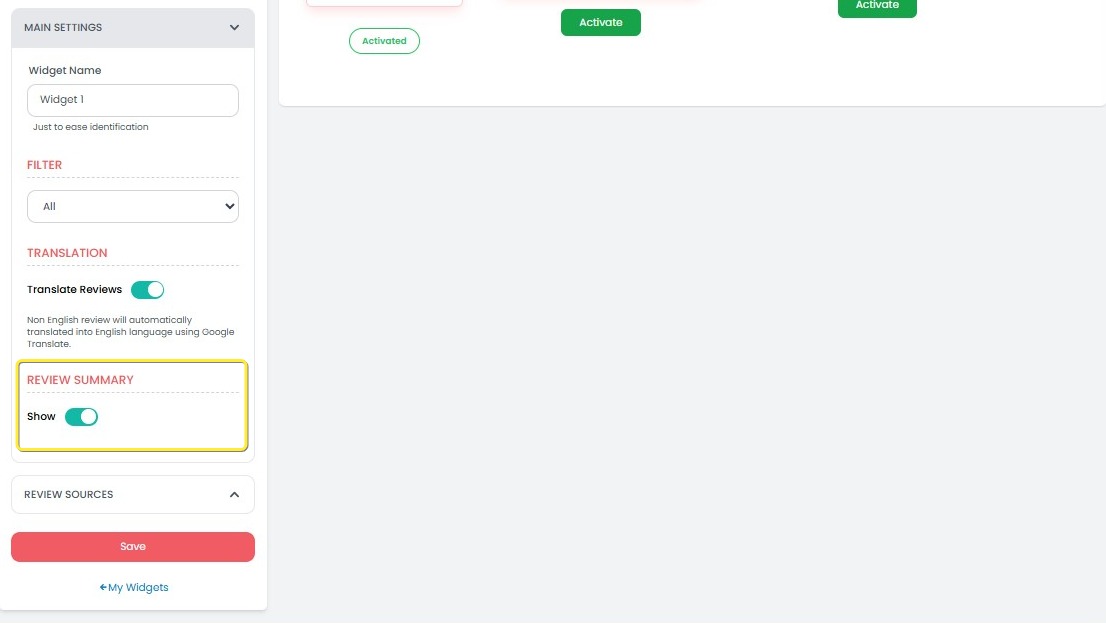
- Review Summary: Toggle on/off to display a summarized overview of the reviews.
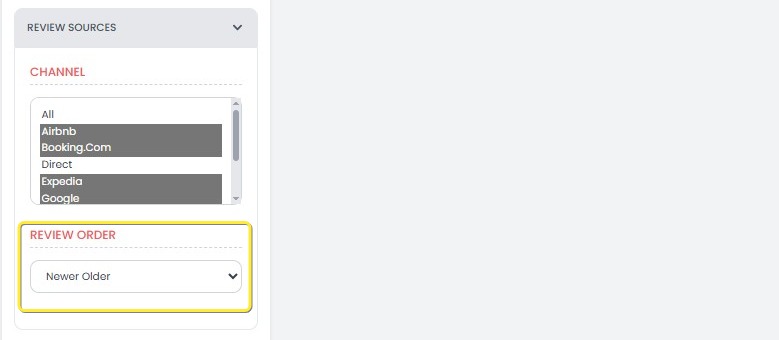
Review Source
- Channel:
Select a specific channel to display reviews from (e.g., Google, Booking.com, Airbnb).- Make sure you have the necessary integrations and permissions to display reviews from the selected channel.
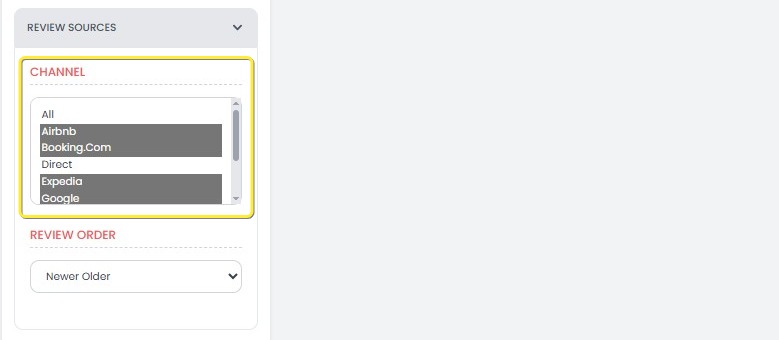
- Make sure you have the necessary integrations and permissions to display reviews from the selected channel.
- Review Order:
Set how the reviews are sorted:- Newer to Older: The newest reviews will appear at the top.
- Older to Newer: The oldest reviews will appear at the top.
Save and Apply
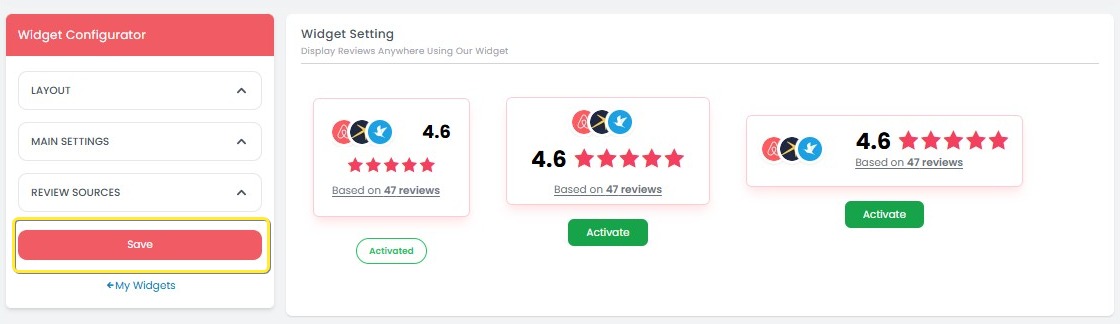
After completing the configuration, click the Save button to create and activate the widget.
[!NOTE]
Troubleshooting Widget
New Widget button is not visible
- Ensure that you are on the Widget page. The New Widget button is located at the top-right of the page.
- Refresh the page to ensure the button appears correctly.
Widget Editor page does not load
- Check your internet connection. A poor connection might prevent the page from loading.
- Try refreshing the page or navigate back to the Widget page and click the New Widget button again.
Layout options are not displaying correctly
- Ensure that you have selected a valid layout option. If no layout is displayed, refresh the page and try again.
- Try clearing your browser cache and reloading the page if the layouts still don't appear.
Unable to save widget settings
- Verify that all required fields, such as Widget Name, are filled in. The Save button may be disabled if these fields are empty.
- Check your internet connection to ensure the settings are saved properly.
- If the issue persists, try saving the widget in a different browser or after clearing the cache.
Translation toggle is not responding
- Ensure that the toggle switch is functioning properly. If it’s not responsive, refresh the page or try using a different browser.
- Check if the translation feature is supported for the selected language in your system settings.
Review Source dropdown is not displaying options
- Verify that you have proper access to the review sources (e.g., Google, Booking.com, Airbnb). If no options appear, check your account permissions.
- Refresh the page and try again. If the issue persists, contact support for further assistance.
Review Order settings are not being applied
- Ensure that you have selected a valid sorting option for Review Order.
- Wait a few seconds after saving the widget settings to allow the changes to take effect.
Widget does not appear on the website after saving
- Double-check the widget tag provided during setup. Ensure it has been correctly copied and integrated into the Bookingku Booking Engine.
- Ensure your website is correctly configured to display the widget and that no conflicts are occurring with other elements on the page.
How to Edit an Existing Widget
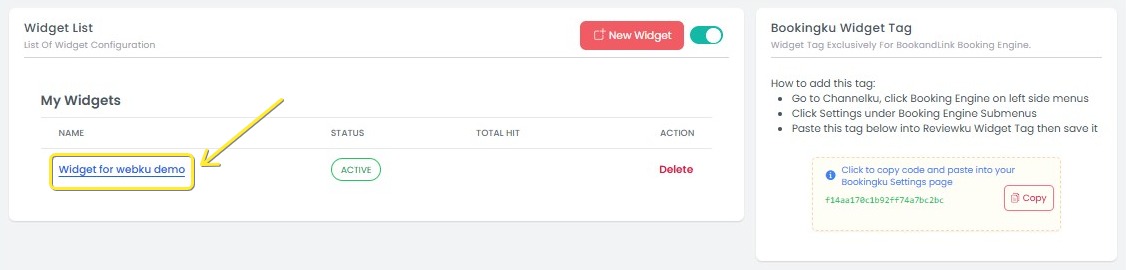
- On the Widget page, find the widget you want to modify under the My Widgets section.
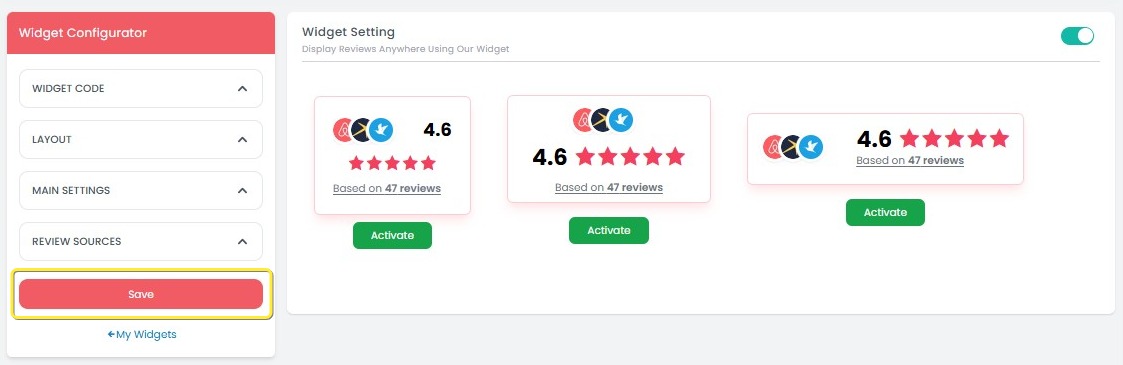
- Click the widget name (e.g., "Widget for webku demo"). You will be redirected to the Widget Configurator page.
- Adjust any configuration settings as needed, including:
- Widget Code
- Layout
- Main Settings (Widget Name, Filter, Translation, Review Summary)
- Review Souce (Channel, Review Order)
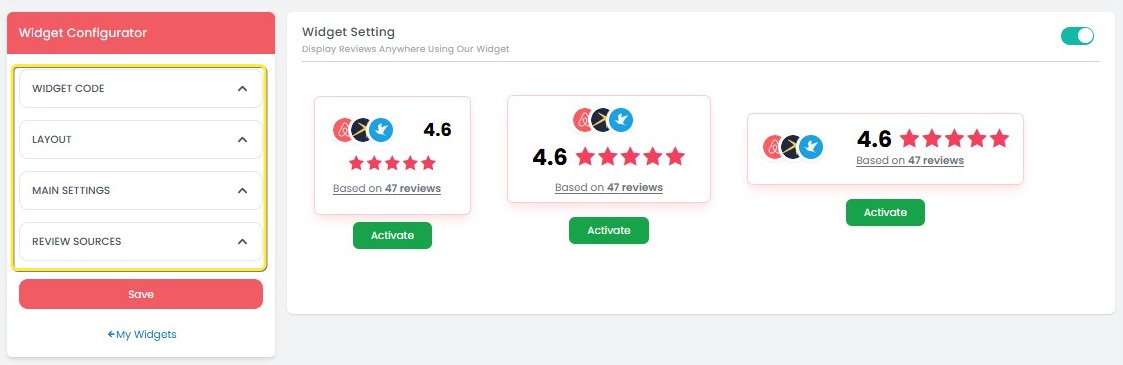
- After making changes, click Save to apply the updates.
[!NOTE]
Troubleshooting How to Edit an Existing Widget
Widget not appearing in the "My Widgets" section
- Make sure the widget you want to edit has been successfully created and saved. It should appear in the My Widgets section once it's saved.
- If the widget is not appearing, try refreshing the page or check if any filters are applied that might be hiding it.
Unable to click on the widget name
- Ensure you are clicking the correct widget name in the My Widgets section. The widget name should be clickable like a link.
- If the name is still not clickable, check your browser settings to make sure JavaScript is enabled, as it is required for the page to function properly.
- If you're unsure about the settings, try opening the page in a different browser.
- If the issue persists, please contact support for further assistance.
Widget Configurator page does not load
- Make sure your internet connection is stable, as a slow or interrupted connection can prevent the page from loading.
- If the page still doesn't load, try clearing your browser cache or use a different browser.
Changes not saved after editing
- After making changes to the widget configuration, ensure you click the Save button to apply the updates.
- If the changes still aren't saved, check if any required fields (such as Widget Name) are empty, as these need to be filled in before saving.
Widget configuration settings are not applying
- Double-check that you have made the desired changes before clicking Save.
- After saving, wait a few seconds for the system to apply the updates. If changes still aren't reflected, try refreshing the page to verify them.
Unable to update widget code
- If the Widget Code field is not responding, make sure you have the necessary permissions to modify the widget code.
- Refresh the page or try editing the widget in a different browser if the issue persists.
How to Copy and Use the Bookingku Widget Tag
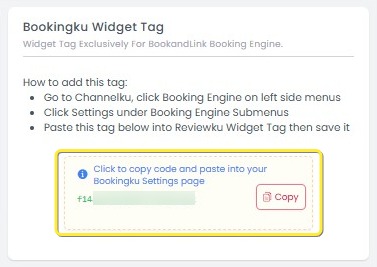
The Bookingku Widget Tag allows you to integrate your Reviewku widget into the Bookingku Booking Engine. You can copy the tag and paste it into your Bookingku system for seamless integration.
- On the Widget page, locate the Bookingku Widget Tag section on the right side.
- If this section is missing, refresh the page or navigate away and back to the Widget page.
- If this section is missing, refresh the page or navigate away and back to the Widget page.
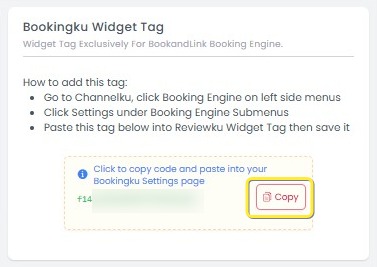
- Click the Copy button next to the widget code.
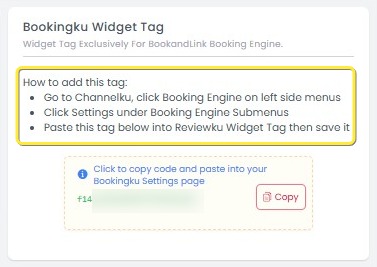
- Follow the instructions included in the Bookingku Widget Tag section to embed the widget into your website or platform.
[!NOTE]
Troubleshooting How to Copy and Use the Bookingku Widget Tag
Bookingku Widget Tag section is not visible
- Make sure you are on the Widget page and looking at the right section for the Bookingku Widget Tag.
- If the section is missing, try refreshing the page or navigate away and back to the Widget page.
Copy button is not working
- Ensure that you are clicking the correct Copy button next to the widget code.
- Try using a different browser or clearing the cache if the Copy button is unresponsive.
Unable to copy the widget code
- Ensure that you have proper permissions to copy and use the widget tag. If you're encountering issues, check your user role or access permissions.
- If the code still doesn't copy, try manually selecting and copying the code instead of using the button.
Widget tag is not embedding into the website
- Double-check the copied widget code and ensure it is correctly pasted into the designated section of your website's HTML.
- Verify that your website's platform supports external widgets. If you're unsure, consult your website's support or development team.
Instructions for embedding widget are unclear
- Ensure you are following the instructions step by step as provided in the Bookingku Widget Tag section. If any steps are unclear, try contacting support for help.
- If the widget still doesn’t embed correctly, consult the FAQ or documentation for additional troubleshooting steps.