Introduction
The Setup Competitors page allows you to add, view, and manage competitor properties for benchmarking analysis. You can expand each competitor to view detailed information, add associated review channels, or remove competitors with confirmation prompts. This helps ensure that the competitor list remains accurate and relevant for your review comparison and performance tracking.
How to Add a Competitor
- Click the Add Competitor button.
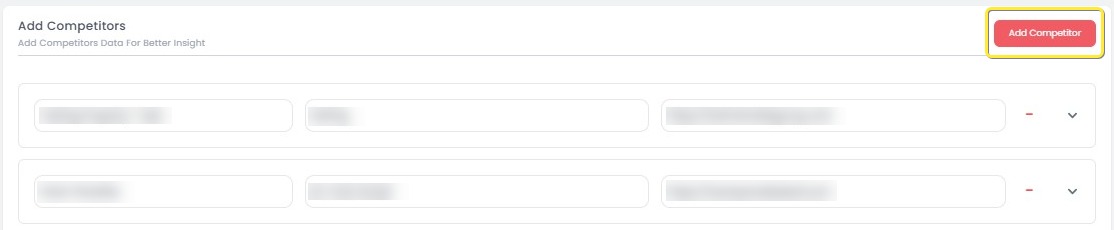
- A field will appear where you can input the website URL of the competitor.

- Enter the competitor’s website URL and click the Search button.

- A modal window will display a preview of the website.
- If the preview matches the intended competitor, click Yes to confirm.
- If not, click No, Let's Change to modify the URL.
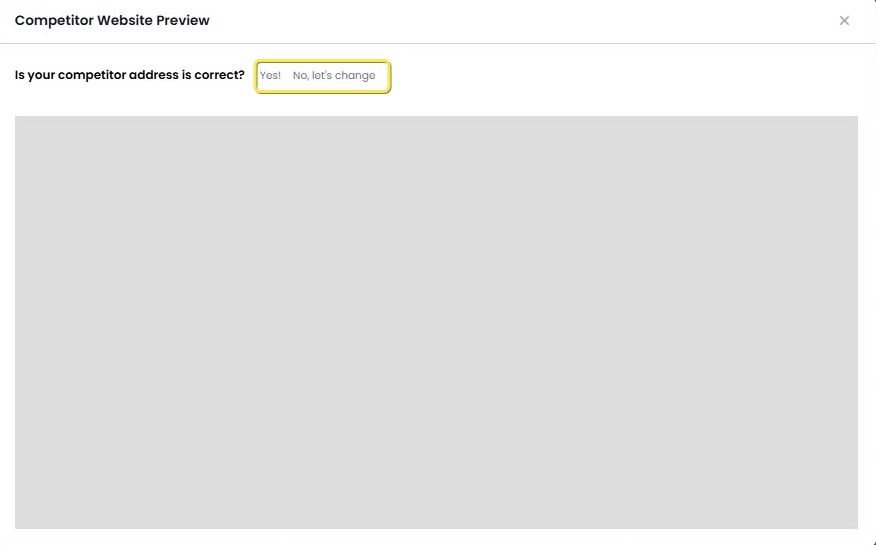
- After confirming, you must fill in the Property Name and Address fields.

- Once the Property Name and Address are completed, click the Save button to add the competitor to the list.
- Click Save to finalize the addition of the competitor property.

- After saving, you can proceed to add channels for the competitor.
[!NOTE]
Troubleshooting How to Add a Competitor
Add Competitor button is not responding
- Refresh the page and try clicking the Add Competitor button again.
- Make sure your internet connection is stable.
Unable to search competitor website
- Ensure the URL you entered is valid and publicly accessible.
- Double-check that the URL includes the correct domain (e.g.,
https://format).Website preview does not load
- Confirm that the website is online and not blocked.
- Try re-entering the URL or using a different browser.
Accidentally clicked "No, Let's Change"
- Simply retype the correct website URL and click Search again to fetch a new preview.
Cannot proceed after clicking Yes
- Make sure you complete the Property Name and Address fields before clicking Save.
- These fields are mandatory and must not be left blank.
Save button is disabled or not saving
- Verify that all required fields (Property Name, Address, Website URL) are correctly filled.
- Try refreshing the page and redoing the process if the issue persists.
Competitor does not appear in the list after saving
- Wait a few seconds after saving to allow the system to update.
- Refresh the page to reload the updated competitor list.
How to Add a Channel to a Competitor
- On the competitor list, click the arrow icon next to the competitor’s name to expand the details.
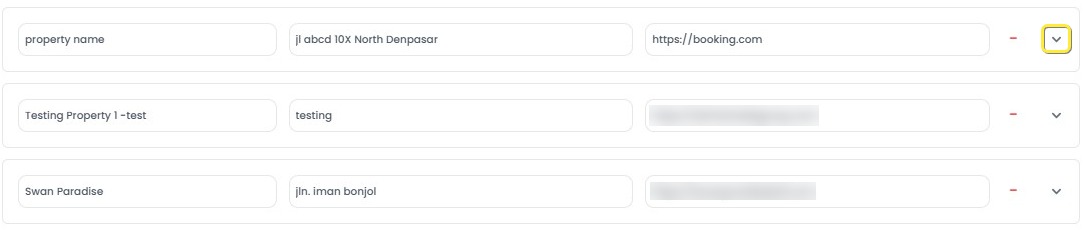
- Click Select Channel to open the channel selection menu.
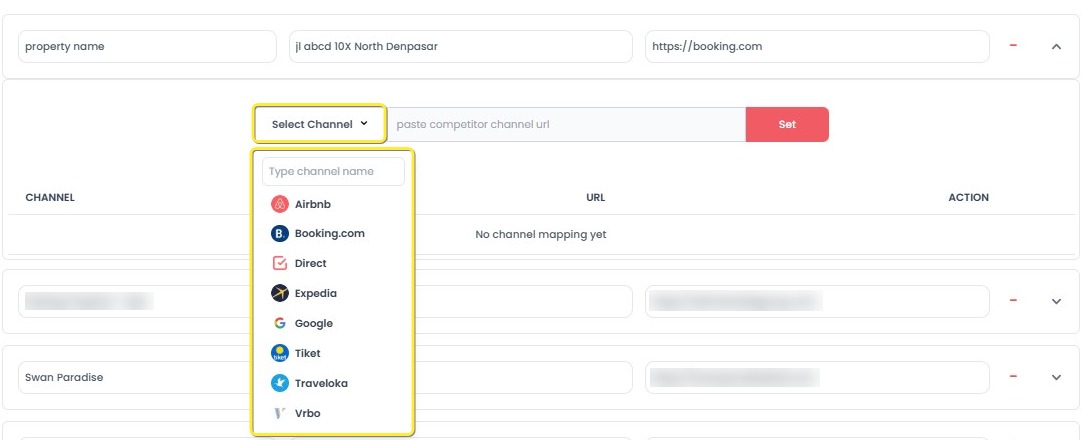
- Select the desired channel from the dropdown list or search for it using the search field.
- Input the competitor’s channel URL (e.g.,
https://www.booking.com/hotel/id/the-westin-resort-nusa-dua-bali.html).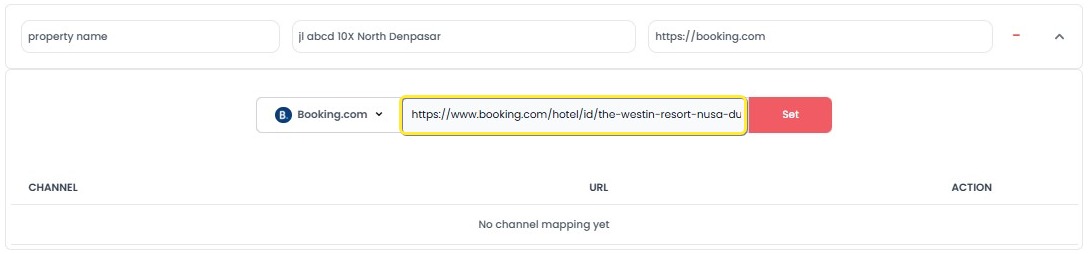
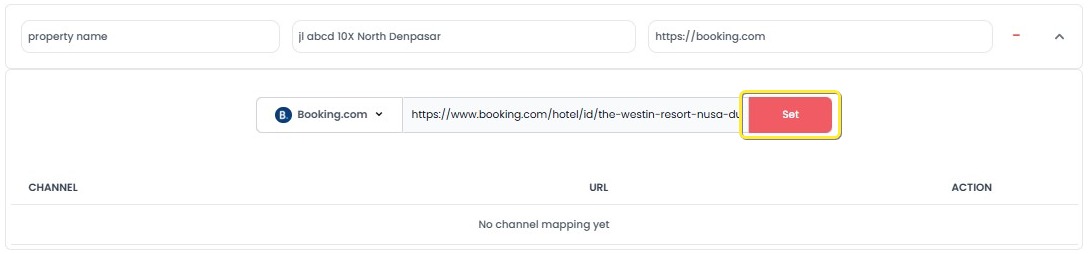
- Click the Set button to link the channel to the competitor.
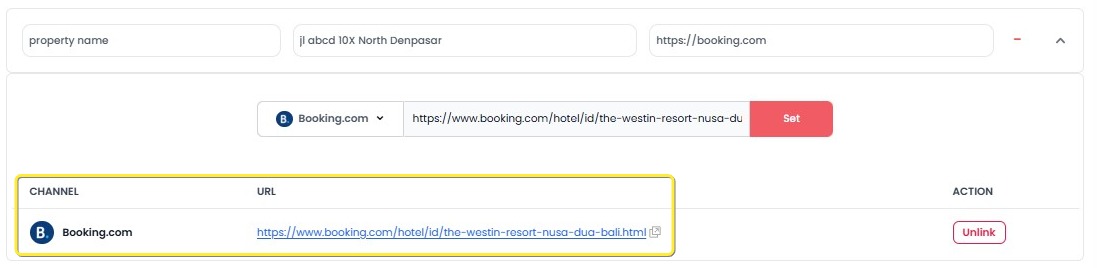
- The channel will be displayed under the competitor’s details, showing:
- The channel name.
- The linked URL, which is clickable and will open in a new browser tab.
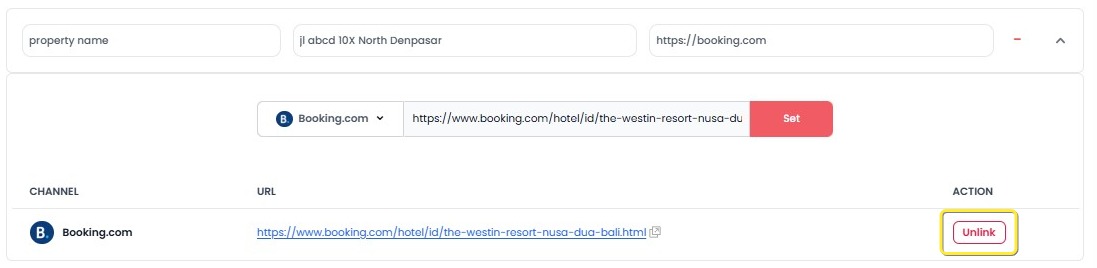
- To unlink a channel:
-
Click the Unlink button next to the channel.
-
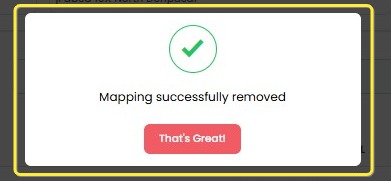
A success modal will confirm that the channel has been unlinked.
-
[!NOTE]
Troubleshooting How to Add a Channel to a Competitor
Cannot expand competitor details
- Ensure you click the arrow icon next to the competitor’s name.
- If it does not expand, refresh the page and try again.
Select Channel dropdown is empty
- Make sure you have an active internet connection.
- Refresh the page to reload the available channel list.
Cannot input or save the competitor’s channel URL
- Verify that the URL is correctly formatted and publicly accessible.
- Ensure the correct channel is selected before inputting the URL.
Set button is not clickable
- Check that both a channel is selected and a valid URL is entered.
- If the problem persists, refresh the page and try again.
Linked URL is incorrect after saving
- Unlink the incorrect entry and re-add the channel with the correct URL.
- Always double-check the URL before clicking the Set button.
Unlink action does not work
- Refresh the page and try clicking the Unlink button again.
- Confirm that a success message appears after unlinking to ensure the action is completed.
How to Expand or Collapse Competitor Details
- On the Setup Competitors page, find the competitor you want to view.
- Click the arrow icon next to the competitor’s name to expand or collapse the details.
- When expanded, additional details about the competitor property will be displayed.
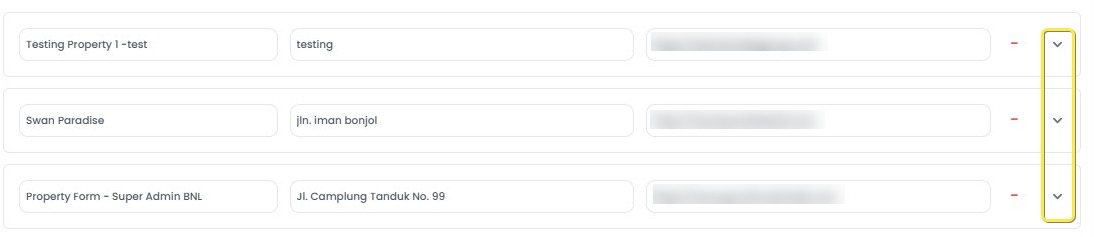
- Click the arrow again to hide the details.
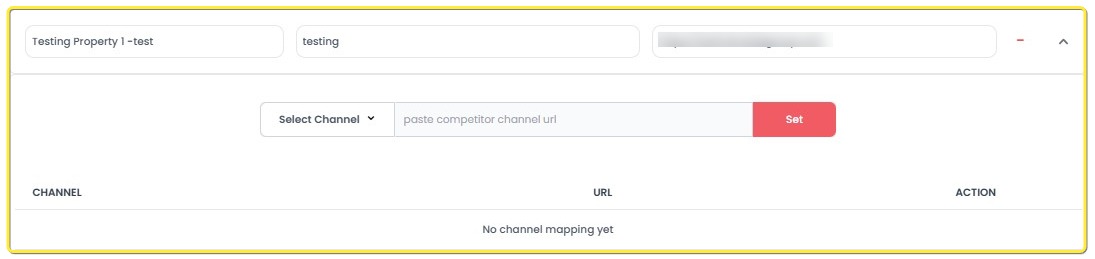
- When expanded, additional details about the competitor property will be displayed.
[!NOTE]
Troubleshooting How to Expand or Collapse Competitor Details
Arrow icon is not responding
- Ensure that the page has fully loaded before attempting to expand or collapse competitor details.
- Refresh the page and try clicking the arrow icon again.
Competitor details do not appear after clicking
- Check your internet connection; a slow connection may delay the display.
- Wait a few seconds after clicking, as data may still be loading in the background.
Expanded view shows incomplete information
- Collapse the competitor entry by clicking the arrow again, then re-expand it.
- If the problem persists, refresh the page to reload full data.
Accidentally expanded/collapsed the wrong competitor
- Simply click the arrow icon again to collapse the incorrect competitor and expand the correct one.
How to Delete a Competitor
-
Locate the competitor you wish to remove.
-
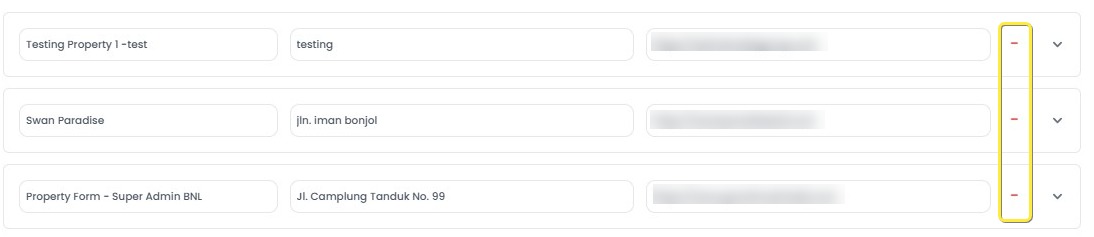
Click the minus (-) icon next to the competitor’s name.
-
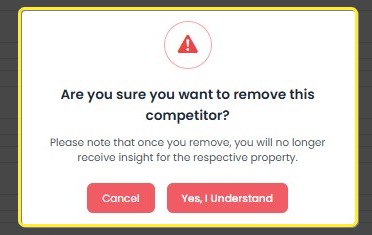
A confirmation modal will appear asking if you are sure you want to delete the competitor.
-
Click Confirm to delete, or click Cancel if you change your mind.
 qwert
qwert
[!NOTE]
Troubleshooting How to Delete a Competitor
Minus (-) icon is not clickable
- Ensure that you have expanded the competitor list fully and that the page has loaded.
- Refresh the page and try again.
Confirmation modal does not appear after clicking the minus icon
- Check if there are internet connection issues causing delayed responses.
- Reload the page and retry the deletion process.
Accidentally clicked delete on the wrong competitor
- Click Cancel on the confirmation modal to prevent deletion.
- No changes will be made if you cancel the action.
Competitor was not removed after confirming delete
- Wait a few seconds; sometimes it takes time to update.
- Refresh the page to verify whether the competitor was successfully deleted.