Introduction
The Channel page allows you to manage your active review sources. On this page, you can enable or disable channel connections, retrieve past reviews manually by selecting a specific date range, and contact the BookandLink support team via WhatsApp for further assistance.
This setup ensures that the latest reviews from various platforms are properly synchronized into the system according to your operational needs.
How to Enable or Disable a Channel
- Locate the channel you want to manage from the list.
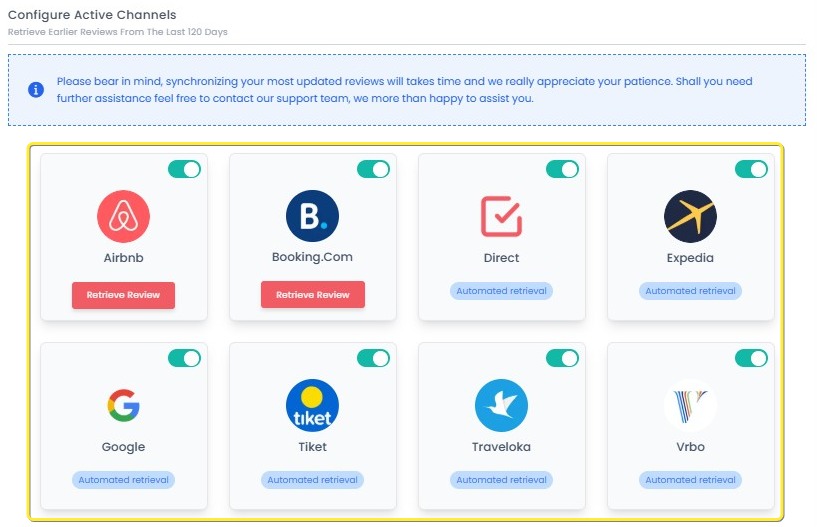
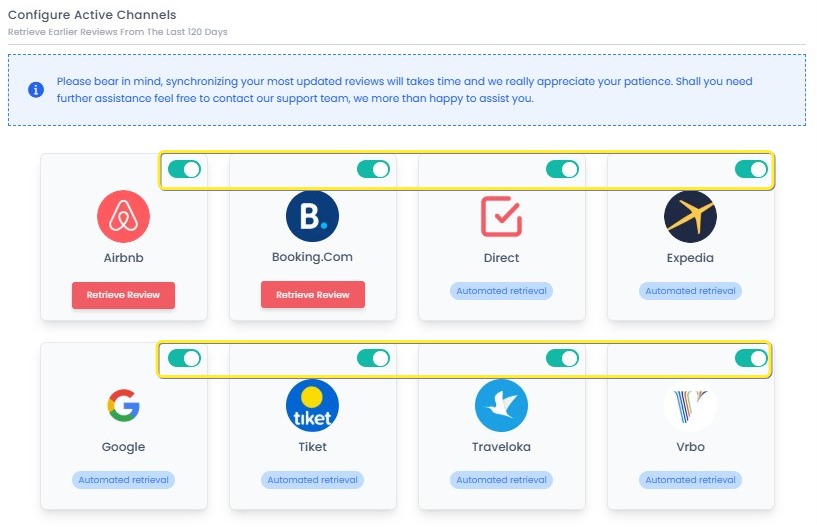
- Toggle the switch at the top-right corner of the channel card:
- Turn on to activate the channel connection.
- Turn off to deactivate the channel connection.
[!NOTE]
Troubleshooting Enable or Disable a Channel
Toggle switch is not responding
- Check your internet connection. A stable connection is required to update the channel status.
- Refresh the page and try toggling the switch again.
Channel status does not change after toggling
- Make sure you wait a few seconds after clicking the toggle to allow the system to update.
- If the status still does not change, refresh the page to verify if the action was applied.
Error message appears when enabling a channel
- This may indicate missing credentials or integration issues. Contact support for assistance.
Previously enabled channel appears disabled after refreshing
The change might not have been saved properly. Try toggling the switch again and wait until it confirms the update.
How to Retrieve Past Reviews
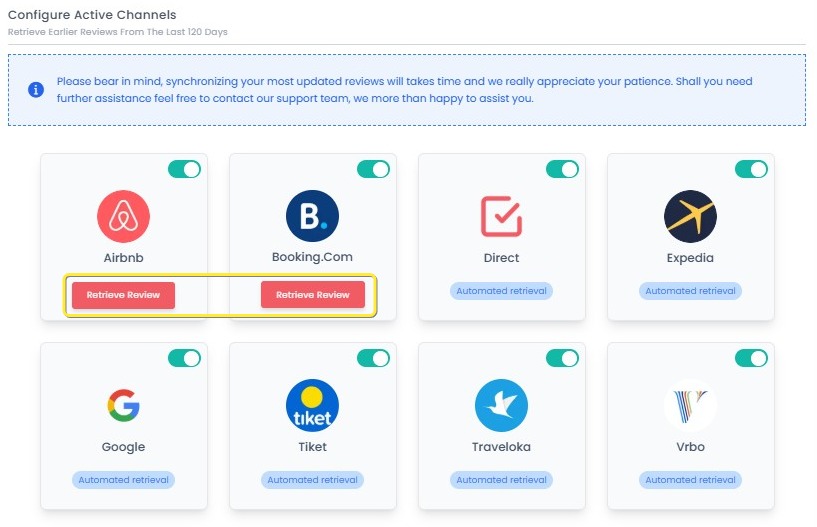
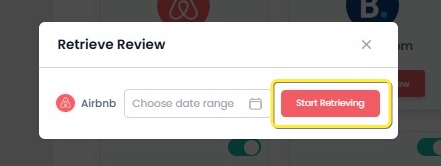
- On the channel card, click the Retrieve Review button (available for selected channels).
- In the pop-up window, select the Date Range for the reviews you want to retrieve.
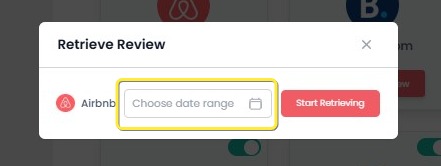
- Click the Start Retrieving button to begin the synchronization process.
[!NOTE]
Troubleshooting How to Retrieve Past Reviews
Retrieve Review button is not appearing
- Make sure the channel you're working with is eligible for review retrieval. Not all channels support this feature.
- Refresh the page to ensure that the button loads properly.
Date Range is not selectable
- Check if the selected channel has reviews for the date range you're trying to retrieve. If no reviews exist within the range, it may not be selectable.
- Try closing and reopening the pop-up window.
Start Retrieving button is not responding
- Ensure that your internet connection is stable. A poor connection can prevent the synchronization process from starting.
- Try refreshing the page and clicking the button again. Wait a few moments before retrying.
No reviews are retrieved after clicking Start Retrieving
- Verify that the selected date range actually contains reviews. If no reviews are available within the selected range, the system will not retrieve any data.
- If reviews are available, check for any error messages and contact support if the issue persists.
How to Contact Assistance (Need Assistance)
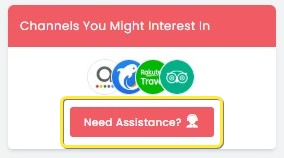
- Click the Need Assistance? button located at the top-left corner of the Channel page.
- You will be redirected to open a WhatsApp chat with the BookandLink support team for further help.
[!NOTE]
Troubleshooting How to Contact Assistance (Need Assistance)
Need Assistance? button is not visible
- Ensure that you are on the Channel page where the button is located. If you're on a different page, navigate back to the Channel page.
- Refresh the page to make sure the button loads properly.
WhatsApp chat does not open
- Check if WhatsApp is installed and configured on your device. You may need to have WhatsApp set up for the link to work.
- Try clicking the button again or copy and paste the link into your browser to start a chat manually.
Unable to connect to the BookandLink support team via WhatsApp
- Make sure your internet connection is stable. A weak connection may prevent the WhatsApp chat from loading.
- If the connection still doesn't work, try restarting your device or use a different network to initiate the chat.