Introduction
Ikyu is an Online Travel Agency (OTA) channel that can be integrated with the Channel Manager. Through this integration, you can manage your property listings, synchronize room availability, rates, and restrictions, and receive bookings directly within the system.
Once the integration is fully configured, all reservations from Ikyu will appear in the Booking List, allowing you to manage them efficiently in one place.
Accessing Ikyu Setting
Here’s how you can access Ikyu setting:
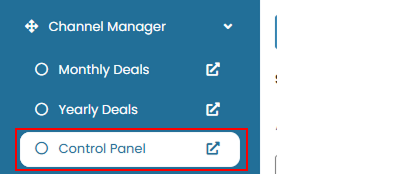
- On the Channelku, navigate to the Channel Manager menu, then click Control Panel.
- Select Ikyu from the channel list,
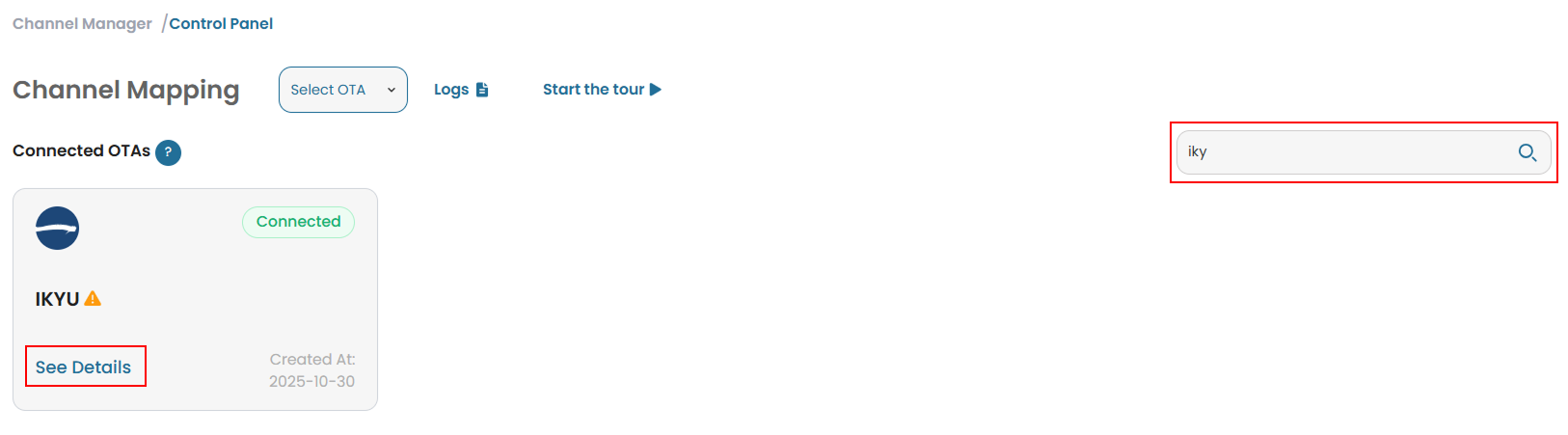
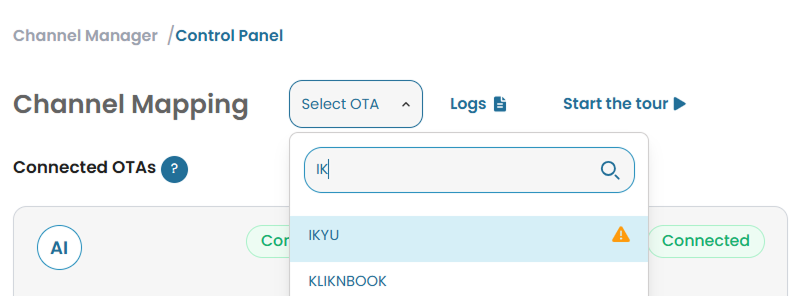 or you can search from the list by type the OTA name and click details.
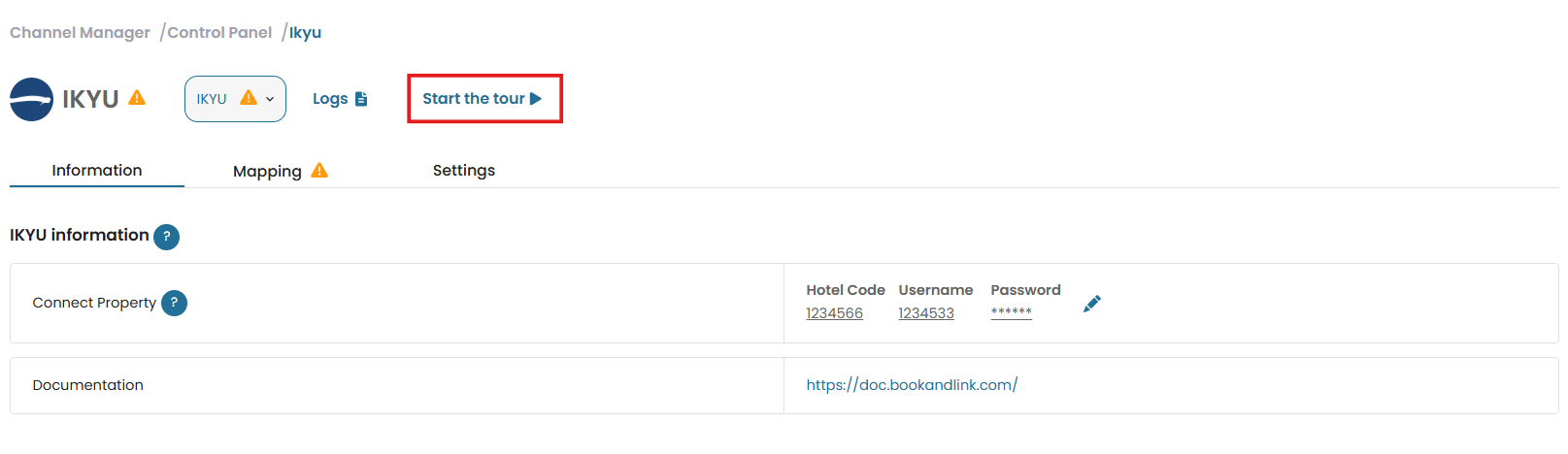
- The Ikyu page is divided into three sections: Information, Mapping, and Settings. This page also provides a Guide button. You can click Start the Tour to access the on-page guide
Ikyu Information
This field is used to enter or update the credentials required to connect to Ikyu. A link to the user documentation is provided below the credentials section for further guidance.
How to Update Credential
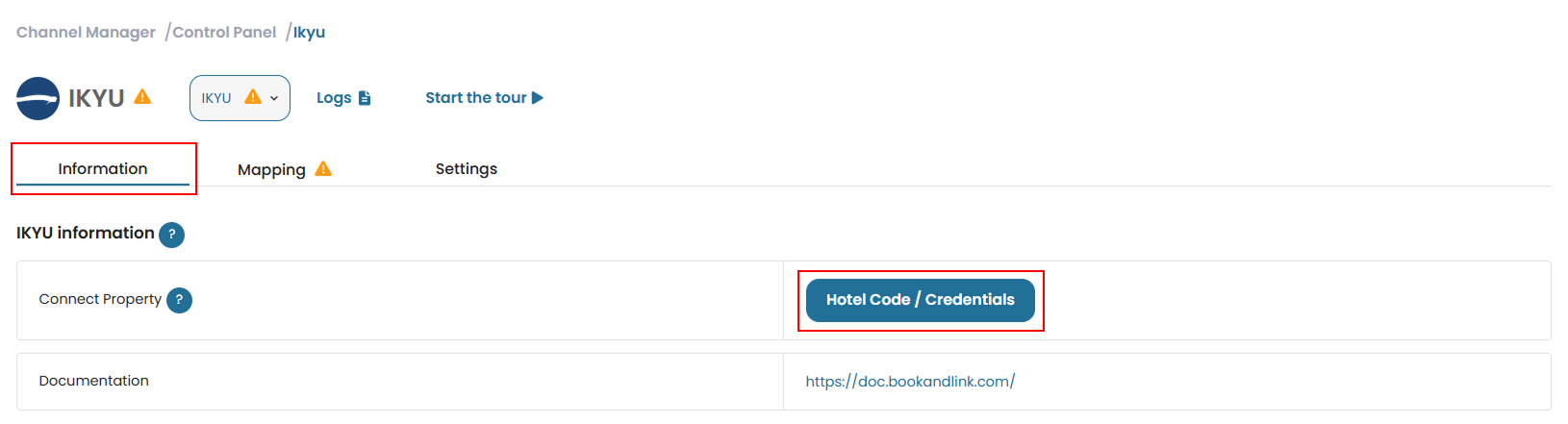
- Navigate to the Information tab and click the Hotel Code/Credentials button.
- Click the edit button to update the desired fields.
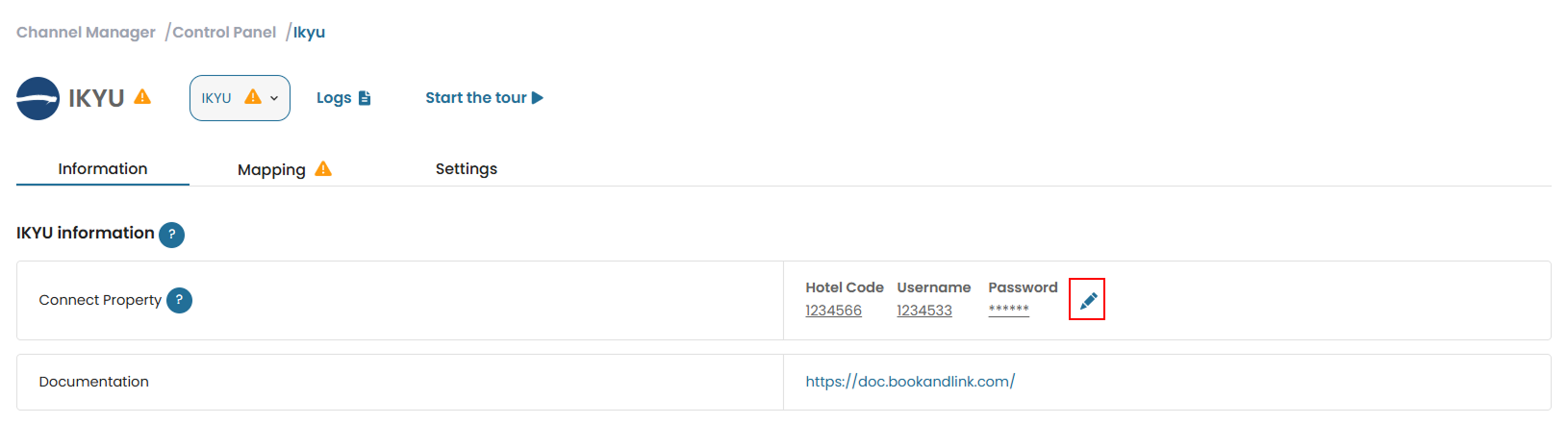
- Update the desired field such as hotel code, username or password.

- Click the save (✓) button to apply the change. If you don’t want to save the change, click cancel (x).
Mapping
The Mapping feature allows you to connect your internal rate plans with the corresponding room and rate plans in Ikyu. This ensures enables the system to push rate, availability, and restriction data to the OTA.
This section provides several features such as
- Unmapped Rate Plan Indicator
Displays the number of external rate plans that have not yet been mapped. A warning icon will appear if there are unmapped items that require attention.
- Show Unmapped Internal Rooms
Allows you to filter and display only internal rate plans that have not been mapped, making it easier to identify pending configurations. Below is an example when the toggle is disabled. The system will only display rate plans that have already been mapped.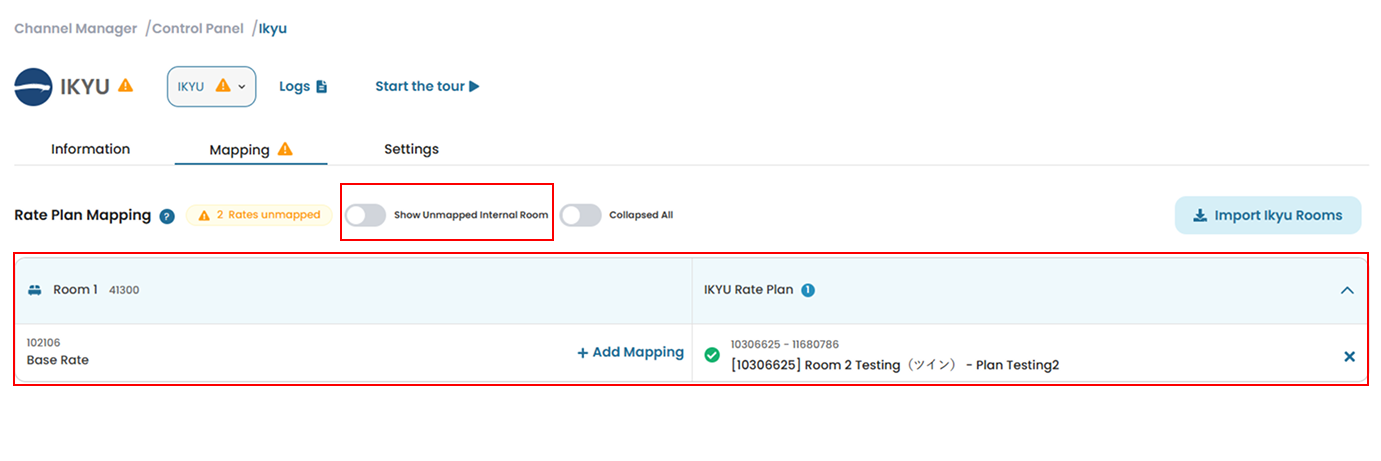
- Collapsed View Toggle
Enables you to expand or collapse all external rate plan details at once, regardless of their mapping status, for easier navigation. - Import Rooms
Retrieves all room and rate plan data from the selected OTA (Ikyu) to ensure the latest data is available for mapping. - Room and Rate Plan List
Displays a side-by-side comparison:- Left side: Internal rooms and rate plans managed in the Channel Manager
- Right side: External rooms and rate plans from Ikyu
- Add Mapping
Allows you to link an internal rate plan with the corresponding external rate plan from Ikyu.
How to Add Mapping
- Go to the Mapping tab and locate the Internal Rate Plan Name you want to map. Then click Add Mapping next to the rate plan.
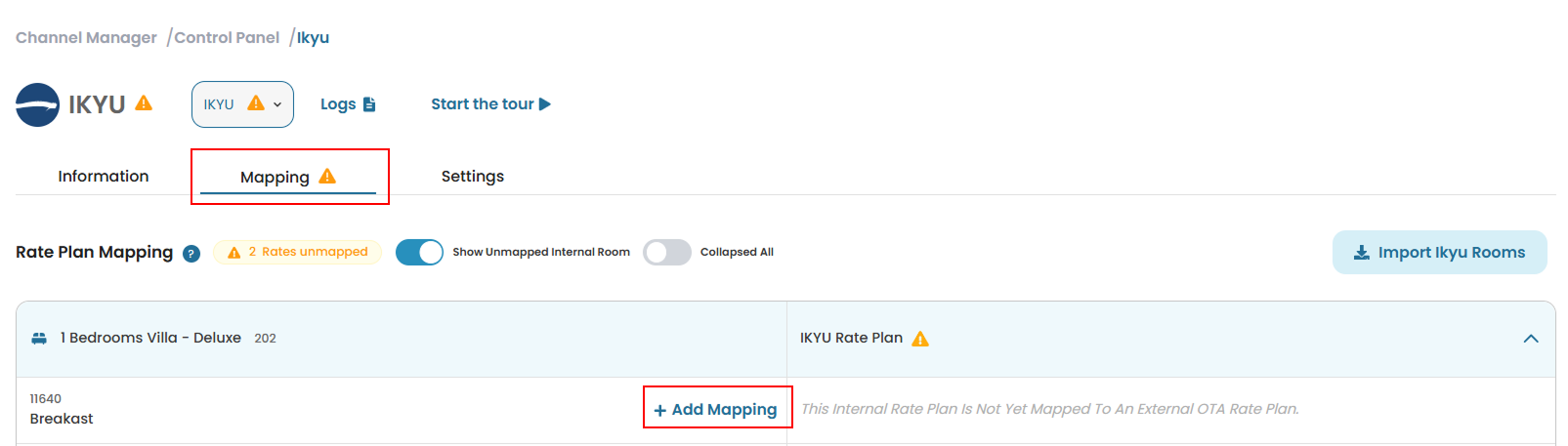
- A list of available room and rate plan combinations from Ikyu will appear.
- Select one option that matches the room and rate plan you want to connect. Rate plans that are crossed out (strikethrough) indicate they have already been mapped and cannot be selected again.
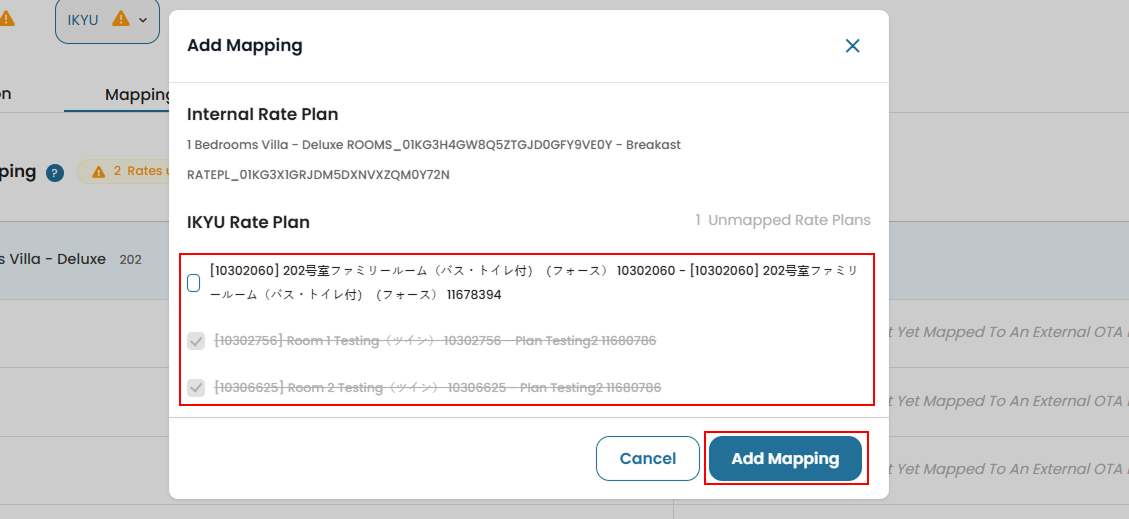
- Click Add Mapping to save the mapping. If you don’t want to continue, click Cancel to cancel the process.
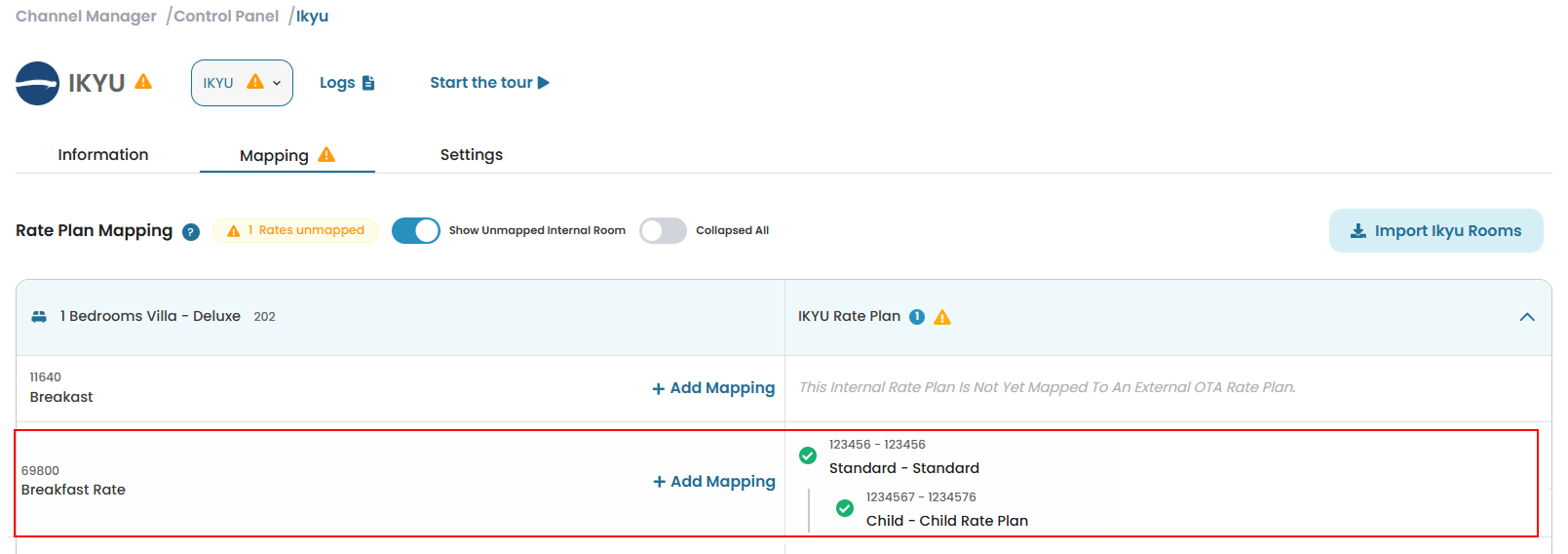
- In version 2, Child rate plans can be mapped directly in the Mapping section. Multiple external rate plans can be linked to a single internal rate plan, with full support for rate, availability, and reservation synchronization. Here is an example of a successfully mapped child rate plan.
How to Remove Mapped Rooms
If you need to update or change a mapping, you must first unmap the existing one. To do this, click the Remove (×) button next to the mapped room.

Import Rooms
The Import Rooms feature retrieves room and rate plan data from Ikyu before mapping.
How to Import Rooms from Ikyu
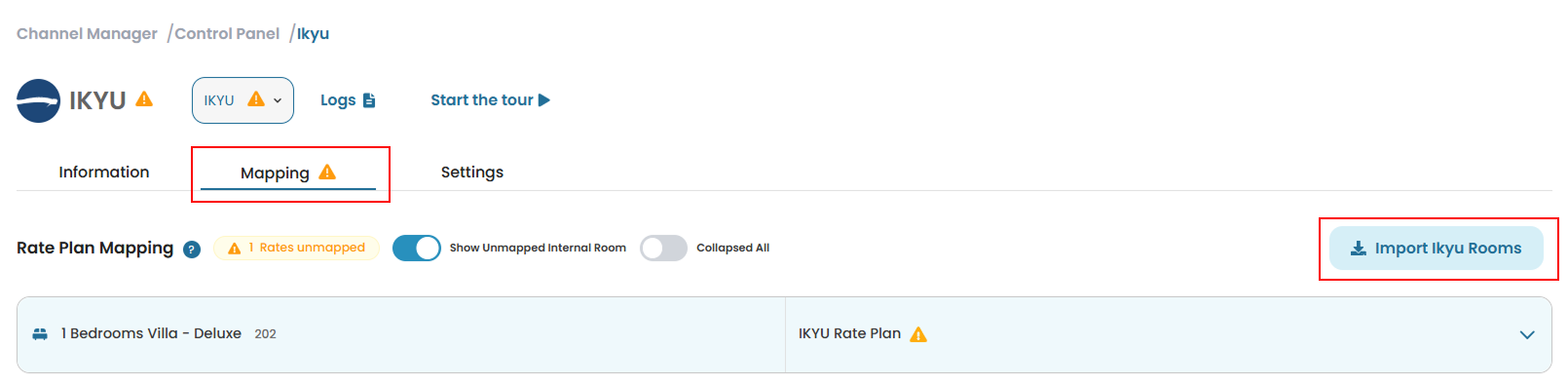
- Click the Import Rooms button in the Mapping tab.
- The system will display available room and rate plans from Ikyu. Tick the rooms you want to import from the available rooms list.
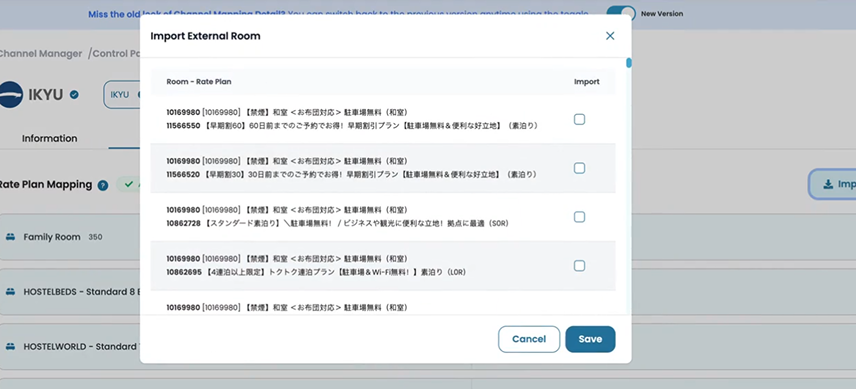
- Click the Save button to complete the import process.
Settings
The Settings tab controls how your system interacts with Ikyu, including data synchronization and reservation handling.
How to Configure Setting
To modify Ikyu parameters, navigate to the Settings tab. This section contains several configurable option:
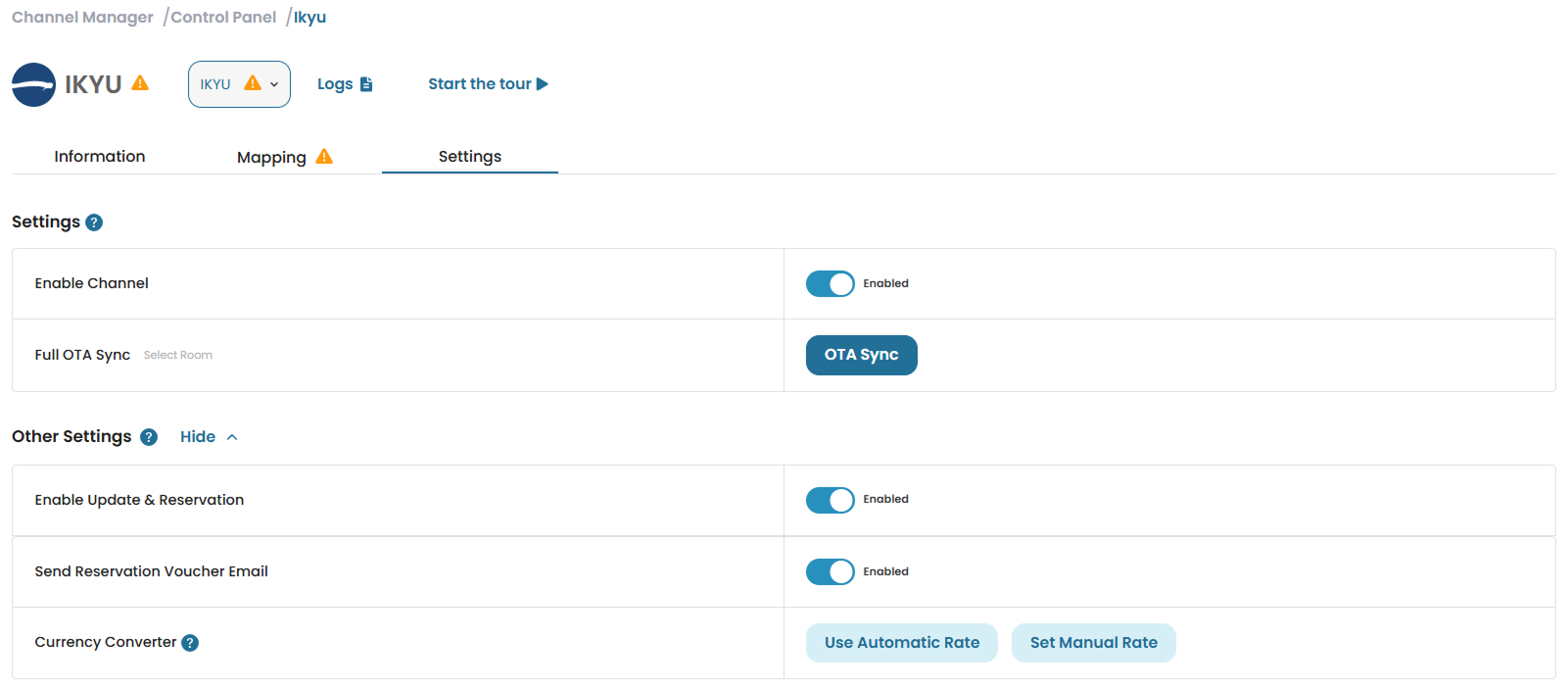
- Enable Channel: Enable this option to activate the connection between the property and Ikyu.
- Full OTA Sync: Enable this option to synchronize rates and availability with Ikyu. Other setting such as
- Enable Update & Reservations
- Send Reservation Voucher Email: Enable this option to trigger the automated delivery of a reservation voucher upon receipt of a new booking.
- Currency converter section: Use this section to configure currency conversion between your system and Ikyu if they use different currencies. Enter the conversion rate manually and click Save to apply the changes.

How to Sync with OTA
Use this feature to manually push updates to Ikyu.
- At the Setting tab, click OTA Sync button
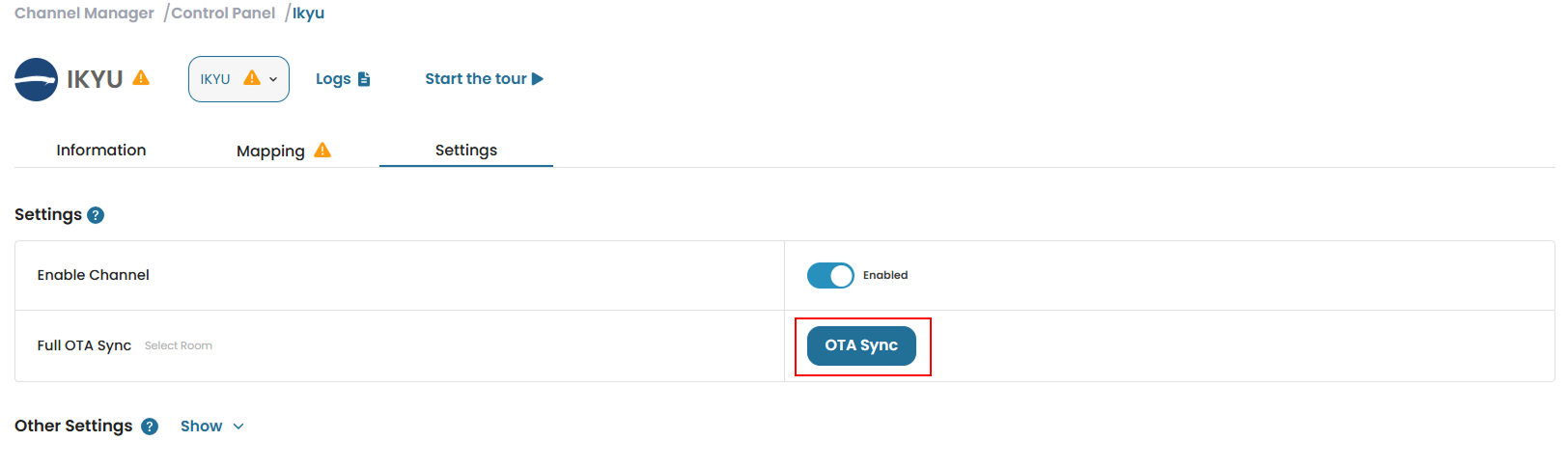
- Complete the required fields:
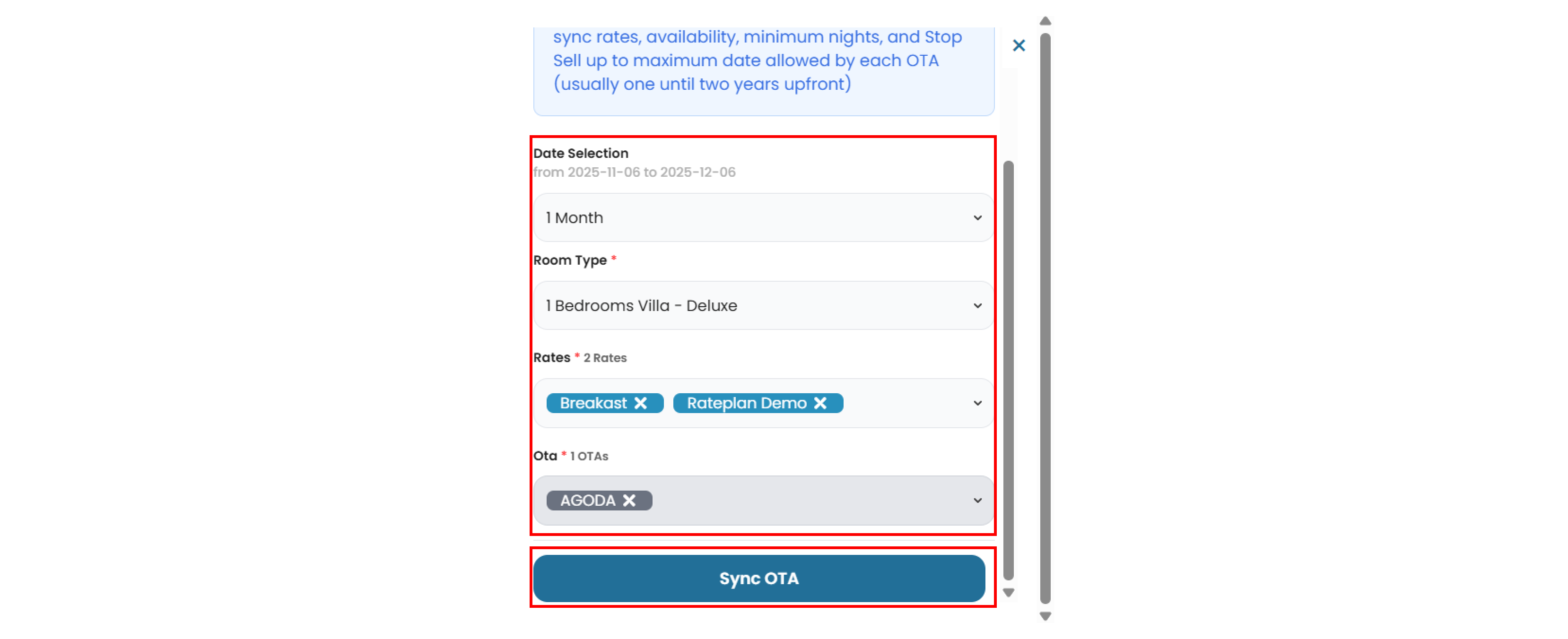
- Date Selection : Choose the duration of the OTA update (e.g 1 month, 3 months, etc)
- Room Type : Select the room type from the list.
- Rate : Choose one or more rate plans. You can also select all rate plan if needed.
- Click Sync OTA to save and apply the changes.